To-do list for Chrome
Less planning. More doing.
Kiwi Todo is a calm, private task manager that opens in its own Chrome window. Plan today, capture tasks from any tab and focus on one thing at a time — with every task stored only on your computer.
At a glance
What is Kiwi Todo?
Kiwi Todo is a free to-do list and task manager extension for Google Chrome, made by AppKiro. It opens in its own resizable window from the toolbar and stores tasks, projects and reminders only in your Chrome profile, with no account, server, analytics or network requests. It includes a Today view, projects, tags, priorities, repeating tasks, reminders, a focus timer and weekly insights.
- Platform
- Google Chrome 116 or later (Manifest V3) on desktop
- Price
- Free, with no account or sign-up
- Storage
- IndexedDB and chrome.storage.local in your Chrome profile; nothing leaves the device
- Permissions
- storage, alarms, notifications, contextMenus, activeTab — no access to the sites you visit
- Languages
- English, Español, 简体中文, हिन्दी and العربية (right-to-left)
- Made by
- AppKiro
Why Kiwi Todo
A to-do list that stays out of your way.
Its own window.
Click the toolbar icon and the same Kiwi Todo window opens or comes to the front. No cramped popup that closes when you click away.
Private by design.
No account, no server, no analytics. Tasks are saved in your Chrome profile and the extension makes no network requests at all.
Works offline.
Everything runs locally, so planning, reminders and the focus timer keep working without an internet connection.
Today
Your day, at a glance.
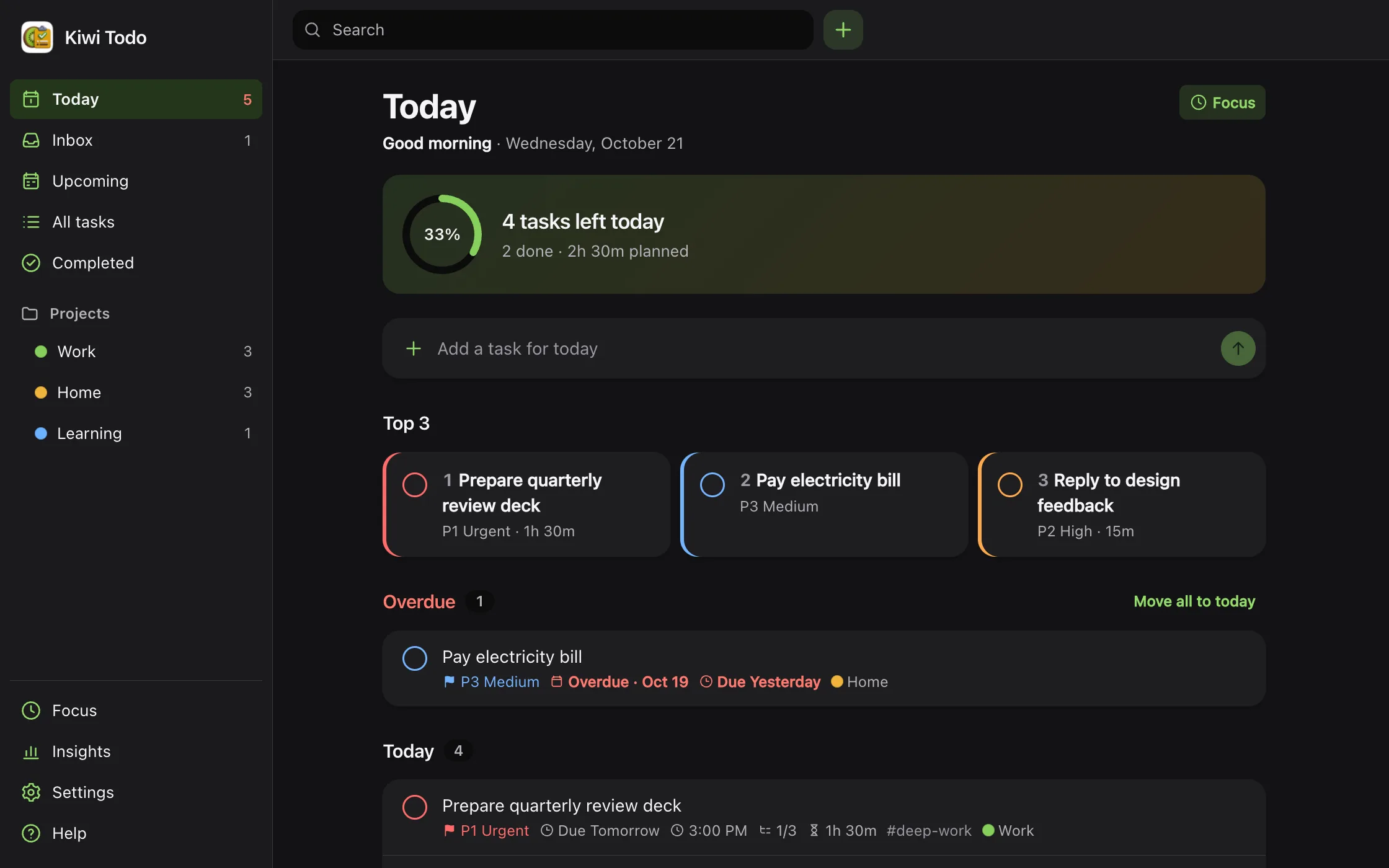
See progress for the day, your Top 3, overdue tasks and the time you have planned against your daily capacity.
- Top 3 with pinning
- Move all overdue tasks to today in one click
- Capacity warning when the day is overbooked
- Smart suggestions based on priority, deadlines and effort
Organize
Every detail, one click away.
Open any task to set its project, priority, dates, reminders, estimate, tags, notes and subtasks — all in one panel beside your list.
- Projects with colors, tags and priorities P1–P4
- Dates and deadlines with times
- Repeating tasks: daily, weekdays, weekly, monthly, yearly or custom
- Reminders with Complete and Snooze, plus quiet hours

Upcoming
Plan the week realistically.
A week strip and a day-by-day plan for the next two weeks show what is coming and how much time each day already holds.
- Planned time per day
- Repeating tasks included
- Inbox, All tasks with filters, Completed, Archived and Trash

Features
Everything a daily plan needs.
Capture from any tab
Press a shortcut to add a task, or right-click a page, selected text or link and choose Add to Kiwi Todo.
AltShiftNOpen from anywhere
Bring the Kiwi Todo window to the front from any tab with one shortcut.
AltShiftKSave the current page
Turn the page you are reading into a task with its title and address.
AltShiftSInsights and weekly review
Review what you completed each week and how your focus sessions went.
Keyboard first
Every action works from the keyboard, with a built-in shortcut reference — press ? in the app.
Light, dark and high contrast
Follow the system theme or choose one, with high-contrast and compact options.
Five languages
English, Spanish, Simplified Chinese, Hindi and Arabic with a full right-to-left layout.
Backup and restore
Export everything to a file, import it on another computer and restore automatic snapshots.
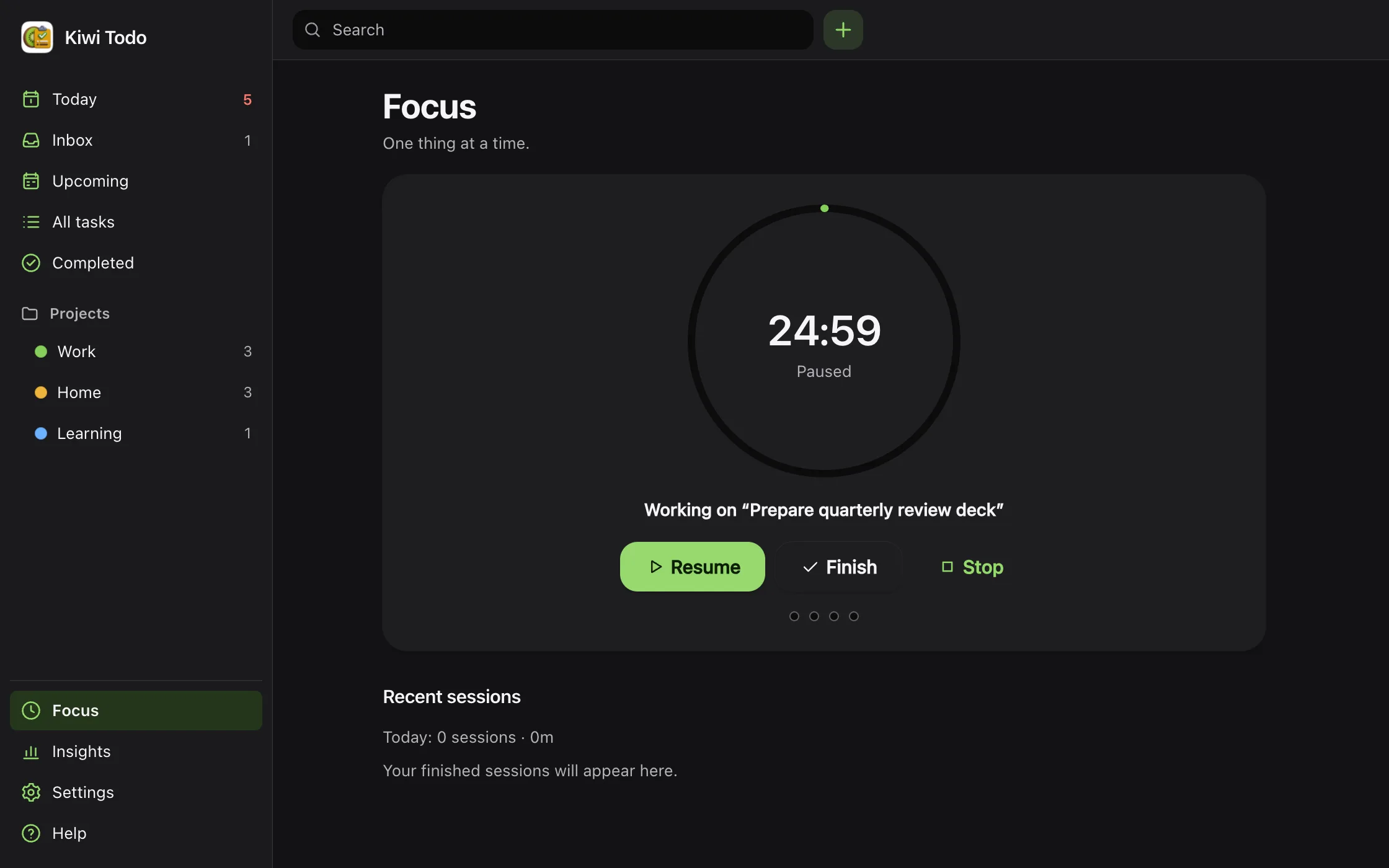
Focus
One task. One timer.
Start a focus session on the task you are working on. Short and long breaks follow automatically, and the timer keeps running even when Chrome suspends the extension in the background.
- No account
- No tracking
- Works offline
Gallery
Take a closer look.
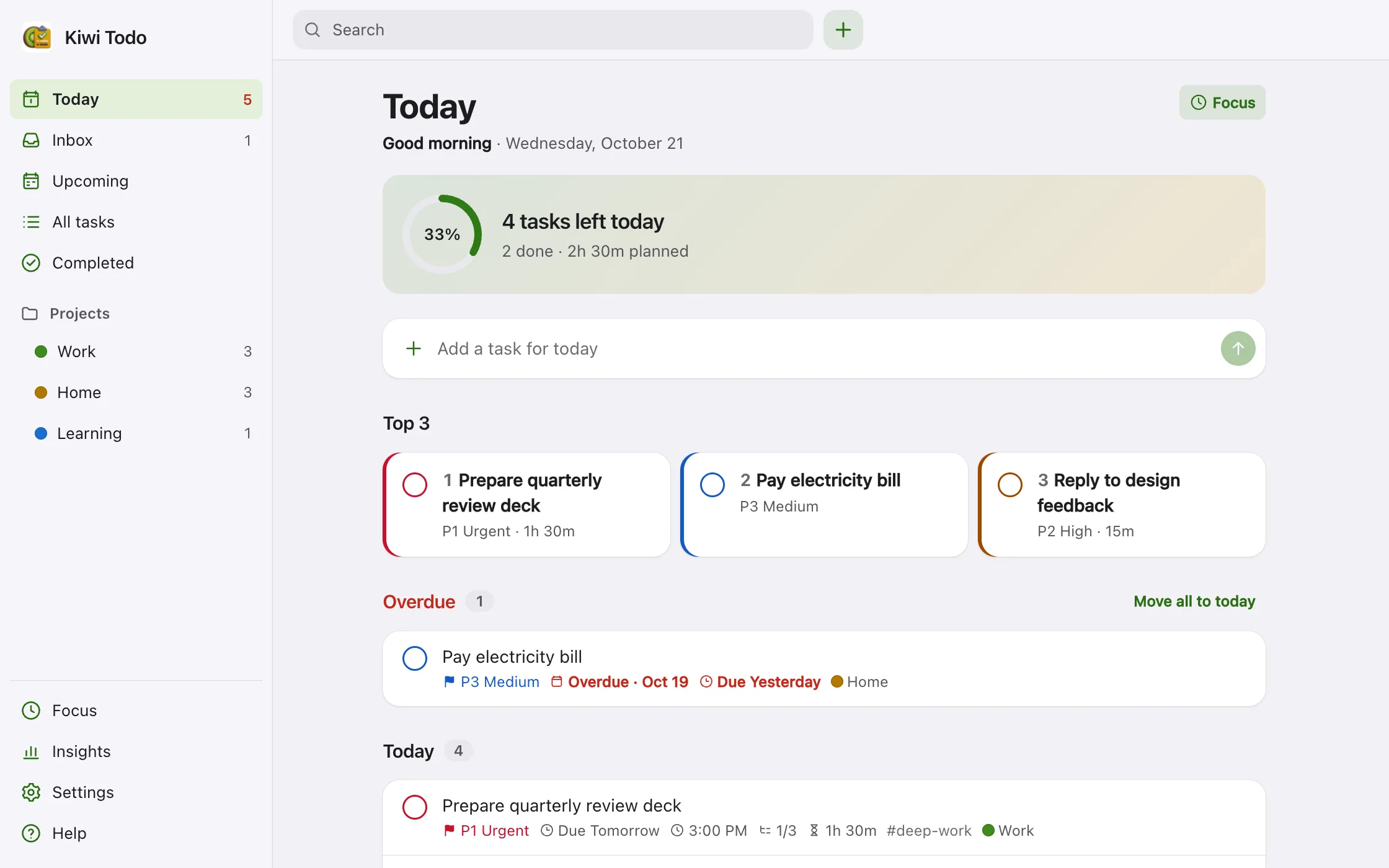
Today. Progress, Top 3 and overdue tasks for the day.
Captured from the real extension in Chrome with sample tasks.
Privacy
Your tasks never leave your computer.
Kiwi Todo never
- Asks you to create an account
- Sends tasks or settings to a server
- Uses analytics, ads or crash reporting
- Reads the pages you visit or your browsing history
- Loads remote code
Kiwi Todo only
- Stores data in your own Chrome profile
- Reads a page's title and address when you choose to save it
- Shows notifications for reminders you set
- Exports a backup file when you ask for one
- Deletes everything when you uninstall it
Read exactly what Kiwi Todo stores and why in the AppKiro privacy policy.
Install
Free for Chrome. Ready in a minute.
Kiwi Todo is free and needs no sign-up.
Coming to Chrome Web Store. Kiwi Todo is on its way to the Chrome Web Store. The install button will appear here as soon as the listing is live.
Get startedThree steps to your first task
Add Kiwi Todo to Chrome
Open the Chrome Web Store listing and click Add to Chrome. A short welcome guide opens in a new tab.
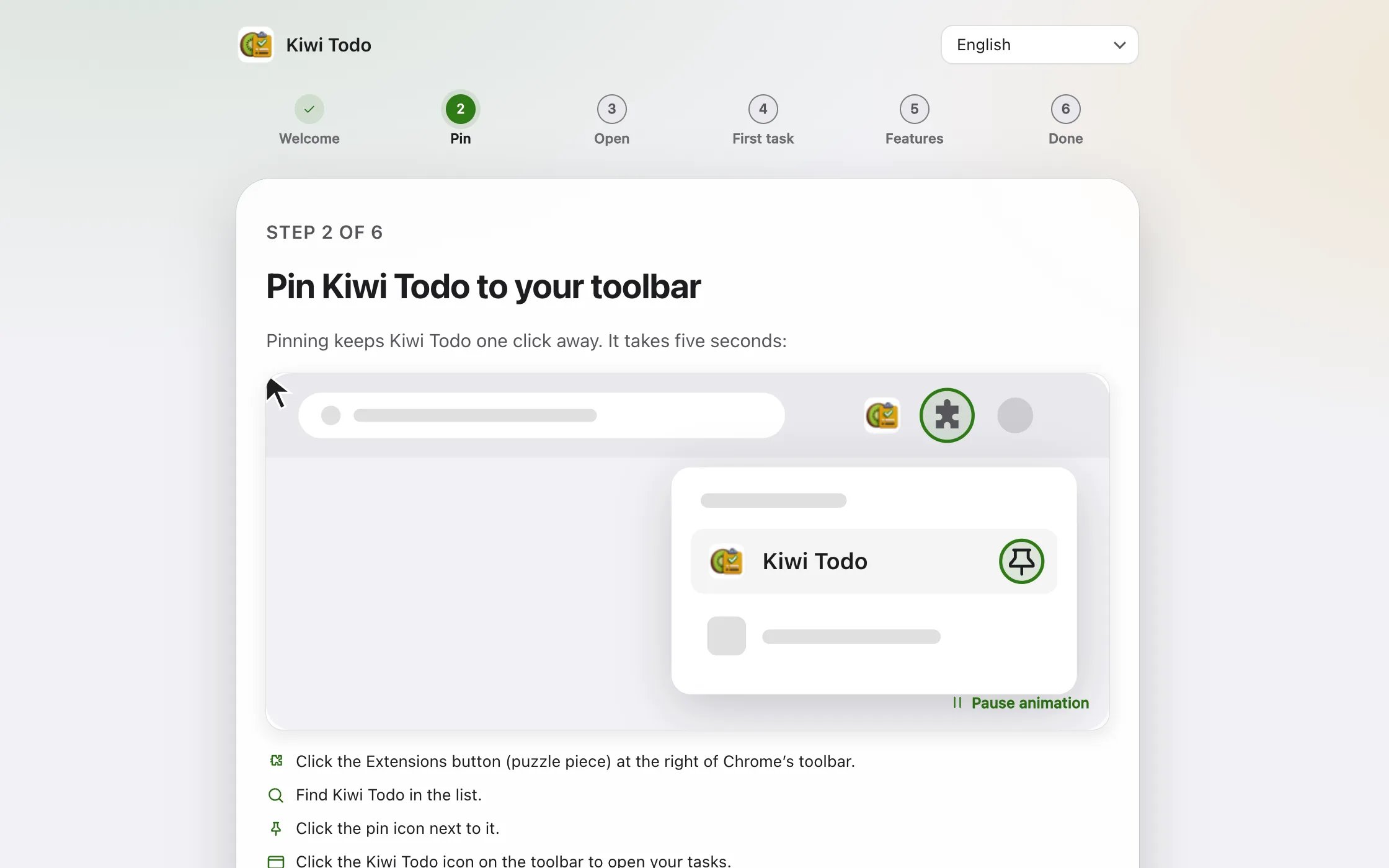
Pin it to the toolbar
Click the Extensions (puzzle) icon, then the pin next to Kiwi Todo, so it stays one click away.
Click the icon and add a task
Kiwi Todo opens in its own window. Type a task and press Enter — it lands on today's list.
FAQ
Questions, answered.
What is Kiwi Todo?
Kiwi Todo is a free to-do list and task manager extension for Google Chrome. It opens in its own window from the toolbar and keeps your tasks, projects and reminders only on your computer.
Do I need an account?
No. There is no sign-up, no login and no server. Install the extension and start adding tasks.
Is Kiwi Todo private?
Yes. Kiwi Todo makes no network requests and contains no analytics, ads or remote code. Tasks are stored in your Chrome profile with IndexedDB and chrome.storage.local.
Does it work offline?
Yes. Everything runs locally, so you can plan, complete tasks, get reminders and use the focus timer without an internet connection.
Does Kiwi Todo sync between computers?
Not automatically, because nothing is sent to a server. Use Settings → Your data → Export, then Import on the other computer.
Can Kiwi Todo remind me about tasks?
Yes. Reminders appear as Chrome notifications with Complete and Snooze buttons. You can set quiet hours, and Kiwi Todo summarizes any reminders you missed.
How do I add a task from a web page?
Right-click the page, a selected text or a link and choose Add to Kiwi Todo, or press Alt+Shift+S to save the current page as a task. Press Alt+Shift+N to add any task from any tab.
What happens to my tasks if I uninstall it?
Chrome deletes all Kiwi Todo data when you remove the extension. Export a backup first in Settings → Your data if you want to keep your tasks.
Which languages does Kiwi Todo support?
English, Spanish, Simplified Chinese, Hindi and Arabic, including a right-to-left layout for Arabic.
 Get Kiwi Todo