Several PDFs into one packet
Reorder invoices, scans, or report sections before downloading one combined PDF.
 appkiro.com
Combine multiple PDF files into a single document. Drag to reorder, choose page size, orientation, margins, and optionally insert blank pages between files.
Read the full guideDrag and drop your PDF files here
or click to browse
Supported formats: PDF
Max 100 MB per file · 400 MB total per batch · unlimited file count.
Advanced options
Add PDF files to preview the merge order here
Each tile shows the cover of one source file. Drag the file list to change order.
Tip: drag and drop files in the list above to reorder them. Files merge in the order shown.
Merge PDF combines multiple PDF files into a single document directly inside your browser. It uses pdf-lib for assembly and PDF.js for thumbnail rendering, so your files never leave your device. The output preserves selectable text, embedded fonts, and image quality from the source files.
Drop in two or more PDFs, drag to set the merge order, and produce one combined file. You can keep each source file's original page size or normalise everything to a chosen standard (A4, Letter, and so on), add margins, force a single orientation, and optionally insert a blank divider page between files.
Use it whenever you need a single PDF instead of a folder of files: emailing one file is easier than attaching many, archives prefer a single document per case, and printers prefer a sequential file. The tool runs at /merge-pdf in any modern browser. Total batch size up to 400 MB; per-file cap 100 MB.
Cloud mergers upload your documents and may rasterise them, breaking text selection. This tool processes files locally, copies pages with pdf-lib (no rasterisation when keeping the original size), and never sends content to a server.
1. Select PDF Files
2. Merge Settings
3. Preview
Yes. The merge runs locally with pdf-lib and the Canvas API for thumbnails. Files are never uploaded to a server, there are no watermarks, and no account is required.
The current limit is 100 MB per file and 400 MB per batch. The number of files is unlimited, but very large batches can be heavy on memory, especially on mobile browsers.
Yes when Page size and Orientation are Keep original: pdf-lib copies pages directly. When normalising, pages are embedded as XObjects, which still keeps text selectable, but vector annotations may be flattened.
Yes. Drag the rows in the file list to change the merge order, or drag tiles in the preview list. The output respects the order shown.
Yes. In the preview section, uncheck the tile to skip that file in the merged output. Re-check it later to include it again.
Encrypted PDFs cannot be merged until they are unlocked. Remove the password in another viewer and re-add the file.
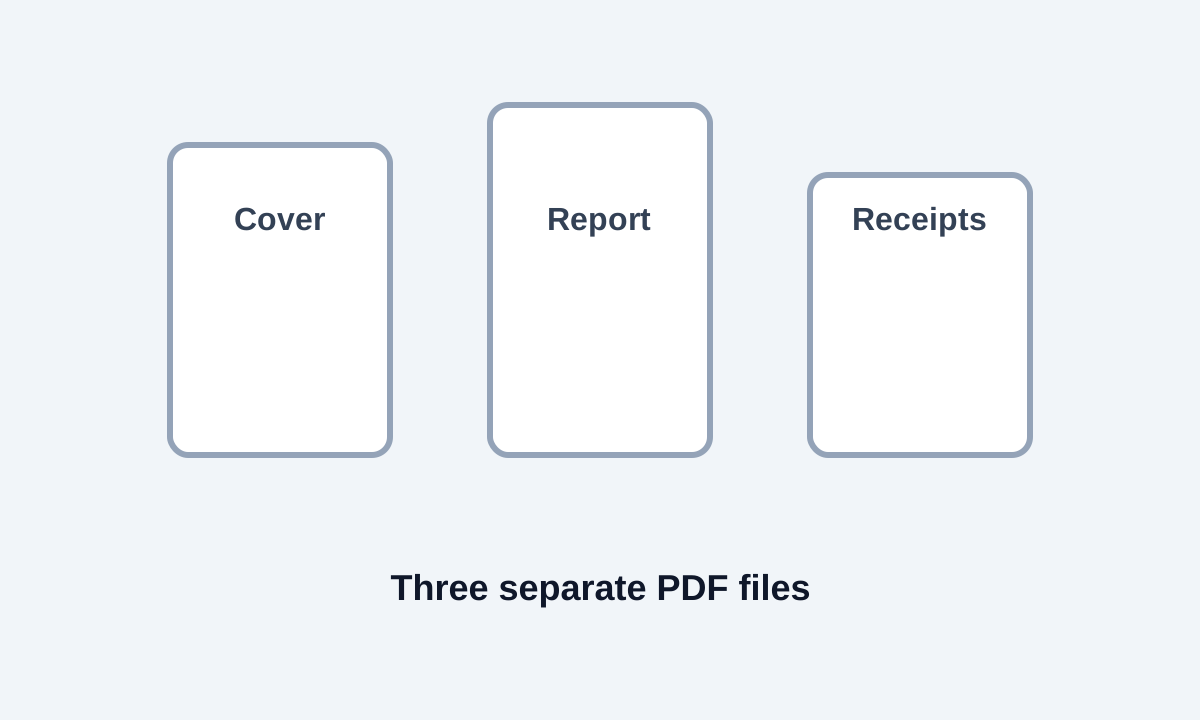
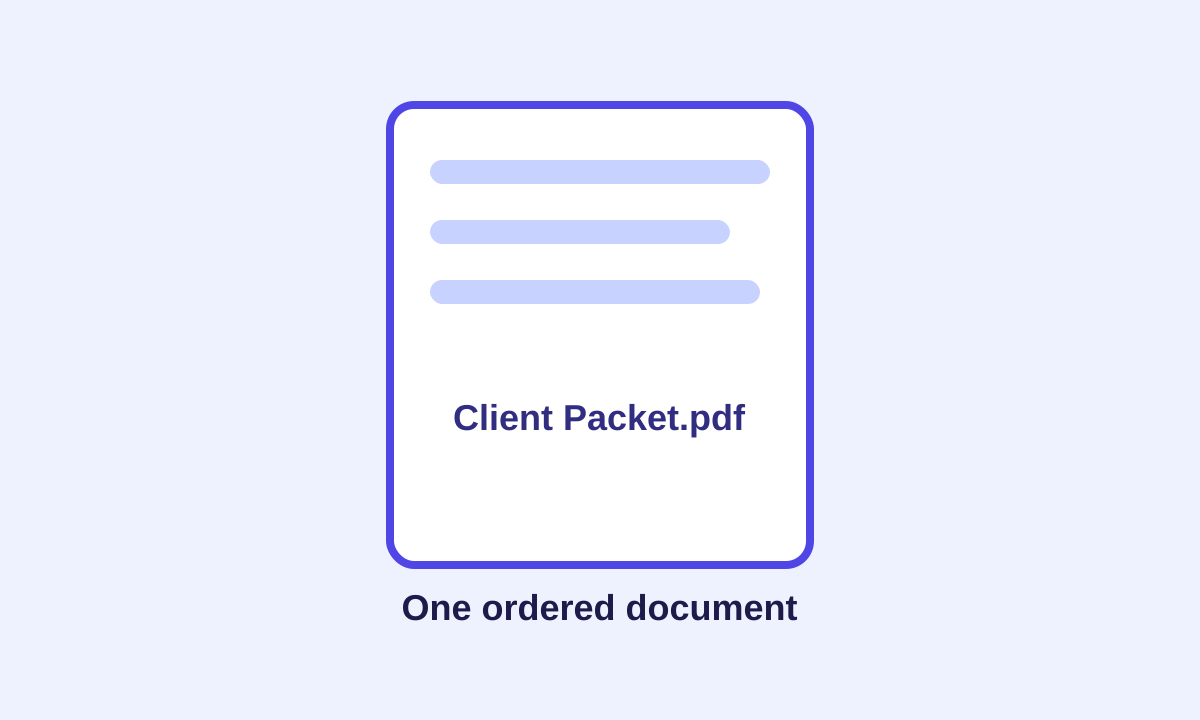
A final packet often starts as a pile of separate PDFs: a cover page, signed forms, receipts, report sections, and scanned attachments. Merge them after putting pages in the right order, and rotate sideways pages before the combined file goes to a client or archive.
Visual examples show the kind of input and output this tool is designed around.
Reorder invoices, scans, or report sections before downloading one combined PDF.
Combine supporting documents into one file so the recipient does not have to open five attachments and guess the order.
Merge slides, worksheets, and reference pages into one download. If a section changes later, split the PDF again and replace only that part.
After the packet is merged, you can export pages as images for thumbnails, approval previews, or documentation screenshots.
Prefixes like 01-cover, 02-contract, and 03-receipts make ordering easier when a packet has many documents.
Clean the source files before merging when possible; it is faster than fixing a long combined PDF afterward.
The goal is to assemble pages into one file. Layout options such as margins, orientation, or inserted blanks can change the final page presentation, so review the export before sharing.
Remove them before export if the merge interface shows them, or split the finished PDF afterward and keep only the needed ranges.
A merged PDF is usually read straight through. One misplaced attachment can make a packet confusing even when every individual file is correct.