One document into focused files
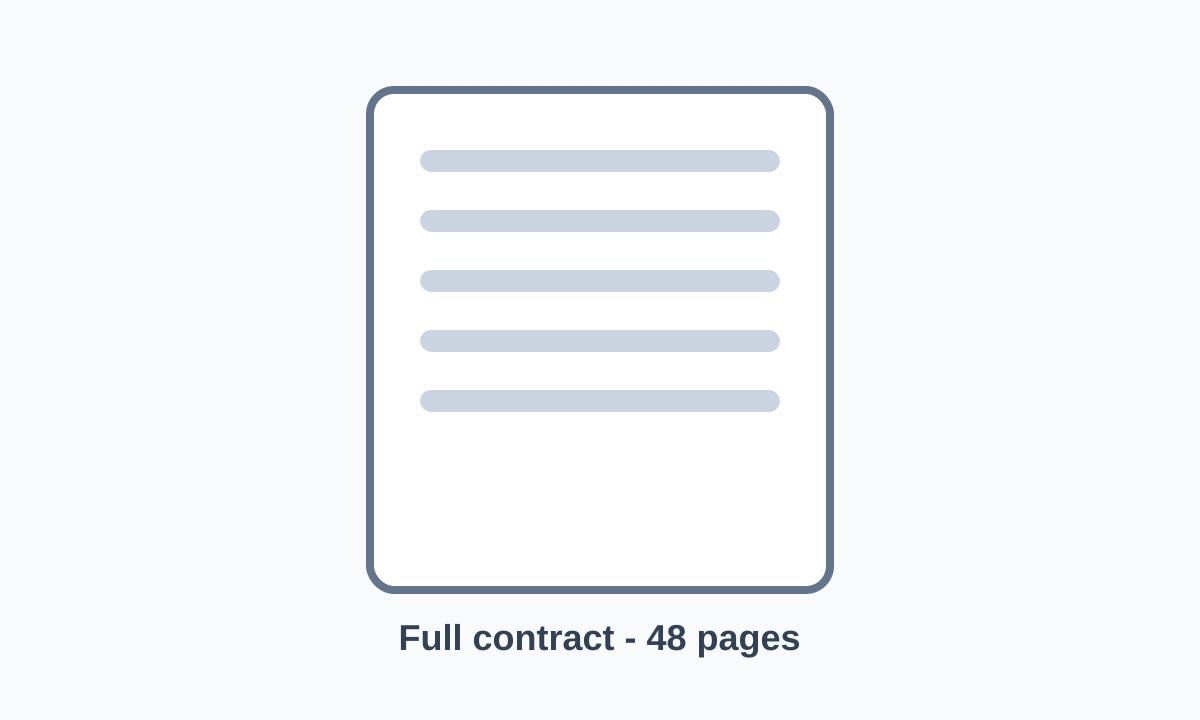
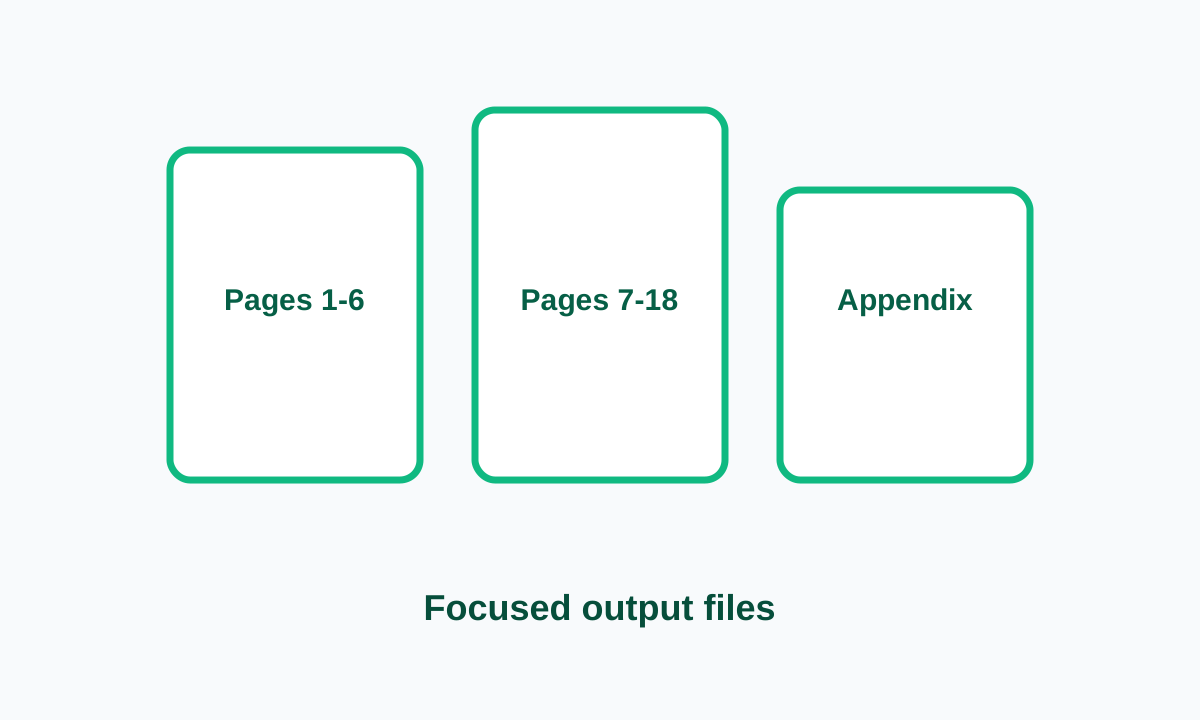
Extract only the pages needed for a client, class packet, or archive folder.
 appkiro.com
Split one PDF into multiple files by page range, extract specific pages into a single PDF, or break every page into its own file. Custom filenames and ZIP download.
Read the full guideDrag and drop your PDF here
or click to browse
Used for ZIP filename and per-file names when individual filenames are blank.
Supported: PDF · Max 200 MB.
No ranges yet. Click Add range below.
Load a PDF to preview pages here
Each tile shows its page number and the range it belongs to.
Output: 0 files.
Split PDF breaks one source PDF into multiple smaller PDFs directly in your browser. It uses pdf-lib for assembly and PDF.js for thumbnail rendering, so your file is never uploaded. The tool offers three split methods to cover the most common scenarios: split by range, extract specific pages, and split every page into its own file.
Each output file is a self-contained PDF that preserves selectable text, embedded fonts, and images from the source. When the result contains more than one file, the tool packages everything into a single ZIP archive for a one-click download.
Use it whenever a recipient needs only part of a PDF, when a file is too big to email, or when archives require chapter-by-chapter splits. The tool runs at /split-pdf in any modern browser. The 200 MB upload cap covers most reports; for huge documents, prefer a desktop browser to avoid mobile memory limits.
Cloud splitters upload your files and may rasterise them, breaking selectable text. This tool processes the document locally with pdf-lib's page copy primitives, keeping selectable text and embedded resources untouched. No upload. No watermark.
1. Select PDF
2. Split Settings
3. Preview
Yes. The split runs locally with pdf-lib and the Canvas API for thumbnails. Files are never uploaded, there are no watermarks, and no account is required.
The current cap is 200 MB. Very large books can be slow to render thumbnails on mobile devices; prefer a desktop browser when possible.
Yes. pdf-lib copies pages directly without rasterising. Selectable text, vector graphics, embedded fonts, and links are preserved.
Each range produces its own output file independently, so overlapping pages can appear in multiple outputs. Use the preview tiles to spot overlaps before downloading.
Yes. Each range row has its own filename input. When the field is blank, the output base name is used with an auto-incrementing suffix.
Encrypted PDFs cannot be split until they are unlocked. Remove the password in another viewer and try again.
A long PDF is rarely meant for one audience from start to finish. Appkiro's Split PDF tool lets you separate chapters, extract signed pages, or create one PDF per page in your browser. After you pull out the pages that matter, you can merge selected pages into a smaller packet when the final order needs to change.
Visual examples show the kind of input and output this tool is designed around.
Extract only the pages needed for a client, class packet, or archive folder.
A contract, report, or application packet may contain private or irrelevant sections. Extract just the signed page, invoice, appendix, or approval sheet while keeping the original document unchanged.
Scans often arrive as one long file with covers, receipts, forms, and notes mixed together. If any pages are sideways, fix page orientation before splitting so each output file is easier to review.
Split every page when reviewers, OCR tools, production folders, or record systems expect individual PDFs instead of one combined document.
For long PDFs, review the source once and note ranges like 1-3, 8, 12-16 before you build the outputs. This is faster than discovering a missing page after downloading the ZIP.
When a document has hundreds of pages, restrict the source range first. It reduces thumbnail work in the browser and helps avoid generating more files than you actually need.
If the extracted pages need to sit beside screenshots, scans, or photographed receipts, build a new PDF from images can be a cleaner next step than editing the original document.
A cleaner split starts with review, not export. Decide what each output should contain, fix obvious page issues, then download files with names that explain their purpose.
Review page numbers and orientation
Rotate PDF
Use when scans are sideways or upside down.
Split by range or extract pages
Merge PDF
Use when extracted sections need a new custom order.
Page ranges create separate output files for each range, such as one file for pages 1-5 and another for pages 6-10. Extracted pages create one PDF from the pages you choose, even when they come from different parts of the source.
No. Splitting creates new output files. Keep the source PDF as your reference in case you need to adjust the ranges and export again.
When a split produces multiple files, a ZIP keeps them together and prevents the browser from starting many separate downloads.
Open the exported file and confirm the page count, page order, orientation, and filename. This is especially important for contracts, school records, invoices, and scanned forms.
Yes. If ranges overlap, the same page can appear in multiple outputs. That can be useful for shared cover pages, but it is worth checking in the preview before download.