
Product cutout preview
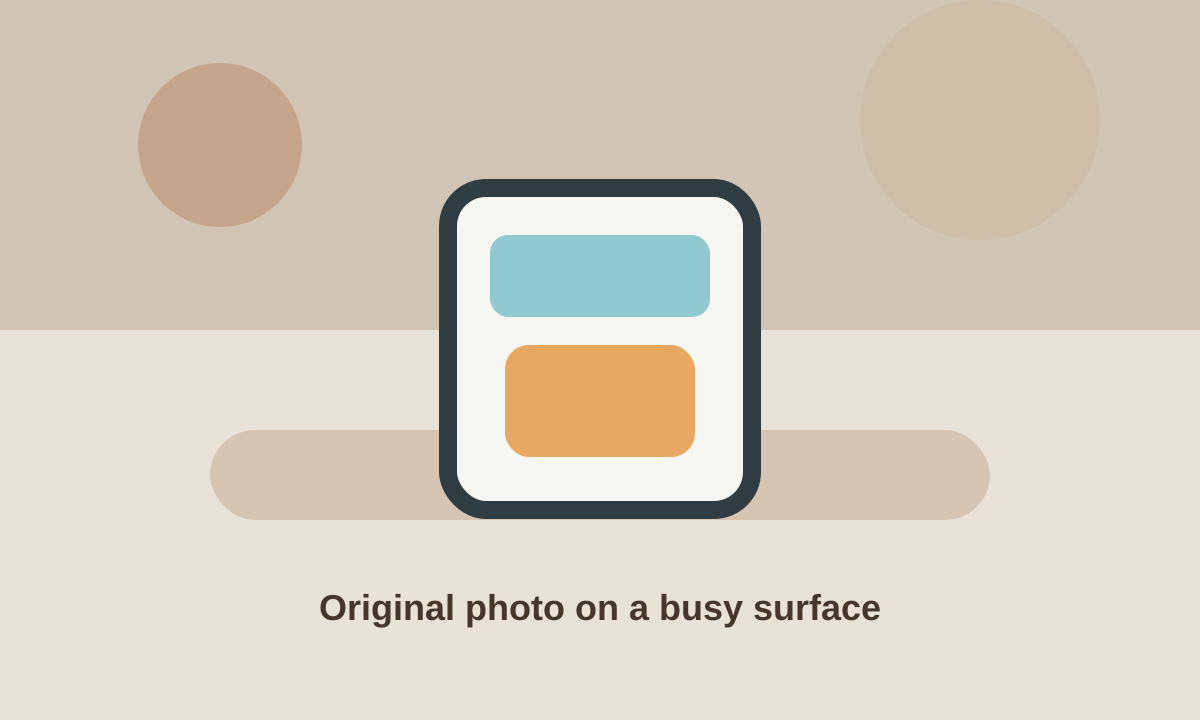
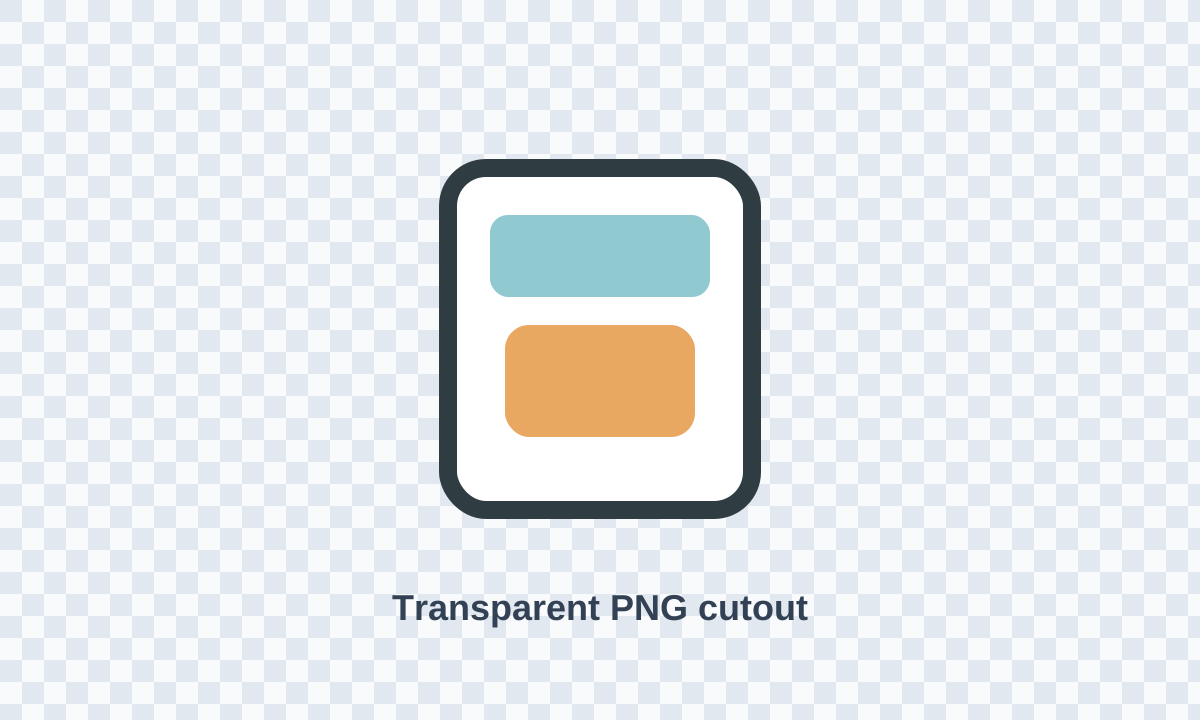
A product photo moves from a busy surface to a transparent-background export.
Remove image backgrounds quickly and export clean cutouts for products, portraits, mockups, and social assets.
Read the full guideDrop an image here
or click to select, or paste an image
JPG · PNG · WebP
The first run downloads an AI model of about 180 MB. The browser can cache it for later visits.
The tool runs an image-segmentation model inside your browser. It identifies the main subject, creates a transparency mask, and keeps the original image on your device throughout the process.
Choose a local image, drag it into the upload area, or paste an image from the clipboard.
Select Remove background. On the first run, the browser downloads an AI model of about 180 MB. It may use WebGPU acceleration when available and automatically fall back to WebAssembly when needed.
Download the transparent result as PNG to preserve the alpha channel. You can also send the original image or the result to the WebP converter when a smaller web asset is more important than transparency compatibility.
The image is processed locally in your browser. It is not uploaded to appkiro.com or sent to an external image-processing server.
The browser needs an AI segmentation model of about 180 MB. After the first successful load, the browser may cache the model so later sessions can start faster.
Clear photos with one prominent subject, sharp edges, good lighting, and visible separation from the background work best. Complex scenes and low-contrast edges require more careful review.
Use PNG when you need reliable transparency and editing compatibility. Use WebP when you need a smaller web asset and the target workflow supports transparency in WebP.
Fine strands, semi-transparent materials, reflections, and soft shadows are difficult for segmentation models because they mix foreground and background information. Use the preview to decide whether manual refinement is needed.
Yes, in a modern browser with enough memory. Model loading and inference can be slower on mobile devices, and very large images may exceed the available memory.
A clean cutout is useful when the subject matters more than the scene around it. Upload a product shot, portrait, or simple object photo, review the transparent-background result, then keep editing if you need to resize the cutout for a store grid or catalog tile.
Visual examples show the kind of input and output this tool is designed around.
A product photo moves from a busy surface to a transparent-background export.
Desk texture, wall color, and shadows can pull attention away from a small product. Remove the background first, then convert the export if your marketplace prefers a specific file type.
A simple cutout gives designers room to place a person on a brand color, a slide background, or a social graphic without re-shooting the portrait.
After the subject is isolated, you can place a simple frame around it or combine the PNG with other image tools for a more finished post.
Soft edges and low-light photos make any cutout harder to judge. A crisp source image gives the preview a cleaner boundary.
Most image cleanup runs in stages: isolate the subject, resize it for the destination, then export the format the destination accepts.
Images with one clear subject, visible edges, and contrast between the subject and background are easiest to review and export cleanly.
Use PNG if you need transparency. Use JPG only after placing the subject on a solid background because JPG cannot keep transparent pixels.
Hair, glass, shadows, and white products on light backgrounds can hide small artifacts. Zooming into the preview helps catch them before export.