
Capture, Edit & Share Webpage Screenshots in Chrome
Take a visible or full-page screenshot of any webpage, add markup and notes right in your browser, then copy the result, save a file, send it into ChatGPT, Gemini, or Grok, or share a clean link.
- Visible area or full page
- Annotate before you send
- Nothing uploads unless you ask
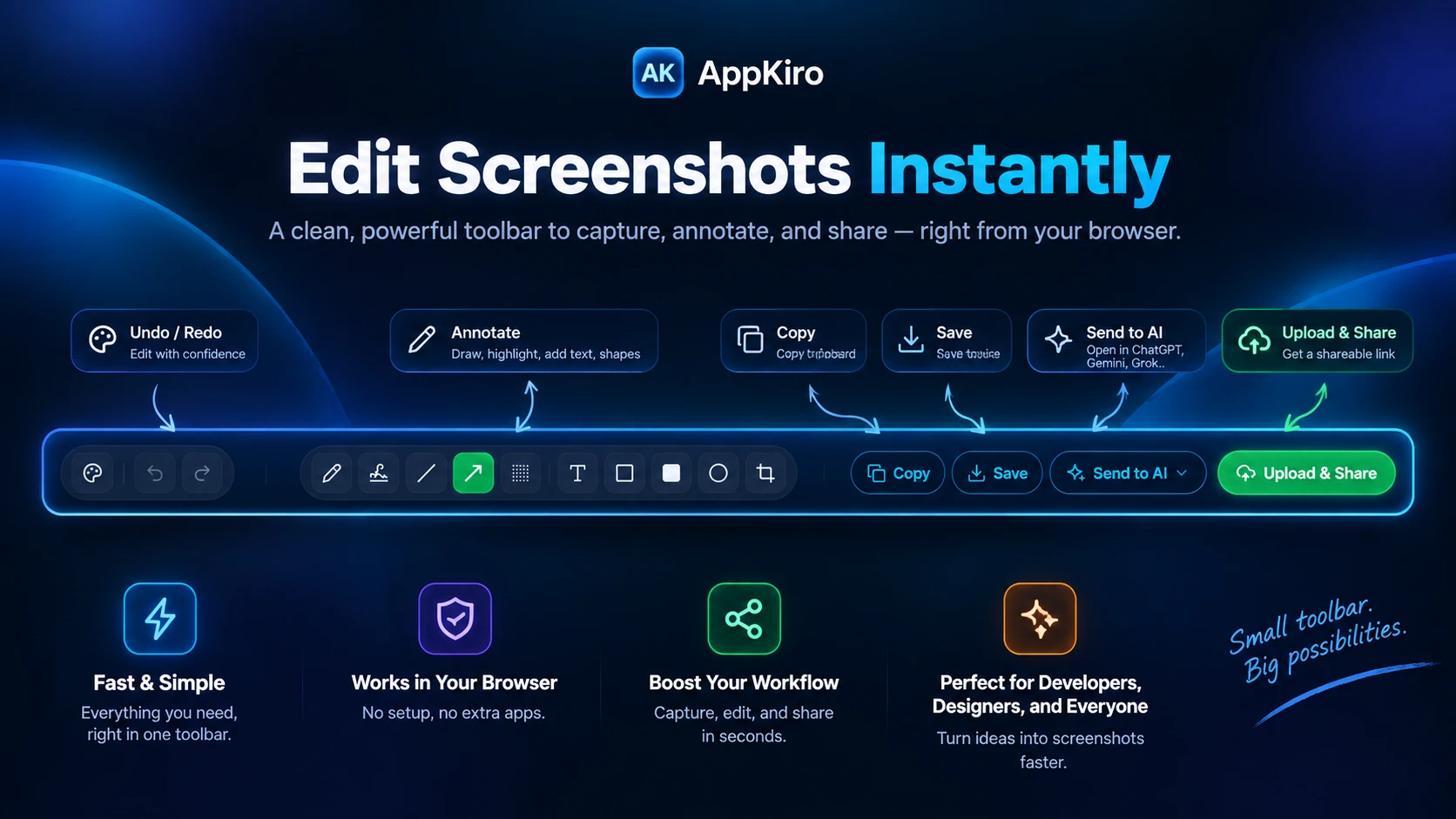
Four ways into the editor
Whether you need a quick glance of what is on screen, an entire landing page stitched top to bottom, a blank slate to sketch on, or markup on an image you already copied.
Visible Screenshot
Captures exactly what the browser window is showing right now, at the size you see it.
Full Page Screenshot
Scrolls the page and joins every section into one tall image, so a long page becomes a single screenshot instead of a pile of them.
Create Blank Image & Free Draw
Opens an empty canvas in the editor for when you want to sketch an idea rather than capture a page.
Paste from clipboard
Drops an image you already copied straight into the editor, so anything on your clipboard gets the same annotation tools.
Point out what matters
Every tool is tuned for clarity: crisp vector arrows, high-visibility shapes, flexible freehand markup, and precision cropping.
- Arrow
- Line
- Rectangle
- Filled rectangle
- Ellipse
- Free draw
- Highlighter
- Spray
- Text
- Crop
- Stroke colour
- Undo / redo
Four ways to put the screenshot to work
Once your annotations are in place, the editor toolbar gives you four direct export paths without having to save to disk and re-upload.
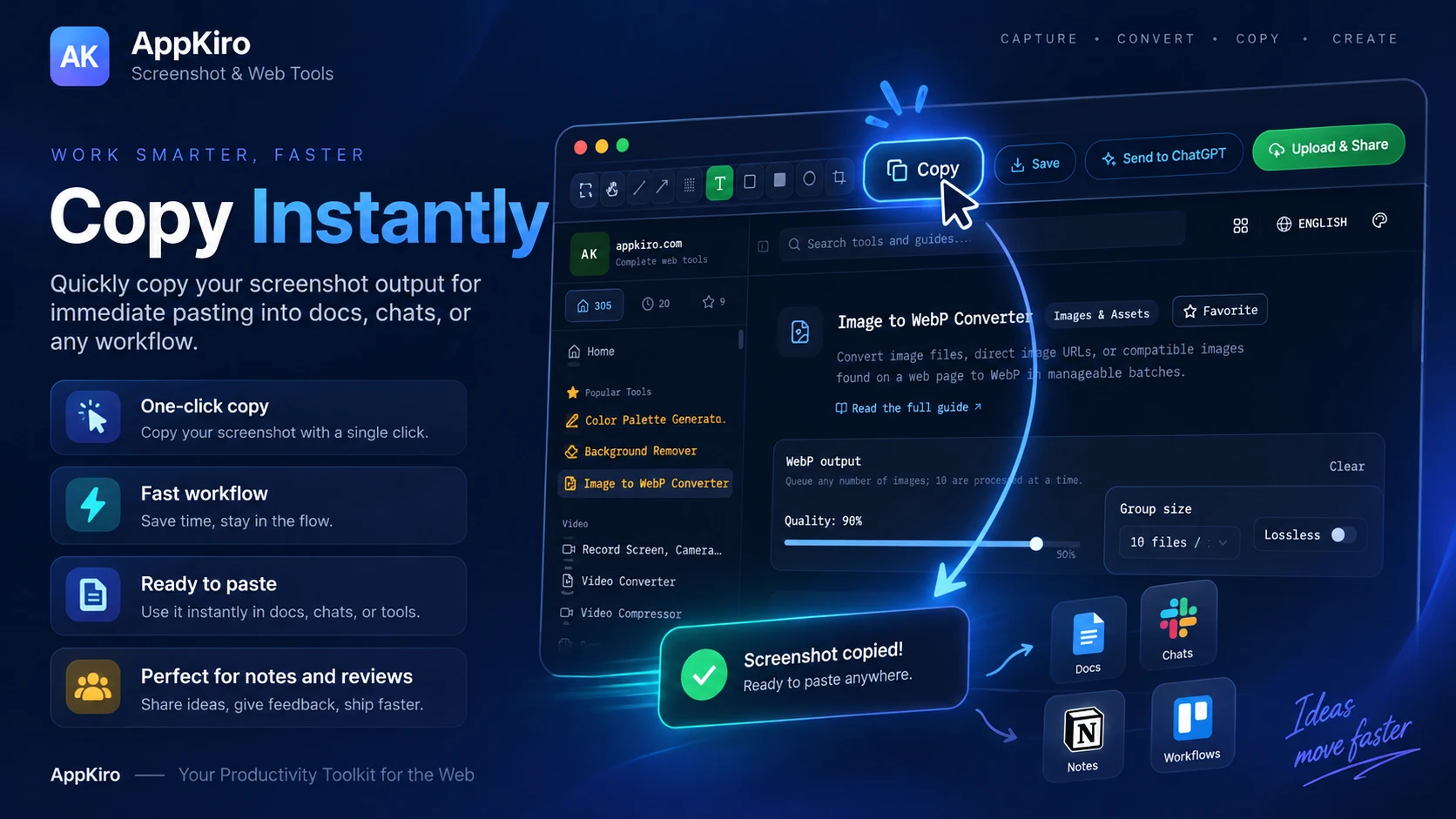
Copy and paste it anywhere
Copy puts the annotated screenshot on your clipboard as a PNG, ready to paste into a ticket, a document, a chat message, or an AI prompt.
The clipboard gets the edited image, annotations included — not the raw capture.
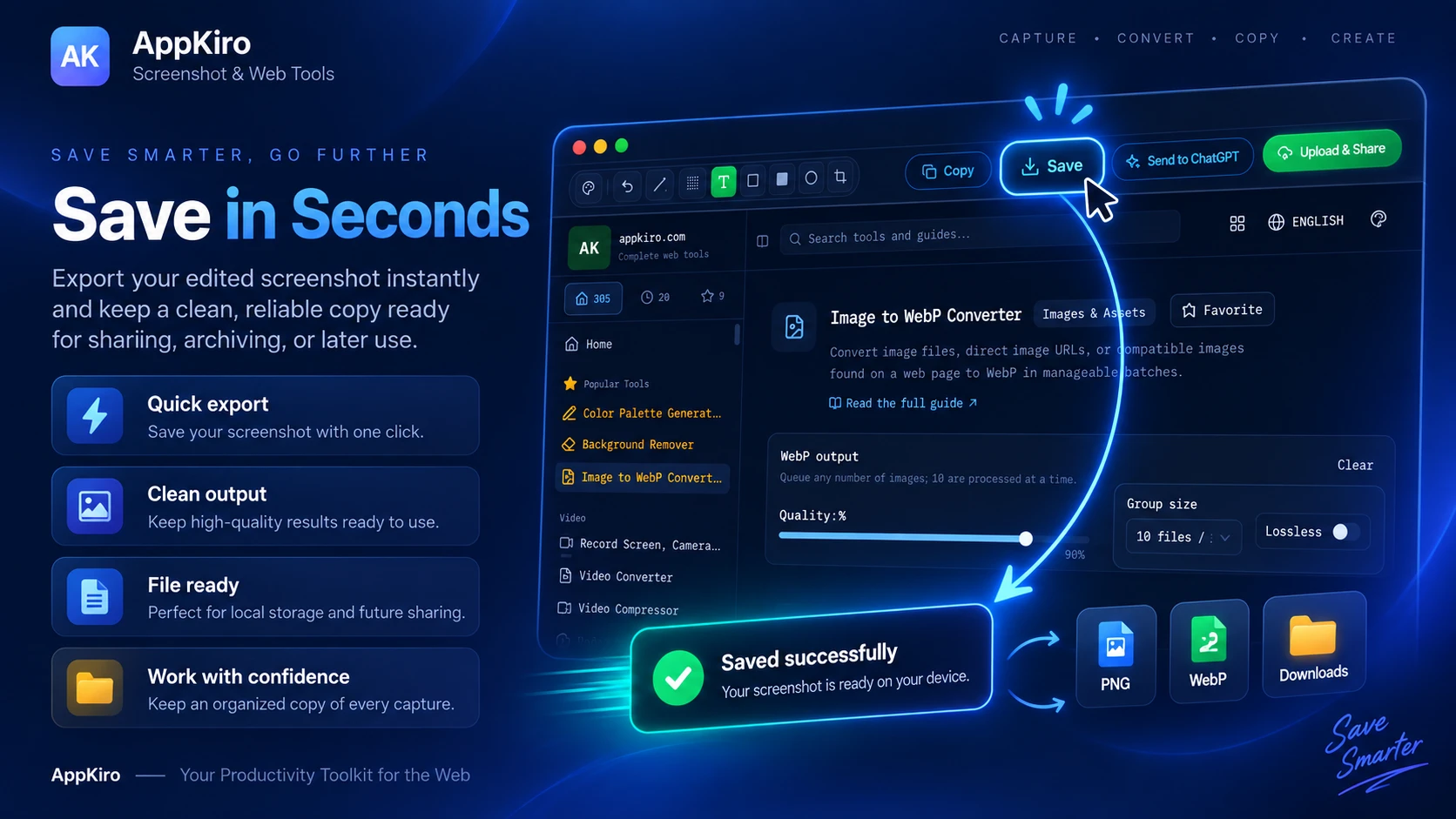
Save a copy to your device
Save downloads the finished screenshot so you can attach it later, keep it with a bug report, or file it with your documentation.
Downloads a PNG named after the page title and the time of capture, into your browser's usual download folder.
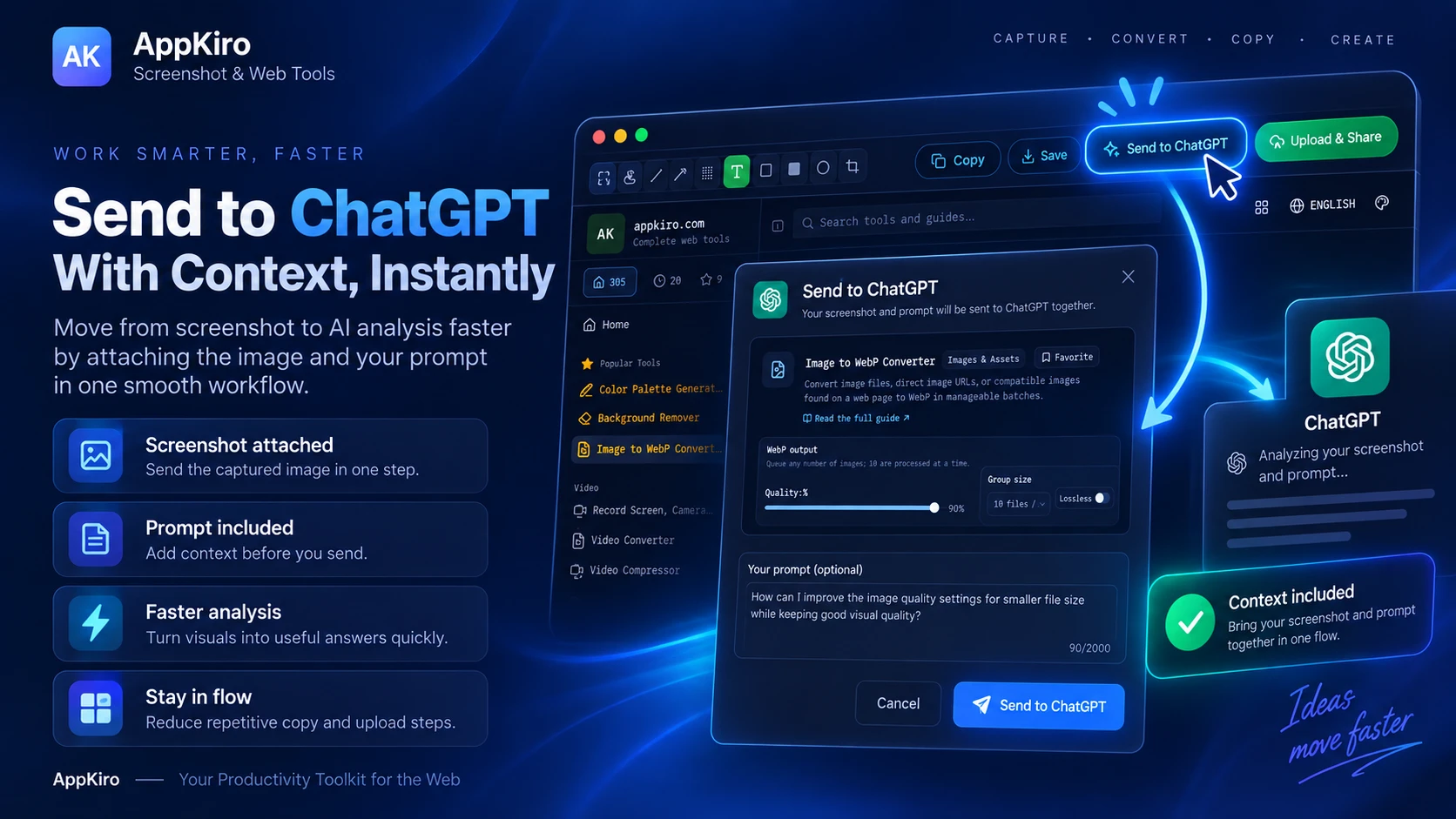
Send it to an AI chat with your prompt
Send to AI opens ChatGPT, Gemini, or Grok, attaches the screenshot, and types your prompt into the composer — no export and no manual upload in between.
It never presses send. You read the message and send it yourself, so nothing leaves the composer without you.
Turn it into a shareable link
Upload & Share sends the screenshot to appkiro.com and hands back a public link, which is easier to drop into a chat thread than an attachment.
Uploads as WebP, up to 10 MB, and returns a clean temporary link (appkiro.com/s/<date>/<id>.webp) that expires automatically.
appkiro.com/s/<date>/<id>.webp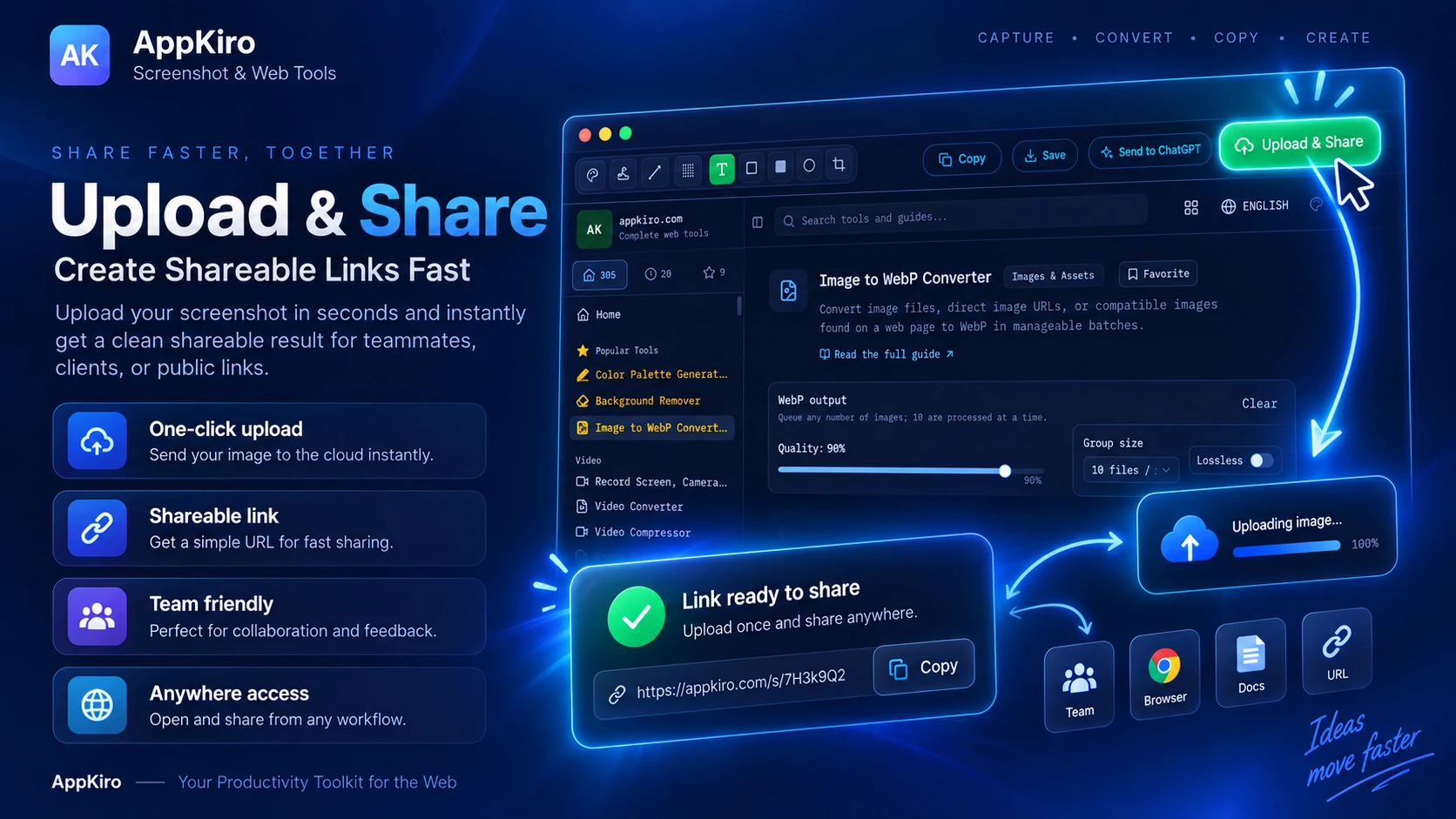
From capture to hand-off in four quick steps
Zero friction from spotting an issue to delivering visual evidence.
- 1
Open the page you want to capture
Any page, in the tab you are already looking at. The extension reads that tab only, and only once you ask it to.
- 2
Pick a capture mode
Click the AppKiro icon and choose Visible Screenshot or Full Page Screenshot. The capture opens in the editor in a new tab.
- 3
Annotate what matters
Add arrows, boxes, highlights, or text to point at the problem, and crop away everything that is not part of it.
- 4
Copy, save, send, or share
One click each: the clipboard, a file on your device, an AI chat with your prompt, or a public link.
Zero friction from spotting an issue to delivering visual evidence.
- 1CopyStraight to the clipboard
- 2SaveStraight to your device
- 3Send to AIImage and prompt, ready to review
- 4Upload & ShareA link you can paste anywhere
Why use an extension instead of OS screenshots
Built specifically for web workflows, addressing the exact gaps where system shortcuts fall short.
Long pages stay in one image
A system screenshot stops at the edge of the screen. Full Page mode scrolls the page for you and stitches the sections together, so a long landing page or a wide table of results is one file instead of six.
Capture and edit are the same step
The capture opens straight into the editor, so marking up a bug does not mean saving a file, opening an image editor, exporting, and then finding the export again.
The hand-off is built in
Copy, Save, Send to AI, and Upload & Share sit in the same toolbar as the annotation tools, so the screenshot reaches the ticket or the thread without a detour.
It follows the browser
Chrome can bind a keyboard shortcut to the visible and full-page capture commands, and capturing, annotating, copying and saving keep working offline — only Send to AI and Upload & Share need the network.
Why use an extension instead of OS screenshots Built specifically for web workflows, addressing the exact gaps where system shortcuts fall short.
Who uses the AppKiro Screenshot Extension
Purpose-built for professionals who communicate with web pages every day.
QA and software testing
Capture the failing state with the URL still visible, circle what broke, and paste the image into the ticket without leaving the browser.
Developers
Document a layout bug or a responsive break at a specific width, then attach the annotated capture to the issue or ask an AI about it directly.
Designers
Review an implementation against the design, mark spacing and colour differences on the live page, and share one link instead of a long comment.
Product teams
Show the screen you mean rather than describing it, and keep feedback threads short by annotating the exact state.
Customer support
Capture what a customer is seeing, highlight the control they need, and send back a picture instead of a paragraph of instructions.
Frequently Asked Questions
Direct, practical answers to common questions about features, privacy, and permissions.
What is the AppKiro Screenshot Extension?
It is a Chrome extension for capturing webpage screenshots. It captures the visible area or an entire page, opens the capture in a built-in editor for annotation, and then lets you copy it, save it, send it to an AI chat, or upload it for a shareable link.
How do I take a full-page screenshot in Chrome?
Open the page, click the AppKiro icon, and choose Full Page Screenshot. The extension scrolls the page, captures each section, and joins them into one image that opens in the editor. You can also bind that command to a keyboard shortcut in Chrome's extension shortcuts.
Can I capture a webpage that is longer than my screen?
Yes. That is what Full Page Screenshot is for. It keeps scrolling past the fold and stitches the whole page into a single tall image, so you do not have to take several screenshots and line them up afterwards.
Can I capture only part of a webpage?
Capture the visible area or the full page first, then use the Crop tool in the editor to keep only the region you need. There is no region-select overlay at capture time — cropping happens after the capture, on the image itself.
Can I annotate a screenshot after capturing it?
Yes. The editor opens with arrow, line, rectangle, filled rectangle, ellipse, free draw, highlighter, spray, and text tools, plus a stroke colour picker, crop, and undo and redo.
Can I copy a screenshot directly to the clipboard?
Yes. Copy puts the annotated screenshot on your clipboard as a PNG, so you can paste it straight into a ticket, a document, a chat, or an AI prompt. The copy includes your annotations rather than the original capture.
Where are screenshots saved?
Only where you send them. Save downloads a PNG through your browser into whichever folder Chrome uses for downloads, named after the page title and the time of capture. Nothing is written to disk automatically.
Does the extension upload screenshots automatically?
No. Capturing, annotating, copying, and saving all happen in your browser. A screenshot is uploaded only when you click Upload & Share, and that upload is what produces the public link.
Is my screenshot data sent to a server?
Only through Upload & Share, which sends the image to appkiro.com and returns a link that expires on its own. Send to AI attaches the image inside your own ChatGPT, Gemini, or Grok tab, so it goes to that service rather than to AppKiro.
What can the extension access while I browse?
It uses Chrome's activeTab permission, so it can read only the tab you invoke it on, at the moment you invoke it. Its other access is limited to appkiro.com and the ChatGPT, Gemini, and Grok domains the two hand-off actions need.
Continue your workflow on AppKiro
Complementary browser-based tools to optimize, convert, or redact your screenshots.
- Pixelate ImageRedact names, emails, or tokens in a capture before you share it.
- Image ResizeBring a tall full-page capture down to a size a tracker will accept.
- Image to WebP ConverterShrink a heavy PNG capture before attaching it.
- Image SplitterCut a very long page capture into readable tiles.
- Image Color PickerSample the exact colour of an element straight from a screenshot.
- Image ConverterTurn a capture into JPEG, WebP, AVIF, or another format.
Capture, annotate, and share web pages without extra software
Install the extension in Chrome, capture full pages with one click, and send annotated visuals straight into your issues, docs, or AI conversations.