
Image · Practical guide
Removing Image Backgrounds Without Uploading the Photo Anywhere
Published · 6 min read
Cutting a subject out of a photo used to mean an hour with the Magic Wand tool and a careful lasso pass around the hair. Modern segmentation models do the same job in seconds. The interesting development is that those models now fit in a web page: Appkiro's Background Remover downloads the model once, runs it on your GPU through WebGPU (or WebAssembly as a fallback), and produces a transparent PNG without ever sending the image to a server.
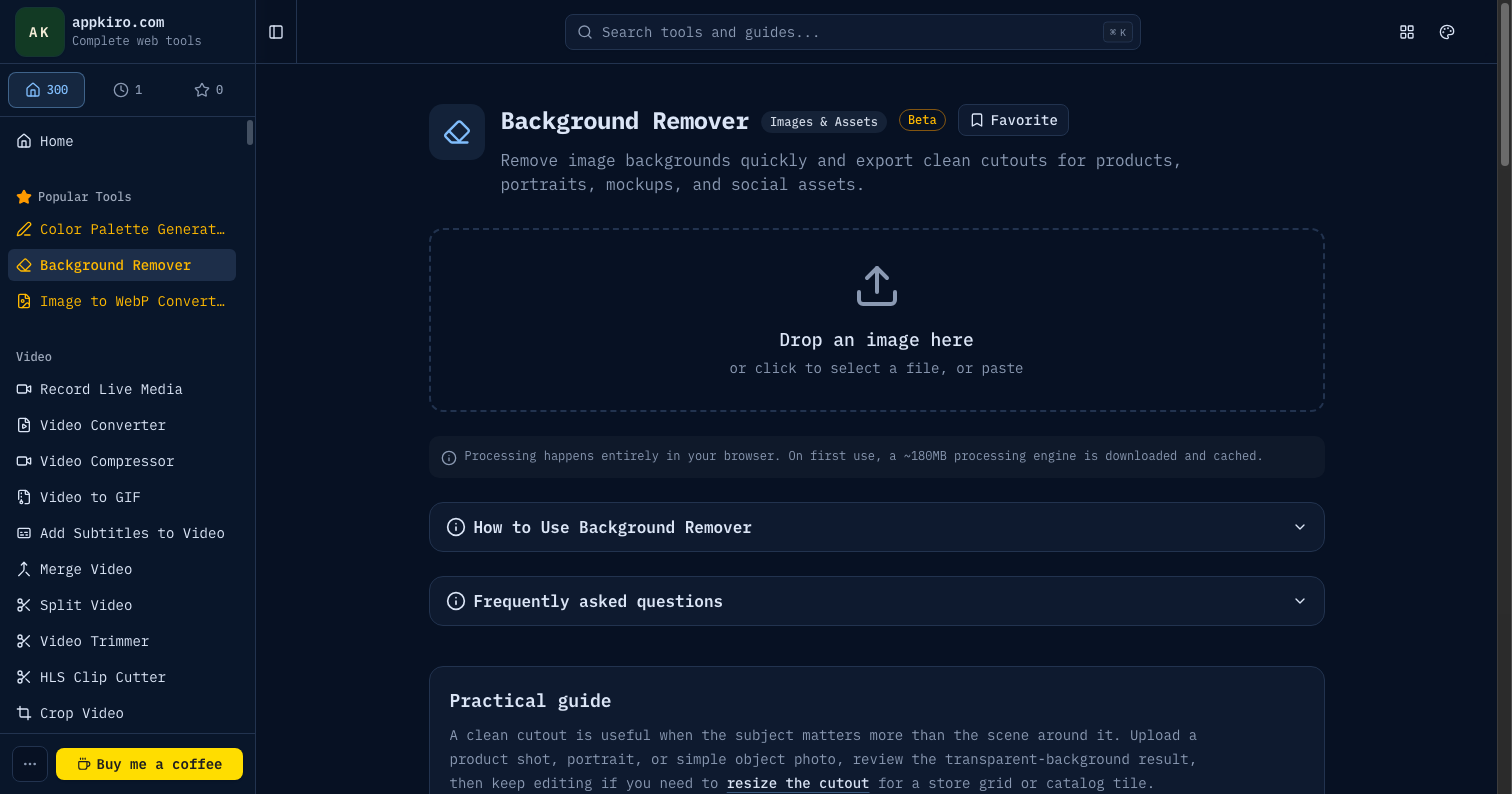
How the tool actually works
Under the hood, the Background Remover runs an image segmentation model — by default briaai/RMBG-1.4, with a more accurate RMBG-2.0 option in Precise mode. The model classifies every pixel in the input image as either foreground or background and produces a mask. The tool then multiplies that mask against the original image, sets the background pixels to fully transparent, and re-encodes the result as a PNG.
The model weights — around 180 MB on first use — are fetched from Hugging Face the first time you run the tool, then cached by the browser. The second run starts much faster because no download is needed. Once the weights are cached, the entire pipeline (decode, segment, mask, encode) runs locally with no network calls.
Where it produces clean cutouts
The model performs best on photos that match the shape of its training data — subject in the foreground, reasonable contrast, crisp edges, not too busy. Concretely:
- Product photos on plain or softly textured backgrounds. The mask snaps cleanly to packaging, fabric, ceramics, and most solid objects.
- Portraits taken at moderate distance with a subject in focus and the background out of focus. Bokeh helps the model.
- Animals where the body is mostly one colour. A black dog on grass cuts beautifully; a tabby cat on a patterned rug less so.
- Cars, furniture, and other rigid objects on uniform surfaces. These are the friendliest case for segmentation.
Where it struggles
Knowing the failure modes is more useful than knowing the success cases. The model is a single forward pass — there is no second look, no manual correction loop, no painting in or out. That means certain content predictably loses fidelity at the edges:
- Frizzy or fine hair. Loose strands against a busy background blur into the background. Tight haircuts with clear silhouette work fine; cloud-of-frizz portraits do not.
- Transparent or translucent objects. Wine glasses, plastic bottles, anything where the background shows through. The model has to guess what is "subject" and the guesses are inconsistent.
- Very similar foreground and background colours.A white shirt against a white wall, a dark suit against a dark room. The model relies on contrast cues; without them, the mask wanders.
- Motion blur. Sports photography, action shots. Blurred edges read as background to the model.
- Compound subjects. A person holding a phone, a hand reaching out of frame. The model often keeps the person and drops the object, or vice versa, depending on composition.
When the cutout is close but not perfect, you can usually fix it downstream — paint the mask in another editor, composite over a new background, or just accept a slightly soft edge if the result is for social media at small sizes.
Fast vs Precise
The tool exposes two quality modes. Fast uses the lighter RMBG-1.4 model — good masks, runs in a few seconds on a modern laptop with WebGPU. Precise uses RMBG-2.0, which produces noticeably cleaner edges on difficult inputs (hair, complex silhouettes) but takes longer and downloads a larger weight file.
Start with Fast. Switch to Precise only if the mask in Fast mode has visible problems on the specific image you care about — the quality gap is real but not dramatic for clean inputs.
WebGPU vs WebAssembly
The model executes on WebGPU when the browser supports it (most recent Chrome, Edge, and Safari), and falls back to WebAssembly when it does not. The performance difference is significant — WebGPU runs the segmentation in 2–4 seconds on a typical laptop; WebAssembly takes 10–30 seconds for the same image. Both produce identical output.
If processing feels slow, two practical levers help. Resize the image down to around 1500–2000 pixels on the long edge before running the tool — most use cases do not need 4K cutouts, and smaller inputs run faster on both backends. Or switch to Chrome or Edge if your current browser falls back to WebAssembly.
Picking the right export format
The output is always a PNG with a transparent background, because PNG is the only mainstream raster format that supports alpha transparency at the precision the cutout requires. If the destination cannot handle PNG transparency (some old email clients, certain print workflows) the answer is to composite the cutout over a solid background colour and re-export as JPG. That step is downstream of the Background Remover; the tool itself produces the transparent master.
For web delivery, you can run the PNG through Image to WebP Converter afterwards. WebP with alpha is roughly half the size of PNG at visually identical quality and is supported by every modern browser.
Common scenarios
Product photo for an online store
Shoot the product on a clean background, drop the photo into the Background Remover, export the PNG, composite over white or a brand colour in your store template. The model handles product shots about as well as it handles anything.
Portrait for a profile picture
Crop the photo tightly around the head and shoulders first — the model performs better on focused subjects than on wide-angle shots with the person small in frame. If hair is an issue, try Precise mode.
Cutout for a graphic design composition
Run the photo through the Background Remover, accept that the edge will be slightly soft, place the cutout in your design, and add a subtle drop shadow or outer glow. Both effects mask small mask imperfections.
Mockup hero image
Use the tool on a product photo, drop the result into a mockup template (laptop screen, phone case, t-shirt). The transparent PNG layers cleanly over whatever background the mockup uses.
Privacy
Photos selected from your device stay in the browser. The model runs locally — the only network call the tool ever makes is the one-time download of model weights from Hugging Face, and that download contains no information about your image. For sensitive content (medical, personal, work-related), local processing is not a marketing claim; it is a verifiable property of how the tool is built.
Where it fits in a workflow
Background removal is rarely the only edit. A typical pass looks like this: crop or resize with Image Resize, remove the background here, then convert to WebP with Image to WebP Converter for web delivery or composite over a new background in your preferred editor. If the source needs the opposite treatment — keeping the background but de-emphasising it — use Blur Background instead.