
Help · Video Tools
Find Video Scene Changes and Export Cut Points
Long videos are easier to edit when you can see where the visual changes happen first.
Appkiro's AI Scene Detection tool analyzes video frames in the browser, finds likely scene changes, shows a timeline with thumbnails, and exports timestamps as JSON, CSV, or chapter markers.
Quick answer
Use AI Scene Detection when you need rough cut points, chapter candidates, or a shot list before editing a video. Start with Medium sensitivity, keep minimum scene length around 2 to 5 seconds, review the thumbnails, then export JSON, CSV, or chapter markers.
The scene detection workspace
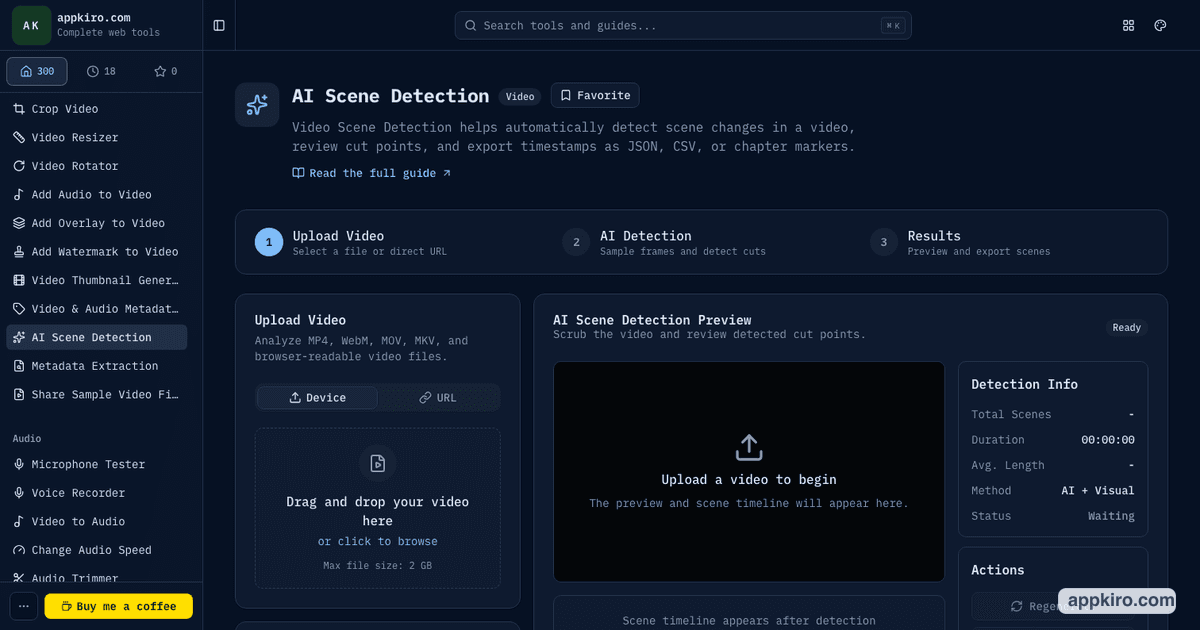
When this tool is useful
- Turn a long webinar, lecture, interview, or meeting recording into chapter candidates
- Create a rough shot list before opening a full video editor
- Find cut points in vlogs, product demos, tutorials, and screen recordings
- Export scene timestamps for spreadsheets, automation, editor notes, or YouTube descriptions
- Review visual changes quickly when a video has many edits or topic shifts
Step-by-step guide
Load the video
Upload a local video, paste a direct public video URL, or load the sample video. The tool accepts common browser-supported video files such as MP4, M4V, MOV, WebM, MKV, and AVI.
Choose sensitivity
Start with Medium. Raise sensitivity for fast edits, music videos, trailers, or footage with many shot changes. Lower it for lectures, screen recordings, interviews, or shaky footage.
Set the minimum scene length
Use 2 to 5 seconds for most videos. A longer minimum scene length reduces false cuts from camera shake, flashes, slide animations, or quick movement.
Pick the detection method
Use AI + Visual Analysis as the default. Use Visual Difference when you want straightforward frame-change detection. Use Chapter-Friendly Cuts when the result should be more useful as chapters.
Run detection and review the timeline
Click Detect Scenes, then inspect the scene timeline, thumbnails, start and end times, durations, and scores. Select scenes to preview individual segments.
Export the cut points
Export all scenes or a selected scene as JSON, CSV, or chapter markers depending on whether the next step is automation, spreadsheet review, or publishing notes.
Settings worth understanding
- Sensitivity
- Sensitivity controls how easily the tool marks a visual change as a scene cut. Higher values catch more edits but can create extra cut points.
- Minimum scene length
- This prevents tiny segments. Increase it when the video has flashes, slide transitions, camera shake, or motion that should not become separate scenes.
- AI + Visual Analysis
- A balanced mode for most videos. It compares visual change over time and tries to keep useful cut points without making the list too noisy.
- Visual Difference
- A direct frame comparison mode. Use it when strong visual changes should become markers, even if the output needs manual cleanup afterward.
- Chapter-Friendly Cuts
- A calmer mode for timelines, descriptions, and review notes. It favors fewer, more readable sections instead of every possible shot change.
- Export format
- Use JSON for automation, CSV for spreadsheets, and chapter markers for YouTube descriptions, editor notes, or simple timestamp lists.
What you can export
JSON scene data
Use for scripts, automation, generated edit lists, or structured handoff to another workflow.
CSV spreadsheet
Use when a producer, editor, QA reviewer, or content team needs to scan scene timings in rows.
Chapter markers
Use for YouTube descriptions, editor notes, course outlines, or quick timeline references.
Practical examples
Webinar chapter list
Load the webinar, choose Chapter-Friendly Cuts, set a minimum scene length of 8 to 12 seconds, then export chapter markers and clean up the titles manually.
Interview rough edit
Run AI + Visual Analysis at Medium sensitivity to find camera angle changes, slide inserts, and obvious topic breaks before deciding which sections to trim.
Vlog or product demo shot log
Use higher sensitivity to catch more cuts, then export CSV so each scene can be reviewed in a spreadsheet with start time, end time, duration, and score.
Automation handoff
Export JSON when another script or editor workflow needs structured scene objects. The timestamps can become split points, metadata, or review markers.
Browser-based analysis note
Files selected from your device are analyzed in your browser. The tool samples video frames with browser APIs, so very large files, long videos, and high-resolution sources can take longer.
Remote video URLs must allow cross-origin frame access. If a URL blocks canvas analysis, download the video first or use a direct public file URL that permits browser access.
Tips for cleaner detection
- Start with Medium sensitivity and adjust only after reviewing the first result.
- Use a longer minimum scene length when the video has slides, screen recordings, camera shake, or flickering lights.
- Do not treat every detected point as a final edit; use the output as a review map.
- Preview selected scenes before exporting markers to another editor or publishing workflow.
- For remote URLs, use a direct video file URL that allows browser frame analysis.
Related video tools
Use Split Video after detection when the scene markers should become separate clips. Use Video Trimmer when you only need one exact excerpt.
Split Video
Turn reviewed scene markers into separate exported clips.
Video Trimmer
Cut one exact section after finding the useful timestamp range.
Video Thumbnail Generator
Extract stills from scenes for previews, covers, or review notes.
Add Subtitles to Video
Add captions after the scene structure is easier to review.
Frequently asked questions
- What does AI Scene Detection do?
- It samples frames from a video, compares visual changes over time, and marks likely scene cuts. The result is a timeline of scenes with start times, end times, durations, thumbnails, and confidence scores.
- Which detection method should I choose?
- Use AI + Visual Analysis for most videos. Use Visual Difference for direct frame-change detection. Use Chapter-Friendly Cuts when you want fewer markers that are easier to use as chapters or review sections.
- Why did the tool detect too many scenes?
- High sensitivity, camera shake, flashes, slide animations, or fast motion can create extra markers. Lower sensitivity or increase the minimum scene length, then run detection again.
- Which export format is best?
- JSON is best for scripts and automation. CSV is best for spreadsheet review. Chapter markers are best for descriptions, editor notes, and simple timestamp lists.
- Are videos uploaded to Appkiro?
- Files selected from your device are analyzed in your browser. Remote video URLs must allow cross-origin frame access because the browser needs to sample frames for scene analysis.
Ready to map a video timeline?
Open AI Scene Detection, run a first pass, then tune sensitivity after reviewing the result.