
Help · Audio Tools
Audio Effects, Normalizing, and Speed Changes in One Browser Workflow
A clean audio workflow usually has three separate jobs: make the sound better, fix the timing, and set the final loudness.
Appkiro's Audio Effects, Change Audio Speed, and Audio Normalizer tools cover those jobs in the browser. Use them together for podcasts, interviews, lessons, voiceovers, music sketches, and audio clips that need to be easier to hear.
Quick answer
Use Audio Effects for tone, cleanup, and creative processing. Use Change Audio Speed when duration or listening pace needs to change. Use Audio Normalizer near the end when the final file should land at a more consistent loudness.
The audio editing workspaces
What each tool is for
Audio Effects
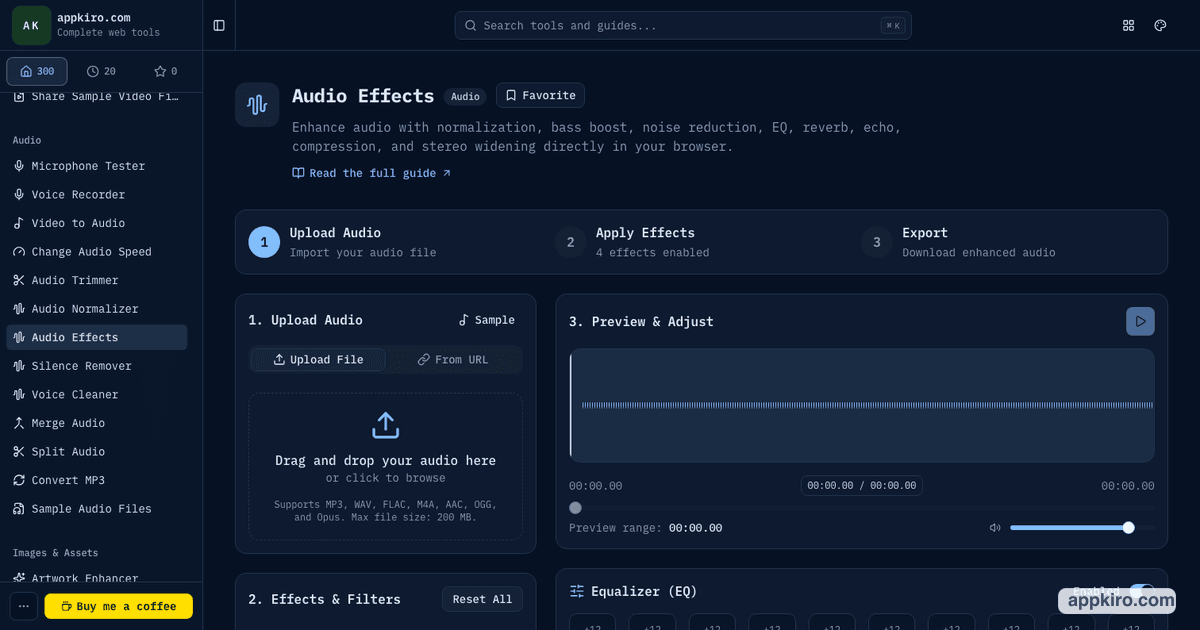
Use Audio Effects when the sound needs creative or corrective processing: EQ, bass boost, noise reduction, reverb, echo, compression, stereo widening, and normalization.
Useful for
- Making a voice recording clearer before publishing
- Adding weight or space to music and samples
- Testing several effects before committing to an export
- Preparing a rough mix without opening a full audio editor
Basic steps
- 1.Upload an audio file or load audio from a URL that allows browser access.
- 2.Preview the waveform and play the source before changing settings.
- 3.Toggle only the effects the recording actually needs.
- 4.Use EQ and compression gently for speech, then add reverb or echo only when the sound should feel more produced.
- 5.Choose an output format and export a new file for download.
For voice, start with noise reduction, light EQ, and compression. For music, test bass boost, stereo widening, reverb, or echo in small amounts so the output does not become muddy.
Audio Normalizer
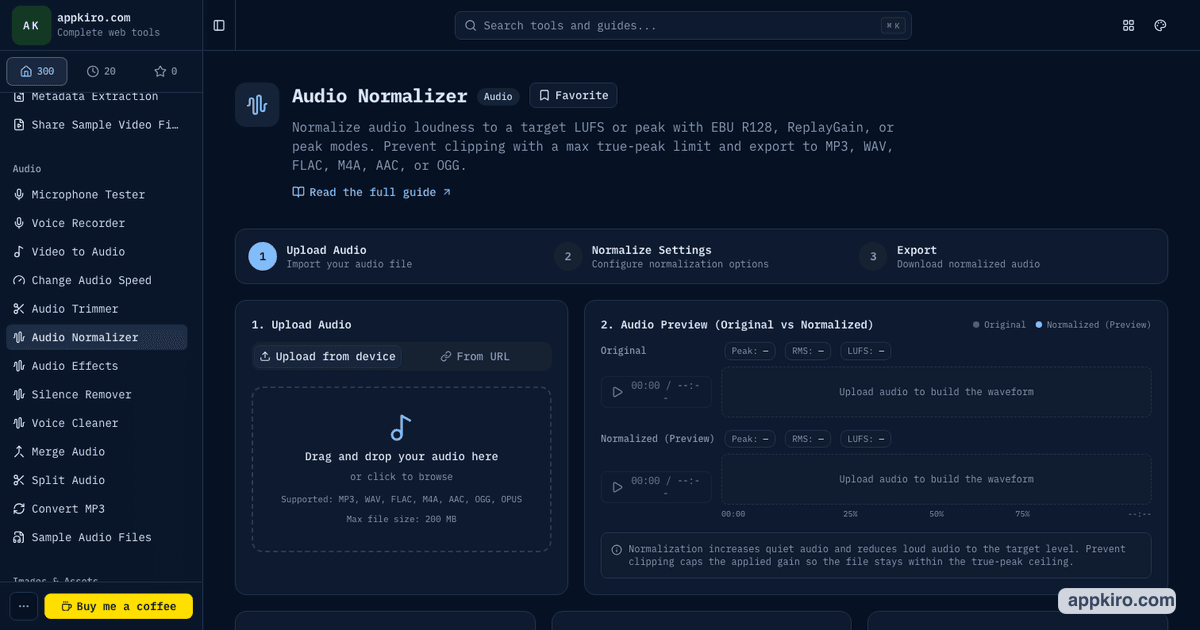
Use Audio Normalizer when the main problem is loudness. It can target LUFS, ReplayGain, or peak normalization and helps keep audio consistent across clips.
Useful for
- Balancing podcast sections recorded on different microphones
- Making voice notes easier to hear without clipping
- Preparing course audio or narration at a steadier level
- Checking loudness before uploading to a platform
Basic steps
- 1.Load the file and let the tool analyze the current level.
- 2.Choose the mode: LUFS for perceived loudness, ReplayGain for playback adjustment, or peak when the highest sample level matters most.
- 3.Set a target that matches the destination instead of simply making the file as loud as possible.
- 4.Keep true-peak protection enabled when you want to reduce clipping risk.
- 5.Export and listen to quiet and loud sections before replacing the original.
Normalize after major edits and effects. If you normalize first, later EQ, compression, reverb, or speed changes can move the final level again.
Change Audio Speed
Use Change Audio Speed when timing is the problem. It slows down or speeds up MP3, WAV, M4A, AAC, OGG, FLAC, and Opus while preserving pitch.
Useful for
- Slowing a lecture, interview, or language clip for study
- Speeding up long spoken audio for review
- Adjusting a voiceover to fit a video slot
- Practicing music phrases at a slower tempo
Basic steps
- 1.Upload the source audio and check that playback sounds correct.
- 2.Pick a quick speed such as 0.5x, 0.75x, 1.25x, 1.5x, or 2x, or use the slider for a precise value.
- 3.Stay near 0.5x to 2x when audio quality matters most.
- 4.Add fade in or fade out if the new timing creates abrupt edges.
- 5.Export in the format needed for the next app or platform.
Extreme speed changes can create artifacts because time-stretching has to rebuild the timeline. Test a short section first when the file is long or music-heavy.
A practical order for using all three
Fix the tone and texture first
Start in Audio Effects when the recording needs EQ, noise cleanup, compression, bass boost, reverb, echo, or stereo width. This is where you shape how the audio sounds.
Adjust speed only when the timing is wrong
Move to Change Audio Speed if the clip is too slow, too fast, or must fit a specific length. Preview the result because speed changes can reveal edits, breaths, and background noise differently.
Normalize after the main edits
Use Audio Normalizer near the end so the final file lands at a steadier loudness after effects and speed changes have already changed the signal.
Export, listen, and keep the original
Download the processed file and review it on headphones or speakers. Keep the original source until the exported version has been checked in the destination workflow.
Example workflows
Podcast or interview cleanup
Use Audio Effects for light noise reduction, EQ, and compression. If one speaker segment is too slow or a sponsor read needs to fit a time slot, use Change Audio Speed carefully. Finish with Audio Normalizer so the episode does not jump in volume between sections.
Lesson and study audio
Use Change Audio Speed to slow down difficult pronunciation, technical explanations, or music phrases. When the slowed file is ready to share, use Audio Normalizer to keep the level comfortable for repeated listening.
Music sketch or sample preparation
Use Audio Effects to test EQ, reverb, echo, bass boost, or stereo widening. Change speed only when tempo matters. Normalize at the end if the sample needs a predictable level before being imported elsewhere.
Voiceover for a video
Clean the voice in Audio Effects, adjust the runtime in Change Audio Speed when it must fit a scene, then normalize the final voiceover so it sits at a consistent level in the video editor.
Settings worth understanding
- EQ
- EQ changes the balance of low, mid, and high frequencies. Use small moves first; aggressive boosts can make speech harsh or music boomy.
- Compression
- Compression reduces the gap between loud and quiet moments. It is useful for speech, but too much compression can make background noise more obvious.
- LUFS
- LUFS estimates perceived loudness. It is usually more useful than simple peak level when you want different files to sound similarly loud.
- True peak
- A true-peak ceiling helps reduce clipping after encoding. Leave some headroom when the output will be converted or uploaded again.
- Pitch-preserved speed
- Pitch preservation changes duration without making voices sound artificially high or low. It is best for study, review, and timing adjustments.
- Output format
- MP3 is practical for sharing. WAV or FLAC is better when the audio will be edited again. Browser codec support can affect available export paths.
Browser-based processing note
Files selected from your device are processed in the browser for these tools. Audio decoding, previewing, processing, and encoding depend on browser capabilities, so very large files and some format combinations can take longer.
Download your result before refreshing or closing the tab. Browser preview links are temporary and should not be treated as saved files.
Tips for cleaner results
- Do not stack every effect just because it is available. Start with the smallest change that solves the listening problem.
- Normalize after the last major processing step, especially after compression, EQ, reverb, or speed changes.
- Preview quiet sections and loud sections, not only the first few seconds.
- Use WAV or FLAC for intermediate files when another editor will process the audio later.
- Keep a copy of the original source file until the final export has been reviewed.
Related audio tools
Use Audio Trimmer when the first job is cutting exact start and end points. Use Merge Audio or Split Audio when the file structure needs to change before or after processing.
Audio Trimmer
Cut exact starts and endings before processing or after speed changes.
Merge Audio
Join processed clips into one finished track.
Split Audio
Break a long recording into smaller files before cleaning each section.
Convert MP3
Change an MP3 file to another supported codec or container after editing.
Frequently asked questions
- Which tool should I use first?
- Start with Audio Effects when the sound itself needs cleanup or styling. Use Change Audio Speed when timing needs to change. Use Audio Normalizer near the end to set the final loudness.
- Is Audio Normalizer the same as Audio Effects normalize?
- They overlap in purpose, but Audio Normalizer is more focused. Use it when loudness control is the main job and you want LUFS, ReplayGain, peak, and true-peak settings in one place.
- Will Change Audio Speed change the pitch?
- The tool is designed to preserve pitch while changing duration. Very large speed changes can still create artifacts, so the cleanest results usually stay near 0.5x to 2x.
- Can I use these tools for MP3, WAV, M4A, AAC, OGG, Opus, and FLAC?
- The audio tools are built for common browser-decodable formats such as MP3, WAV, M4A, AAC, OGG, Opus, and FLAC. Export support can vary depending on browser codecs and the selected output format.
- Are selected audio files uploaded to Appkiro?
- Files selected from your device are processed in your browser for these tools. Download the result before refreshing or closing the tab because browser preview links are temporary.
Ready to process audio?
Open the tool that matches the next job: effects, speed, or final loudness.