
Audio · Practical guide
How to Trim Audio Cleanly Without Opening a DAW
Published · 5 min read
There is a long list of jobs that do not justify launching a desktop audio editor. Pulling a 30-second clip out of a podcast. Removing the silent intro from a voice memo. Cutting a song down to a ringtone length. Producing a teaser from an interview. For all of those, opening Audacity or Logic is overkill. Appkiro's Audio Trimmer handles them with a real waveform editor that runs entirely in the browser tab.
What the tool actually does
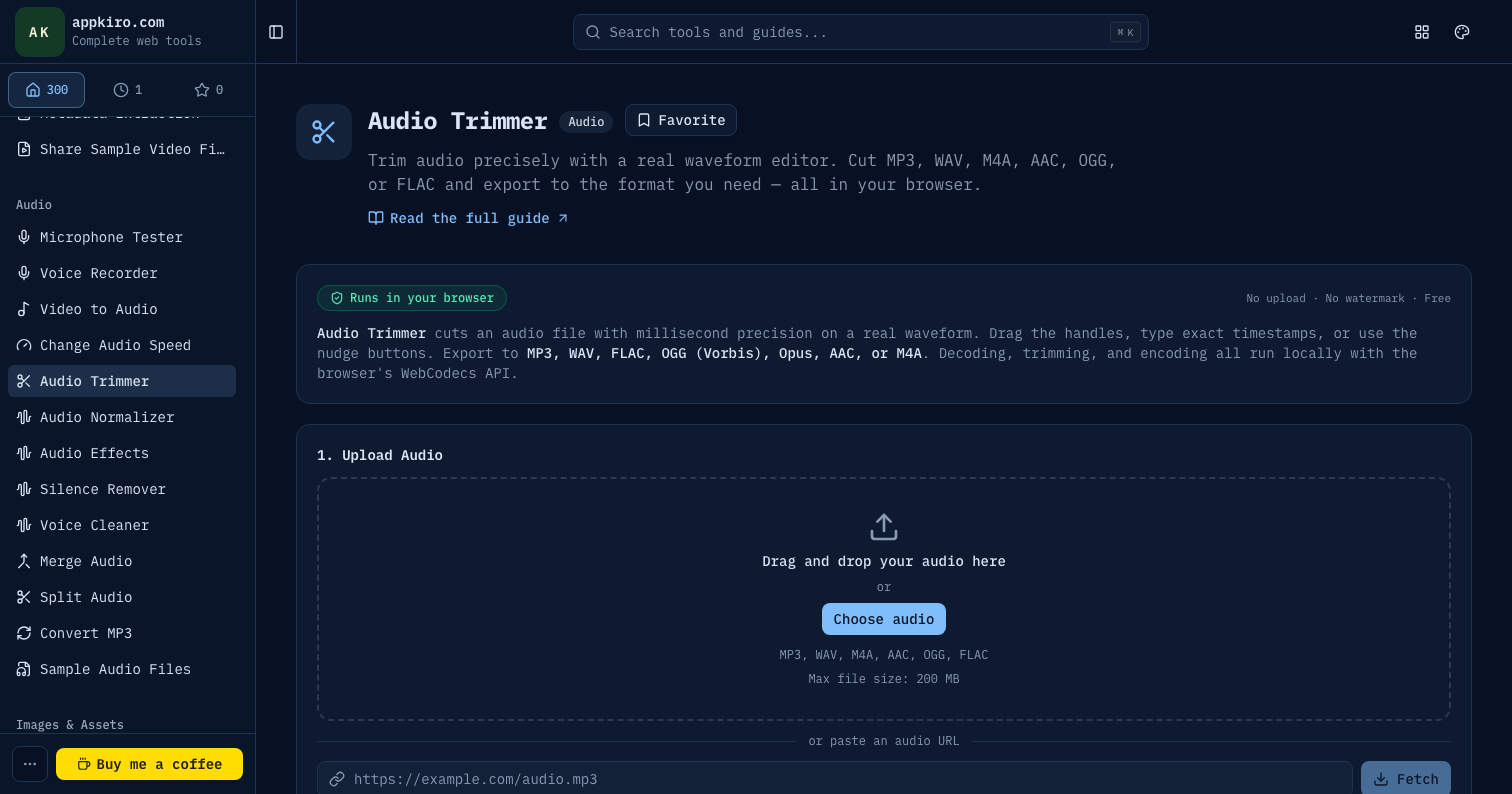
Audio Trimmer is a precision cutter. It decodes the source file in the browser, draws a waveform across the timeline, and lets you mark a start point and an end point with millisecond accuracy. When you click Trim Audio, only the selected range is re-encoded into the output format and bitrate of your choice. Everything else — the intro, the bloopers, the noisy applause at the end — gets dropped on the floor.
It accepts MP3, WAV, M4A, AAC, OGG (Vorbis or Opus), and FLAC. That covers the vast majority of audio you will encounter in practice: phone voice memos, exported podcast tracks, music downloads, screen recording audio, and lossless masters from a DAW. Files up to 200 MB load directly; the decoder streams samples through memory rather than buffering the whole file, so a 90-minute podcast scrubs smoothly.
The trimming workflow, end to end
Drop a file onto the upload area, click Choose audio, or paste a direct URL on the From URL tab. Within a few seconds the waveform appears with two draggable handles — green on the left for the start point, red on the right for the end. The cursor between them is what you will hear when you press play.
From there, the routine is:
- Drag the handles to roughly bracket the section you want.
- Use the nudge buttons (
-5s,-1s,+1s,+5s) to refine the boundaries. - Type exact values into the Start and End fields when you know the timestamps already — they accept
HH:MM:SS.mmm, so you can paste them straight from a transcript. - Hit Play to audition only the selected range. It loops automatically.
- Pick format and bitrate, then click Trim Audio.
The progress bar reports encoder progress, not playback time — modern devices encode several minutes of audio per second of wall time. When it finishes, a download button appears alongside an inline player so you can verify the result before saving.
Three ways to set the cut points
Different jobs call for different precision. The trimmer exposes all three workflows side by side.
Drag the handles
Fastest when you can see the silence or transient you want to cut at. Drag the green handle to where the speech starts, the red one to where it ends. The waveform makes this almost trivial for voice content because pauses show up as clear gaps. Music is harder — beats and sustained notes blur together visually — so for music you usually combine dragging with the nudge buttons.
Nudge with buttons
The -1s and +1s buttons are the most useful pair. They move the active handle in one-second increments without your cursor leaving the timeline. The -5s and +5s buttons cover longer hops. Use Play between nudges; small adjustments are almost impossible to judge from the waveform alone.
Type exact timestamps
When you have the times already — from a transcript, a chapter marker, an editor's notes, or a previous trim — paste them into the Start and End fields. The format is HH:MM:SS.mmm, so 00:03:14.500 snaps the handle to exactly 3 minutes 14.5 seconds. This is the only path that hits sub-second precision reliably.
Choosing the output format
The export dropdown carries the same options as the rest of the Appkiro audio toolkit: MP3, WAV, FLAC, OGG (Vorbis), Opus, AAC (ADTS), and AAC (M4A). The choice usually comes down to whether the clip is heading to a player, an archive, or another editor.
- MP3 at 128 kbps is the right default for shareable clips, podcast teasers, ringtones, and anything that has to play on older devices.
- WAV or FLAC when the trimmed clip will go into another editor afterwards. WAV is the safest import format for any DAW; FLAC is the same audio at roughly half the size.
- Opus for voice clips destined for chat apps, messaging, or low-bandwidth playback. Opus at 96 kbps beats MP3 at 128 kbps on both size and quality for spoken word.
- AAC (M4A) when the destination is Apple-first — iTunes, Apple Music, iOS apps — and the file should carry tags natively.
Bitrate matters for lossy formats only. WAV and FLAC ignore the quality setting because they store every sample as-is. For lossy formats, 128 kbps is fine for voice, 192 kbps for music, and 320 kbps when the source is high quality and the destination cares about it (mastering references, demo reels). Going higher than the source bitrate does not improve quality; it only inflates the file.
Trimming is re-encoding
One detail worth being explicit about: every trim re-encodes the audio, even when the output format matches the source. There is no "cut without re-encoding" mode. For lossy sources this means a second generation of compression, which is rarely audible at sensible bitrates but does compound across repeated edits. If you trim the same clip three times in a row, you have three generations of MP3 compression.
The fix, if you care, is to export to FLAC or WAV as an intermediate. Lossless export from a lossy source does not recover quality, but it stops further degradation if you have more editing to do.
Common scenarios and how to handle them
Podcast teaser
Load the full episode, find the strongest 30 seconds with the transport buttons, type the timestamps from your notes, export to MP3 at 128 kbps. If the chosen section has noisy gaps at the start or end, trim a few hundred milliseconds tighter — leading silence looks unprofessional on social embeds.
Ringtone
Most platforms cap ringtones at 30 seconds. Use the timestamp fields to lock the end exactly 30 seconds after the start; the nudge buttons make it easy to align the cut to a downbeat. Export to M4A for iOS, MP3 for Android.
Removing silence from a voice memo
Phone voice memos often start with a few seconds of fumble before the first word. Drag the green handle to the first transient, audition with Play, then nudge a fraction of a second tighter. Export to the same format as the source if the file is going somewhere that already plays it.
Pulling a quote from an interview
Paste the start and end timestamps directly from the transcript. Audition the result; sentences cut mid-breath sound jarring, so give the trim 200–400 ms of breathing room on either side. Export to MP3 for sharing in email or chat, or to WAV when the quote will be dropped into a video timeline.
Where Audio Trimmer fits with the rest of the toolkit
Trimming is rarely the only step. A typical workflow looks something like:
- Record or import the source.
- Voice Cleaner for spoken content to remove noise, hum, and harsh sibilance.
- Audio Normalizer to bring the loudness up to a consistent target.
- Audio Trimmer to lock the final clip boundaries.
- Merge Audio when several trimmed clips need to become one continuous track, or Split Audio when one long recording needs to become multiple smaller files.
- Convert MP3 if the destination expects a different container or codec than what the trim produced.
Each of those steps runs locally, in the same browser, without sending the audio to a server. For sensitive material — interviews, internal recordings, customer calls — that is the difference between a workflow you can use and one you cannot.
Privacy and limits
Local files are decoded, trimmed, and re-encoded inside the browser tab. There is no upload, no account, no server-side processing. URL mode fetches public audio directly from the host you paste; the host has to allow CORS and Range requests for the file to load. If a URL refuses, the host has blocked browser fetching, not the trimmer.
File size is capped at 200 MB to keep browser memory predictable. That covers an hour-plus of MP3 at typical podcast bitrates. For longer or larger files, split the source first with Split Audio, trim the relevant piece, then either keep it standalone or merge it back into a sequence.