
Help · CSS Tools
Design CSS Shadows, Borders, and Filters Visually
Small CSS details decide whether a component feels flat, heavy, sharp, soft, polished, or unfinished. Shadows create depth, borders define edges, and filters change how media is painted.
Appkiro's Box Shadow Generator, Border Generator, and CSS Filter Generator let you tune those decisions visually, preview the result, and copy CSS or Tailwind-friendly output.
Quick answer
Use Box Shadow Generator for elevation and inset depth, Border Generator for outlines, radius, and per-side edges, and CSS Filter Generator for image, avatar, icon, and background effects.
The three CSS design workspaces
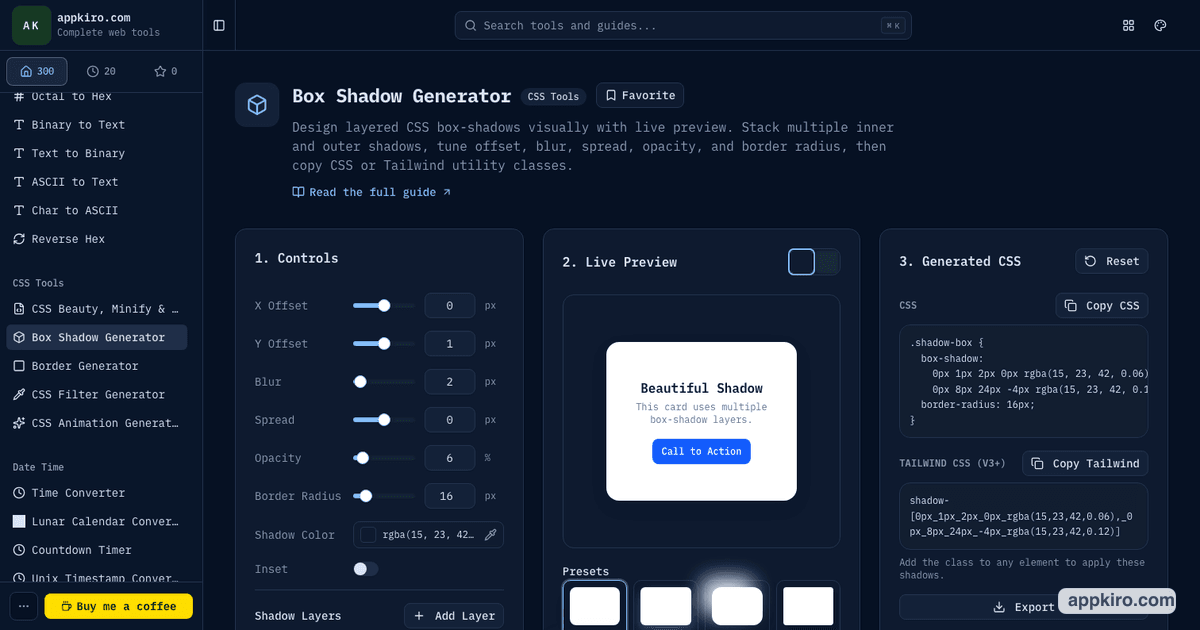
Box Shadow Generator
Designing elevation, soft surface depth, inset states, and layered CSS box-shadow values.
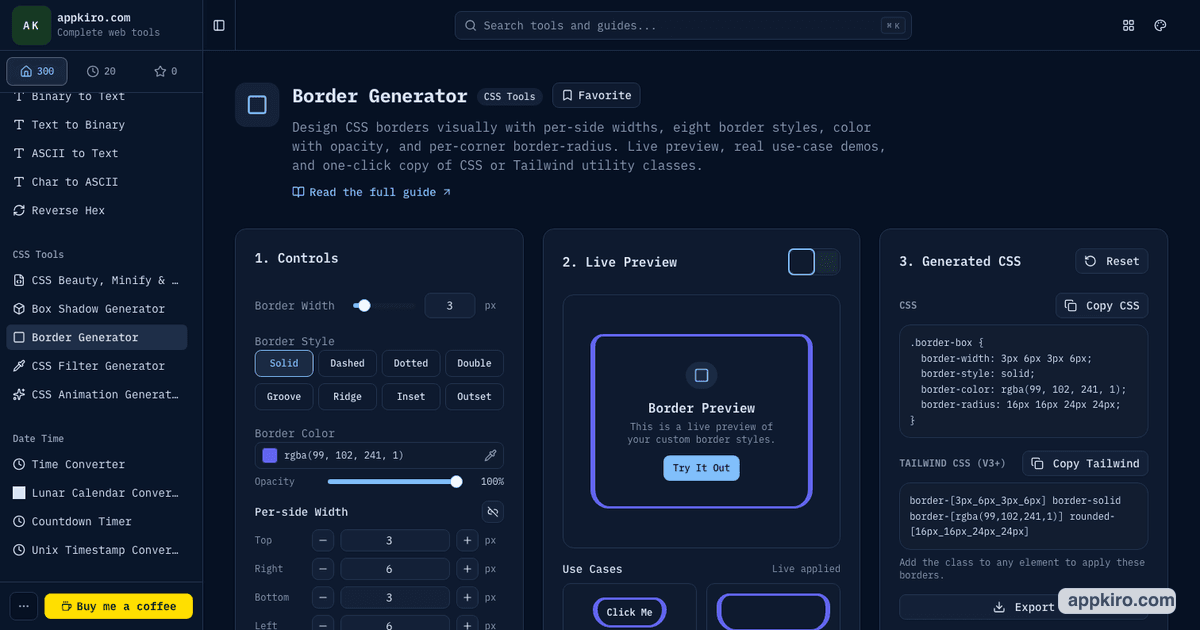
Border Generator
Tuning component edges, outlines, dividers, radius, and per-side border styles.
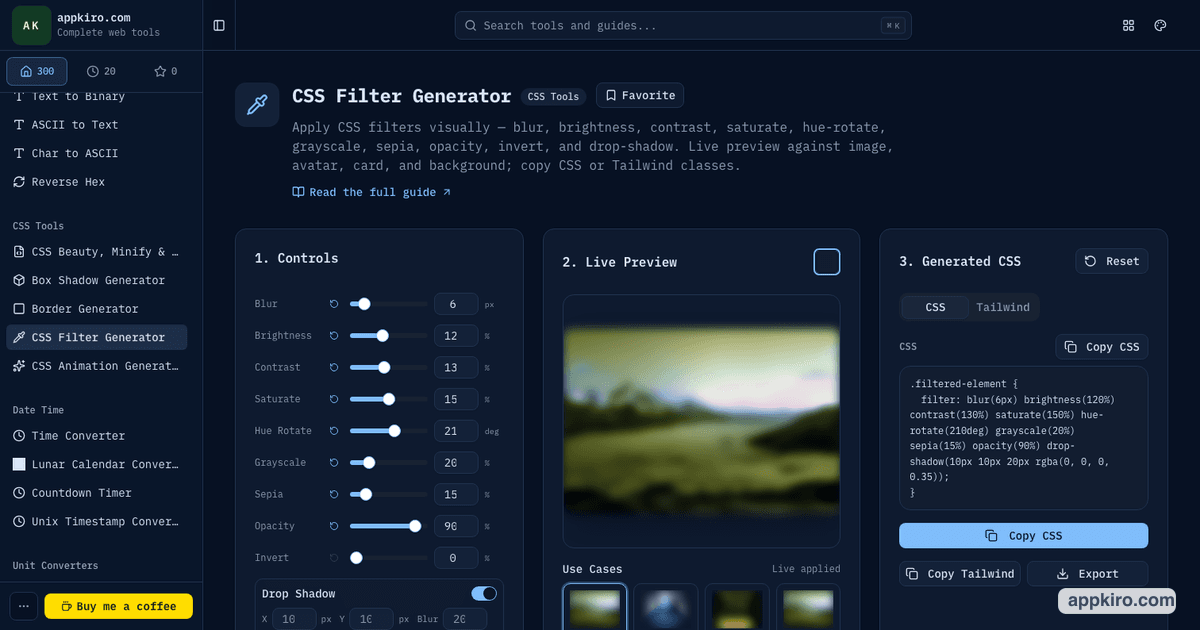
CSS Filter Generator
Creating image, avatar, card, and background effects with CSS filter values.
When these tools are useful
- Create cards, modals, dropdowns, and floating panels that need controlled visual depth
- Tune borders and radius for buttons, form fields, dashboards, pricing cards, and app panels
- Build filtered image treatments for hero media, thumbnails, avatars, gallery items, and backgrounds
- Generate production-ready CSS snippets while visually comparing changes in the browser
- Translate visual CSS choices into Tailwind utility classes for projects that use Tailwind
How to build a CSS visual treatment
Start with the real component role
Decide whether the element is a card, dialog, button, image, avatar, product tile, or background layer. Shadows, borders, and filters should support that role instead of acting as decoration by themselves.
Use Box Shadow Generator for depth
Tune one or two shadow layers until the component sits naturally on its background. Use offset for direction, blur for softness, spread for footprint, and opacity for weight.
Use Border Generator for the edge
Match the border and radius to the shadow. A soft card usually needs a quiet border and consistent radius; a technical panel may need stronger per-side borders or a sharper corner.
Use CSS Filter Generator for media effects
Apply filters when an image, icon, avatar, or background needs a visible treatment. Adjust one property at a time so the final filter remains readable in CSS.
Copy CSS or Tailwind output
Copy the format that fits your codebase. Test the result in the actual component, on the real background, before treating the generated values as final.
Controls worth understanding
- Shadow layers
- One layer is enough for many components. Add a second layer when you need a contact shadow plus a softer elevation shadow.
- Inset shadows
- Use inset shadows for pressed buttons, recessed panels, or input depth. Keep them subtle so the element does not look muddy.
- Per-side borders
- Per-side controls help with dividers, notification accents, and panels where only one edge should carry emphasis.
- Border radius
- Radius changes how the whole component feels. Match radius with shadow softness so the edge and depth look like one decision.
- Filter order
- CSS filters are applied in order. Small changes to brightness, contrast, and saturation can alter the result more than expected.
- Drop-shadow filter
- filter: drop-shadow follows visible pixels, which is useful for transparent PNGs. box-shadow follows the rectangular element box.
Practical examples
Dashboard card system
Use Box Shadow Generator for a light elevation, Border Generator for a quiet 1px border and matching radius, then copy CSS values into the card component.
Pricing table highlight
Use a stronger border on the featured plan, add a soft outer shadow, and keep radius consistent across every pricing card.
Muted image background
Use CSS Filter Generator to lower brightness, add contrast, and slightly desaturate a background image so foreground text has more room to read.
Transparent icon shadow
Use the filter drop-shadow control when a transparent icon or PNG needs a shadow around its actual shape instead of a rectangular box.
Copying CSS into a project
Generated values are a starting point for the real component. Paste them into the stylesheet, component class, or Tailwind arbitrary value that your project uses, then test the result with actual content, hover states, focus states, and dark or light theme backgrounds.
Browser-based design note
These generators run in the browser and produce CSS text. They do not need access to your codebase, and copied snippets are new CSS values that you can review before adding them to a project.
Design tips
- Design on the same background color where the CSS will be used. Shadows and borders change dramatically between light and dark surfaces.
- Lower opacity before increasing blur. A large high-opacity shadow usually looks heavier than intended.
- Keep border radius consistent across related components unless the difference communicates a real hierarchy.
- Use filters sparingly on photos that include skin tones or brand colors; saturation and hue shifts can distort the source.
- After copying CSS, format the snippet if you plan to keep it in a shared stylesheet.
Related CSS and color tools
After shaping a component with shadows, borders, or filters, use CSS Beauty, Minify & Formatter to clean up code, or check important foreground and background combinations with Color Contrast Checker.
Gradient Generator
Create background layers that match the shadow, border, or filter treatment.
Color Contrast Checker
Check text contrast after borders, filters, or backgrounds change the visual balance.
CSS Beauty, Minify & Formatter
Clean up copied CSS before storing it in a stylesheet or component file.
Tailwind Cheatsheet
Look up common Tailwind utilities while translating visual CSS into classes.
Frequently asked questions
- Which tool should I use first?
- Start with Box Shadow Generator when you are designing depth, Border Generator when the edge is the main issue, and CSS Filter Generator when the visual media itself needs an effect.
- Can I copy Tailwind classes?
- Yes. These tools provide CSS output and Tailwind-style utility output where the generated value can be represented as a utility class.
- What is the difference between box-shadow and drop-shadow?
- box-shadow draws around the rectangular element box. filter: drop-shadow follows the visible pixels, so it is better for transparent PNGs, icons, and irregular shapes.
- How many box-shadow layers should a component use?
- Most UI components only need one or two layers. More layers can work, but they should have a clear purpose and be tested on the real page background.
- Can borders be different on each side?
- Yes. Border Generator supports per-side width controls, which is useful for left accents, bottom dividers, and asymmetric panel treatments.
- Do CSS filters change layout size?
- No. CSS filters affect how an element is painted, not its layout box. A drop-shadow can visually extend beyond the box, but it does not change the element dimensions.
Ready to tune a component?
Start with the shadow, then match the border and radius before adding any media filter treatment.