
Help · Data Tools
Move Data Between CSV and JSON Without Rebuilding It
CSV and JSON often describe the same data in two different shapes. CSV is easy for spreadsheets and imports; JSON is easier for APIs, scripts, configs, and test fixtures.
Appkiro's CSV to JSON and JSON to CSV tools help you move between those formats without rebuilding rows and fields by hand.
Quick answer
Use CSV to JSON when rows and columns need to become objects or arrays. Use JSON to CSV when structured JSON needs to become spreadsheet-ready rows.
Screenshot of the two-way workflow
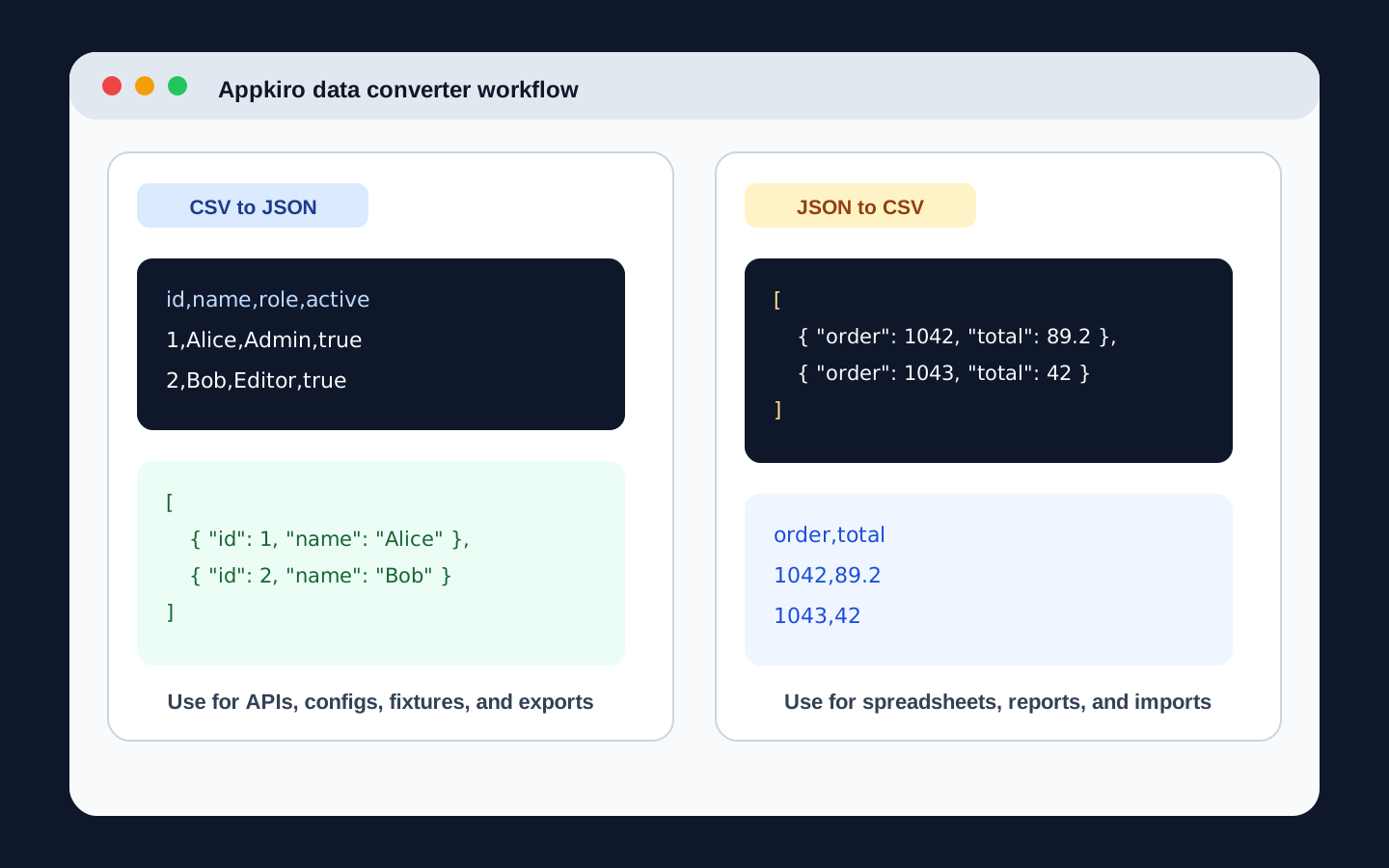
What changes in each direction
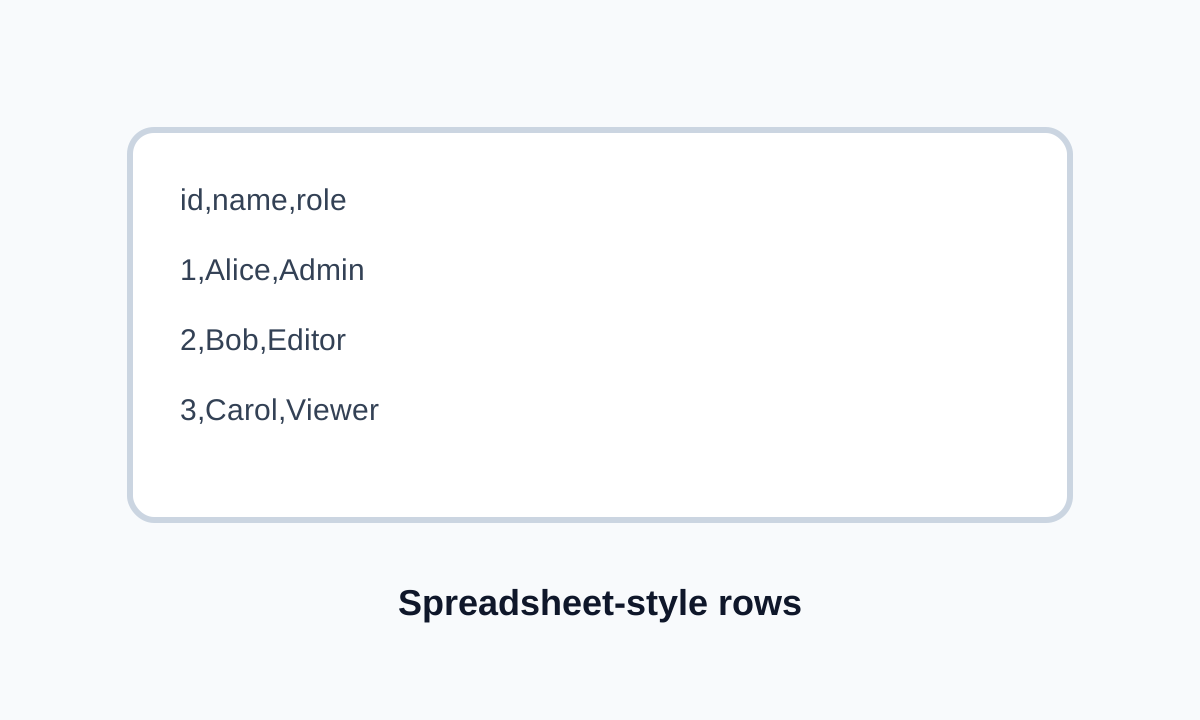
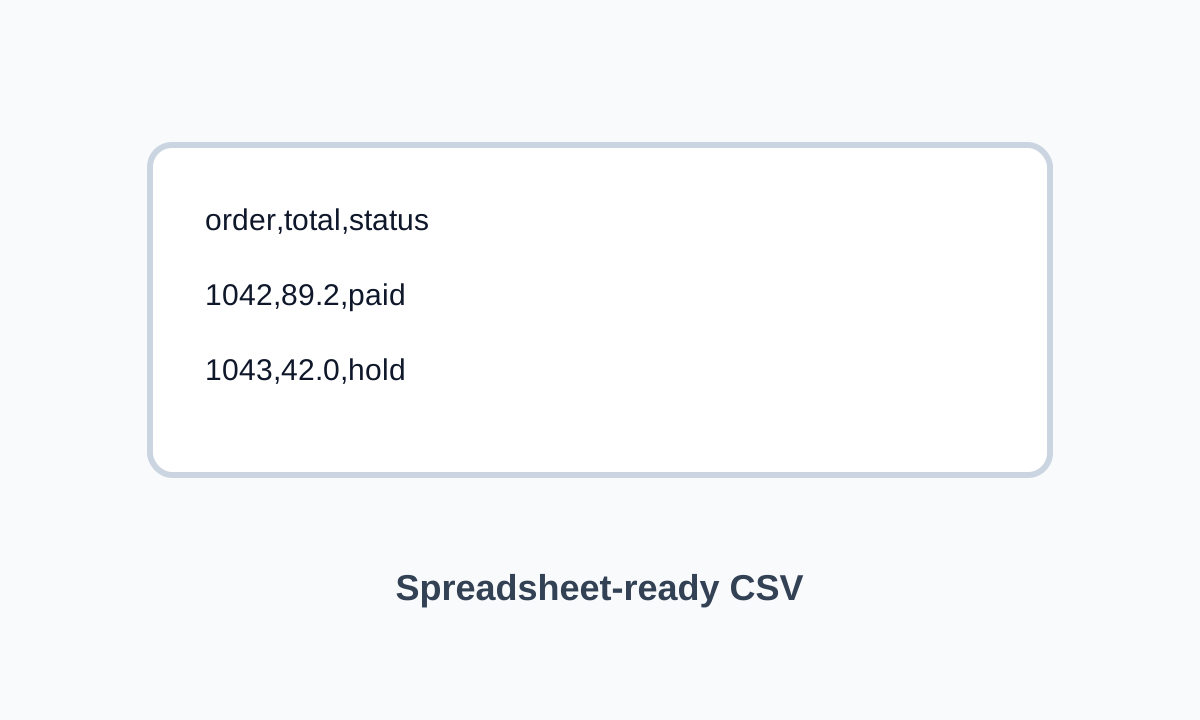
When these converters are useful
- Turn spreadsheet exports into JSON for APIs, seed data, tests, or configuration files
- Convert JSON arrays or API responses into CSV for Excel, Google Sheets, reports, or imports
- Preview tabular data before copying it into a ticket, script, CMS, or dashboard
- Handle common delimiter choices such as comma, semicolon, tab, and pipe
- Keep control over headers, type coercion, nested JSON flattening, quoting, line endings, and BOM
CSV to JSON: from table rows to structured data
Paste CSV or upload a file
Start with pasted CSV or a local file. The converter also supports common separators such as comma, semicolon, tab, and pipe.
Confirm the delimiter and header row
Auto-detect works for normal exports, but override the delimiter when a regional spreadsheet uses semicolons or a log file uses tabs. Turn off the header row option when the first row is data.
Choose the JSON shape
Use an array of objects for API-style output where column names become keys. Use array rows when the source is matrix-like or has duplicate column names.
Review warnings and output
Check ragged rows, unexpected columns, and values that should stay strings, such as IDs, postal codes, and phone numbers.
JSON to CSV: from objects to spreadsheet columns
Paste JSON, upload a file, or load a public URL
Start from a JSON array, a single object, an uploaded file, or a public API response. Arrays of objects usually produce the cleanest CSV.
Select the root and flattening behavior
Auto root selection can find the first array in a response. Flatten nested objects when fields such as user.name or address.city should become CSV columns.
Set CSV output rules
Choose delimiter, line ending, quote strategy, and UTF-8 BOM. BOM is useful when the CSV will be opened in Excel and contains non-ASCII text.
Preview, copy, or download
Check the table preview before exporting. Copy for quick work or download a CSV when the result needs to move into another app.
Settings worth checking
- Headers
- CSV to JSON can use the first row as object keys. If the CSV has no header row, generate column names instead so every row still becomes structured JSON.
- Type coercion
- Coercion turns values such as true, false, null, and numbers into JSON types. Disable it for IDs, SKUs, postal codes, and phone numbers that must stay exact strings.
- Flatten nested JSON
- JSON to CSV can turn nested objects into dot-path columns such as customer.email. This is usually easier for spreadsheets than storing a nested object inside one cell.
- Array expansion
- Expanding arrays can create multiple CSV rows from one JSON record. Keep arrays joined in one cell when row multiplication would confuse the import target.
- Delimiter
- Comma is the normal default. Semicolon helps in some European spreadsheet settings, tab works for shell pipelines, and pipe is useful for legacy imports.
- Quoting and BOM
- Minimal quoting is a practical default. Use BOM when Excel needs help reading UTF-8 characters correctly.
Practical examples
Spreadsheet export to API seed data
Export users from a spreadsheet as CSV, convert to an array of JSON objects, keep IDs as strings if needed, then paste the result into a fixture or seed file.
API response to spreadsheet review
Paste a JSON response, flatten nested fields, turn on BOM for Excel users, and download CSV for a product or operations review.
Support ticket cleanup
A ticket includes raw CSV rows. Convert them to JSON so a developer can reproduce the case with clean field names and typed values.
Legacy import preparation
A system expects pipe-delimited CSV. Convert the JSON records to CSV, choose pipe as the delimiter, and preview quoted fields before downloading.
Common mistakes to avoid
- Check whether IDs should be strings before enabling type coercion. Leading zeros are easy to lose.
- Fix inconsistent row widths in CSV before trusting the JSON output.
- Flatten JSON only as much as the destination needs. Deep dot-path columns can become hard to read.
- Use a small sample first when converting large exports, then repeat with the full file once the settings are right.
- Keep the original CSV or JSON file until the receiving app accepts the converted output.
Related data tools
These converters are most useful when they sit inside a small data cleanup workflow: convert, inspect, then export into the format the next tool expects.
Frequently asked questions
- When should I use CSV to JSON?
- Use CSV to JSON when tabular data from a spreadsheet, database export, or copied table needs to become structured JSON for APIs, fixtures, scripts, or configuration.
- When should I use JSON to CSV?
- Use JSON to CSV when JSON records need to be opened in a spreadsheet, imported into a reporting tool, or shared with someone who works better with rows and columns.
- Can the tools handle files with semicolons or tabs?
- Yes. The CSV workflow supports common delimiter choices including comma, semicolon, tab, and pipe. Override auto-detect when you know the source format.
- What happens to nested JSON when converting to CSV?
- Nested objects can be flattened into columns such as user.name. Arrays can be expanded into multiple rows or kept inside a cell depending on the output you need.
- Why did a number like 00123 become 123?
- That happens when type coercion treats the value as a number. Disable coercion for identifiers, SKUs, postal codes, and phone numbers.
- Can I open the CSV output in Excel?
- Yes. Use comma or semicolon depending on your locale, and enable UTF-8 BOM when Excel needs to display accented characters, CJK text, or other non-ASCII values correctly.
Ready to convert a dataset?
Open the converter that matches your source format, check the options, then copy or download the output.