
Help · Data Tools
Convert Between Excel and JSON Without Losing the Shape of Your Data
Excel is where many teams clean and review data. JSON is where that data often needs to go next: APIs, seed files, fixtures, configs, dashboards, and internal tools.
Appkiro's Excel to JSON and JSON to Excel tools cover both directions of the workflow. Use the first when a workbook needs to become structured data, and the second when JSON needs to become rows that people can inspect in a spreadsheet.
Quick answer
Use Excel to JSON when a spreadsheet needs to become structured data for software. Use JSON to Excel when API data, exports, or nested records need to become a workbook or CSV that people can sort, filter, and share.
Which direction should you choose?
| Task | Use | Why |
|---|---|---|
| Send spreadsheet data to an API, app, seed script, or config file | Excel to JSON | Spreadsheets are easy to edit, but software usually needs structured JSON. |
| Give API output to finance, ops, research, or support teams | JSON to Excel | Rows and columns are easier to scan, filter, sort, and share. |
| Turn a multi-sheet workbook into one structured payload | Excel to JSON | The all-sheets output shape keeps sheet names as keys. |
| Review nested API records with non-developers | JSON to Excel | Flattening nested objects makes fields visible as spreadsheet columns. |
Excel to JSON: turn workbook rows into structured data
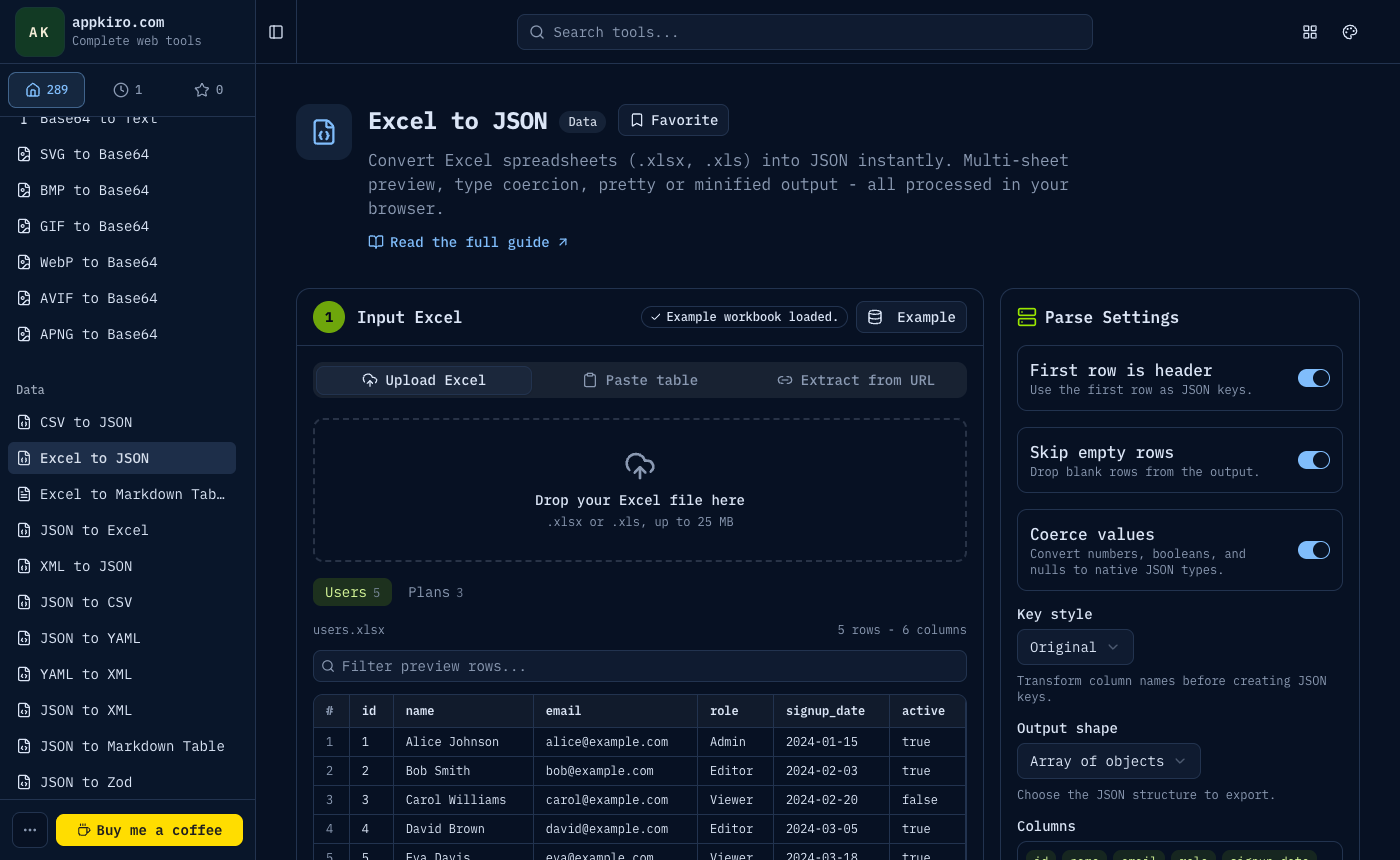
The Excel to JSON converter is useful when spreadsheet data needs to feed an app, API, test fixture, lookup table, or configuration file. The important step is not only exporting JSON. It is checking the headers, data types, sheet selection, and output shape before the file leaves the browser.
Start with the workbook
Upload an .xlsx or .xls file, paste cells copied from Excel, or fetch a public spreadsheet URL.
Check the preview
Review the active sheet, switch sheets when needed, search rows, and hide columns that should not appear in the JSON.
Choose parsing rules
Decide whether the first row is a header, whether empty rows should be skipped, and whether values should be coerced into numbers, booleans, or null.
Pick the JSON shape
Use an array of objects for APIs and fixtures, arrays for matrix-style data, a keyed object for lookup tables, or an all-sheets map for multi-sheet workbooks.
Copy or download
Use Pretty view while checking the output, then copy the JSON or download a .json file.
JSON to Excel: make API data readable in rows and columns
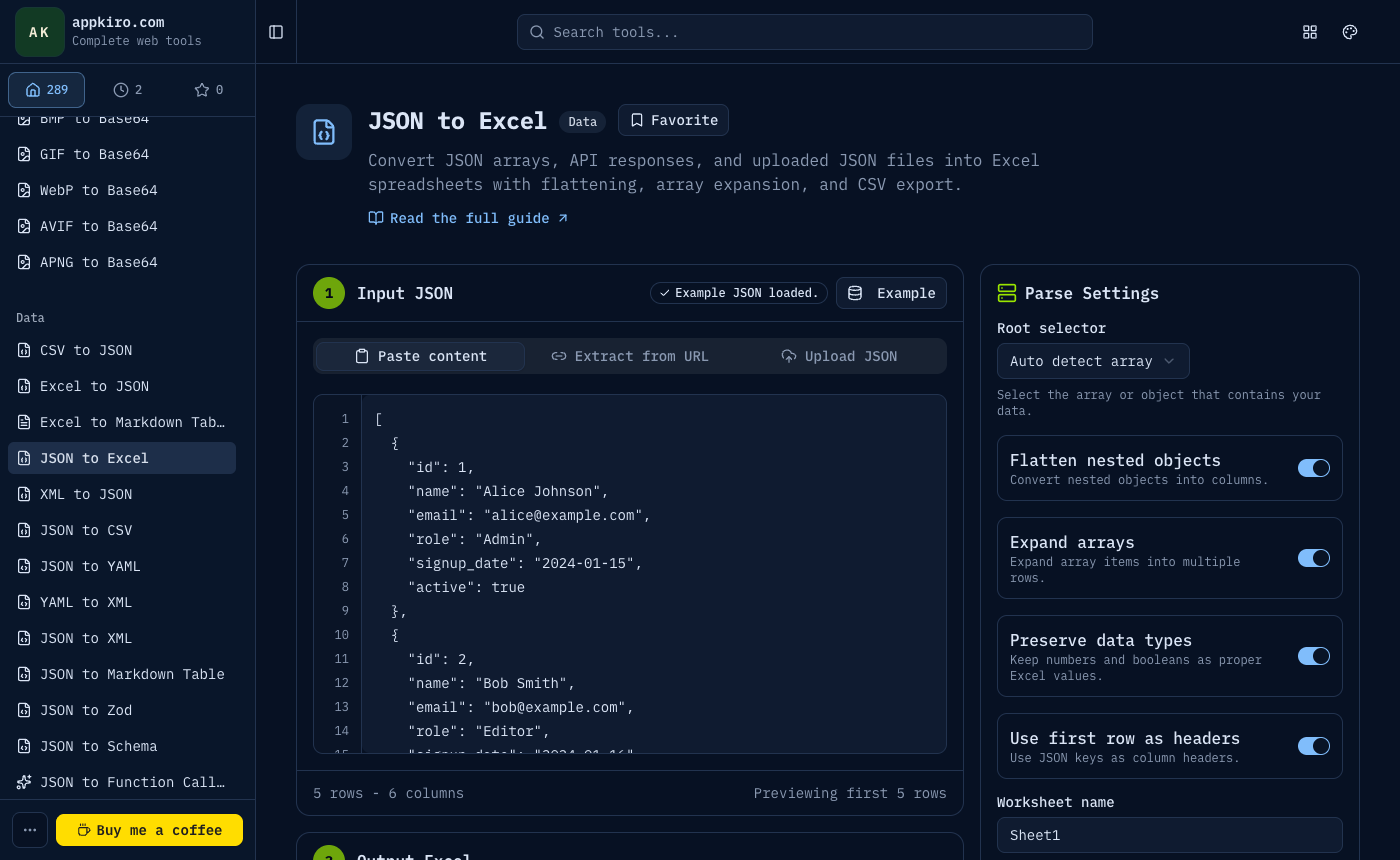
JSON to Excel is the better direction when the source already comes from an API, app export, log, or database payload. The tool helps you choose the right root array, flatten nested objects, decide how arrays should behave, preview the spreadsheet, and download XLSX or CSV.
Add JSON
Paste JSON, upload a .json or .txt file, or fetch a public JSON endpoint.
Select the root records
Auto detect works for most API responses. Use the root selector when the top-level value itself should become the spreadsheet source.
Flatten or expand
Flatten nested objects into dotted columns. Expand arrays when child items should become repeated spreadsheet rows.
Preview the sheet
Review headers, rows, and data types before exporting so nested fields do not land in the wrong column.
Download XLSX or CSV
Choose Excel for a workbook file or CSV when another database, BI tool, or import form expects plain text rows.
A realistic round trip
A support team keeps customer tiers in Excel because it is easy to review with non-developers. Before importing the list into an app, a developer converts the workbook with Excel to JSON, keeps type coercion on for booleans, and uses camelCase keys for the frontend fixture. Later, the app exports user activity as JSON. The same team uses JSON to Excel to flatten the records into a workbook they can filter by account, role, and signup date.
Common conversion mistakes to avoid
- Keep type coercion off when IDs, postal codes, SKUs, or phone numbers must keep leading zeros.
- Use clear column names before converting a workbook. Empty or duplicate headers create generated or suffixed JSON keys.
- Flatten nested JSON only when the destination is a spreadsheet. Deep object structure can be meaningful for APIs.
- Preview exports before sharing. A valid file can still have the wrong root array, hidden columns, or expanded rows.
- Use CSV only when formulas, multiple sheets, styling, and workbook metadata are not needed.
Browser-based processing note
Files selected from your device are parsed in the browser. When you use a URL input, the browser or Appkiro's fetch route has to retrieve that public remote file first, so private dashboards, logged-in spreadsheet pages, and blocked endpoints may not work.
Related data conversion tools
CSV to JSON
Use it when the source is plain CSV or copied table text instead of a workbook.
JSON to CSV
Export simpler row-based data when a full XLSX workbook is unnecessary.
JSON to Markdown Table
Turn JSON records into a table for docs, GitHub issues, or README files.
Excel to Markdown Table
Convert spreadsheet rows into Markdown when documentation is the final destination.
Frequently asked questions
- Which tool should I use first, Excel to JSON or JSON to Excel?
- Use Excel to JSON when your source is a spreadsheet and the destination is software. Use JSON to Excel when your source is an API response, JSON export, or nested record set and the destination is a spreadsheet.
- Can I convert JSON back to the exact original Excel file?
- Not exactly. JSON can preserve values and structure, but it does not carry Excel formatting, formulas, merged cells, comments, or multiple workbook features unless those were modeled in the JSON.
- What happens to nested JSON in a spreadsheet?
- JSON to Excel can flatten nested objects into columns such as address.city. Arrays can stay as joined values or expand into repeated rows, depending on the setting.
- Can Excel to JSON export every sheet?
- Yes. Choose the all-sheets map output shape when each worksheet should become a key in one JSON object.
- Are local files uploaded?
- Files selected from your device are processed in the browser. URL modes fetch public remote files through the relevant route so the browser can read them.
- Why did a number or date change after conversion?
- Type conversion rules can turn text into numbers, booleans, null, or ISO date strings. Disable coercion when exact text values matter.
Pick the direction that matches your source file
Start with the format you already have, preview the data shape, then export the format your next workflow expects.