
Help · GIF Tools
Compress, Crop, and Reverse Animated GIFs in Your Browser
Animated GIFs are easy to share but awkward to fix once they are too large, badly framed, or moving in the wrong direction.
Appkiro's GIF Compressor, GIF Crop, and GIF Upside Down tools cover the common cleanup workflow: reduce file size, reframe the animation, or reverse playback without opening a desktop editor.
Quick answer
Use GIF Compressor to make an existing GIF smaller, GIF Crop to remove unwanted edges or fit a target aspect ratio, and GIF Upside Down to reverse the frame order while keeping the animation timing natural.
The three GIF workspaces
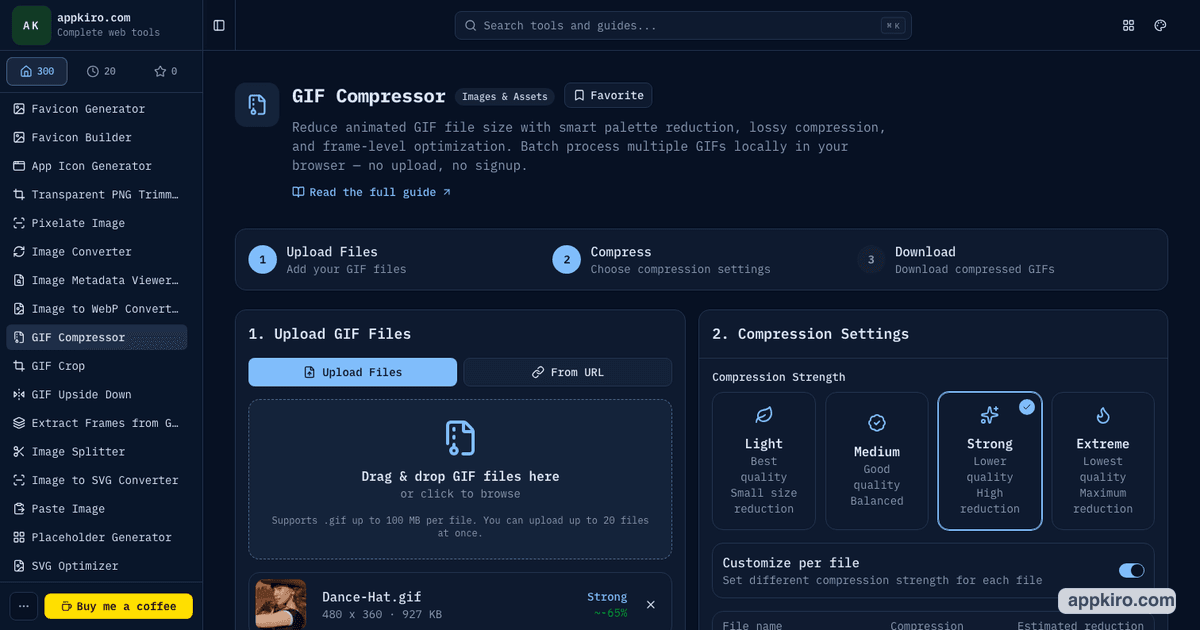
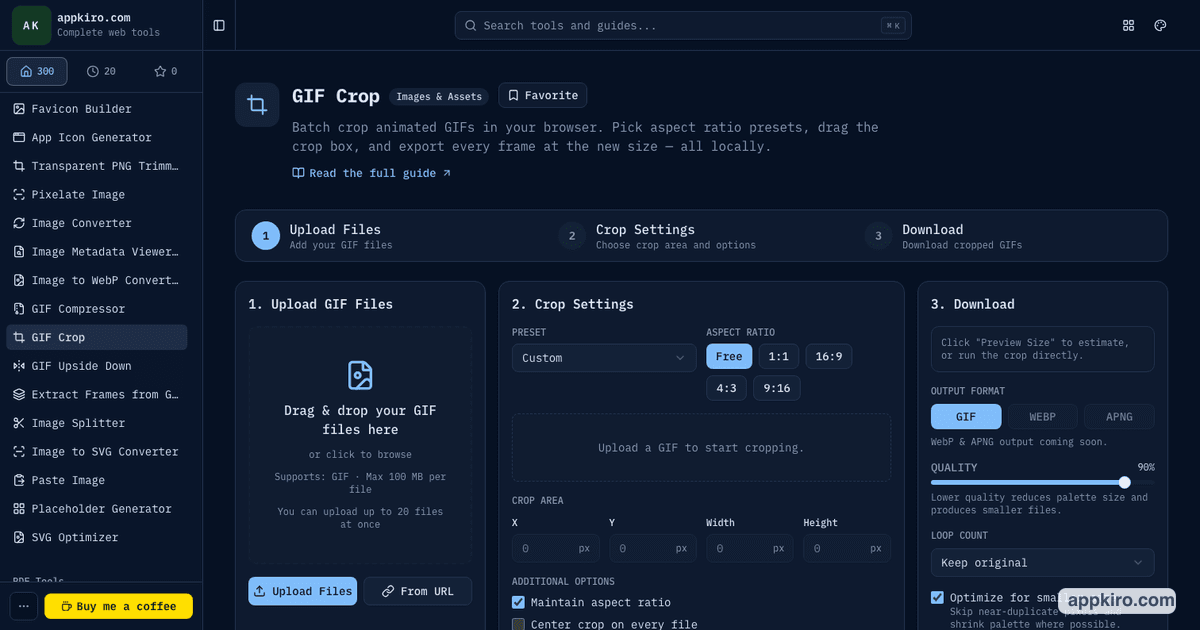
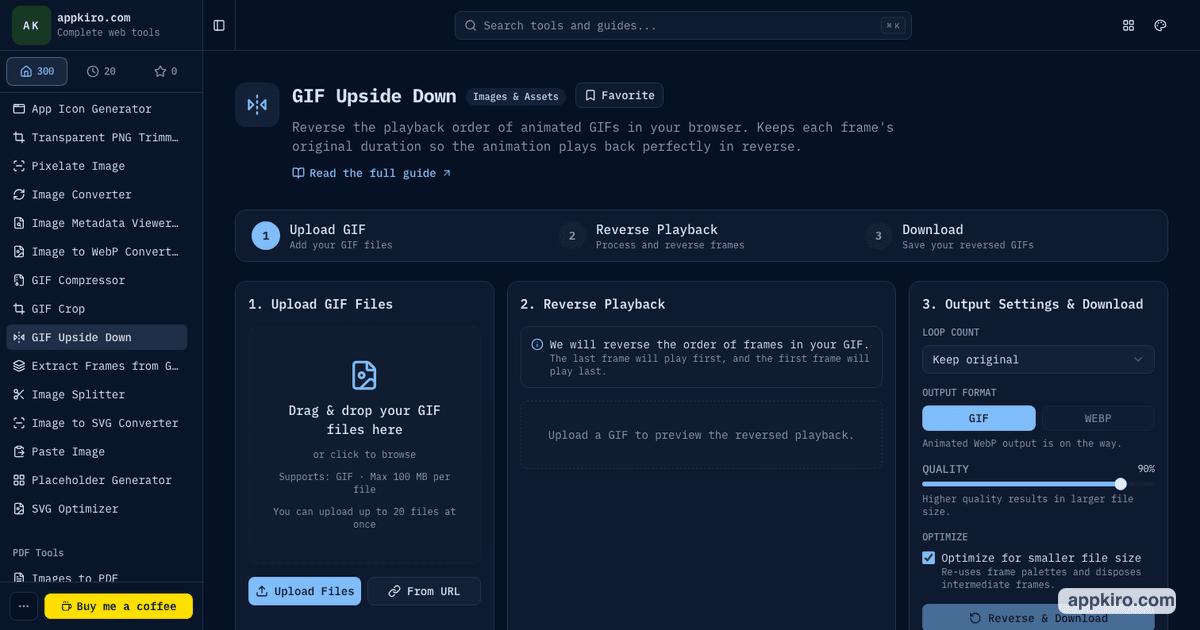
Which GIF tool should you open?
Use it when the animation is visually correct but too large for chat, docs, email, CMS uploads, issue trackers, or web pages.
Use it when the GIF has extra edges, a distracting frame, or needs a fixed shape such as square, 16:9, 4:3, or 9:16.
Use it when the same animation should play backwards, create a rewind effect, or become part of a loop-style motion idea.
A practical GIF cleanup workflow
Start with the visual problem
If the GIF is too heavy, compress it. If the framing is wrong, crop it. If the story should play backwards, reverse it with GIF Upside Down.
Upload files or import a GIF URL
Each tool supports browser-based GIF processing and can handle batch workflows. Use local files for private work, or a direct GIF URL when the source is already hosted.
Preview before exporting
Check the animation, framing, timing, and expected file size before downloading. Previewing catches most mistakes before the browser spends time encoding the final GIF.
Choose quality intentionally
Lower quality settings reduce palette size and output weight. Use lighter settings for brand or product GIFs, and stronger settings when upload limits matter more than perfect color detail.
Export individual GIFs or a ZIP
Download one result when you only need a single file. Use ZIP export when processing several GIFs in the same batch.
Compress after crop or reverse when needed
Cropping and reversing re-encode the GIF. If the final result is still too large, run it through GIF Compressor as the last step.
Settings worth understanding
- Compression level
- GIF Compressor uses stronger palette reduction, frame optimization, optional downscaling, and frame skipping as compression becomes more aggressive.
- Per-file settings
- Use per-file compression settings when one large GIF needs stronger reduction than the rest of the batch.
- Crop presets
- GIF Crop includes centered presets plus common aspect ratios. Use a preset for speed, or drag the crop box and type exact pixel values when the framing must be precise.
- Maintain aspect ratio
- Lock aspect ratio when a GIF must fit a fixed canvas such as square avatars, 16:9 documentation slots, or 9:16 story formats.
- Loop count
- GIF Upside Down can keep the source loop behavior or export with a chosen loop mode, useful when a reversed animation should play once or repeat continuously.
- Reverse quality
- Reversing changes frame order and then re-encodes the file. Quality and optimization settings help keep the output balanced in size and visual fidelity.
Practical examples
Support ticket screen recording
Crop away browser chrome or empty desktop space, then compress the GIF so it fits the issue tracker upload limit without losing the part that shows the bug.
Product documentation animation
Use GIF Crop to focus on the UI region, keep a 16:9 or custom documentation frame, then run GIF Compressor with a medium setting for a lighter page load.
Social or chat reaction GIF
Reverse the playback to create a quick rewind effect, preview the loop, then compress if the chat app rejects the original file size.
Batch cleanup for a design handoff
Drop several GIFs into the same tool, apply one crop or compression workflow, then download a ZIP so the files stay together for review.
Browser-based processing note
Files selected from your device are processed in the browser. The GIF tools decode frames with browser APIs where supported and re-encode results locally. If you import a GIF from a URL, the browser must fetch that source file first.
Tips for cleaner GIF output
- Crop before compressing when the GIF contains empty edges; fewer pixels usually means a smaller final file.
- Use the strongest compression only when file size is the priority, because colors, dimensions, or frame detail may change.
- For UI demos, keep text readable after compression by avoiding extreme downscaling.
- Preview reversed GIFs before export; some animations look better reversed than others.
- Use video tools instead when the source is MP4, MOV, or WebM. Converting to GIF after trimming or cropping video often produces cleaner output.
Related GIF and media tools
Use Video to GIF when the source is still a video file. Use Extract Frames from GIF when you need still images instead of another animation.
Video to GIF
Create a GIF from MP4, MOV, WebM, or MKV before optimizing it.
Extract Frames from GIF
Pull still frames from an animation when you need images instead of another GIF.
Image Converter
Convert GIFs or extracted frames into other image formats.
Crop Video
Crop video before GIF conversion when the source is not already a GIF.
Frequently asked questions
- Which GIF tool should I use first?
- Start with the tool that fixes the visible problem. Crop first when the frame is wrong, reverse first when playback direction is the goal, and compress last when the final GIF still needs to be smaller.
- Will these tools change GIF quality?
- Any GIF export involves re-encoding and palette handling. Light settings keep more visual detail, while stronger compression or lower quality settings can reduce colors, dimensions, or frame detail.
- Can I process multiple GIFs at once?
- Yes. The tools support batch-style workflows so you can process several GIF files and download results individually or as a ZIP where available.
- Are GIF files uploaded to Appkiro?
- Files selected from your device are processed in your browser. If you import a remote GIF URL, the browser needs to fetch that URL from its source host.
- Why did my GIF get larger after reversing or cropping?
- Frame order, crop dimensions, palette choices, and GIF optimization all affect file size. Run the result through GIF Compressor if the edited GIF is still too large.
- Should I use Video to GIF instead?
- Use Video to GIF when the source is a video file and you still need to choose duration, resolution, or FPS. Use these GIF tools when you already have an animated GIF.
Ready to clean up a GIF?
Open the tool that matches the job: compress, crop, or reverse the animated GIF, then download the result.