
Help · Video Tools
Cut a Clip From an HLS Stream Without Downloading the Full Video
HLS streams are convenient to watch, but awkward to clip. The video is split across playlist entries and small media segments, so a normal file trimmer is not the right first step.
Appkiro's HLS Clip Cutter loads a public m3u8 playlist, previews the stream, lets you choose a time range, quality, audio track, output format, and then exports a short clip as MP4, WebM, or MKV in your browser.
Quick answer
Use HLS Clip Cutter when you have a public .m3u8 playlist and only need a short section. Load the URL, choose start and end time, keep Smart Cut for a fast export, then download MP4 unless your workflow needs WebM or MKV.
The tool interface
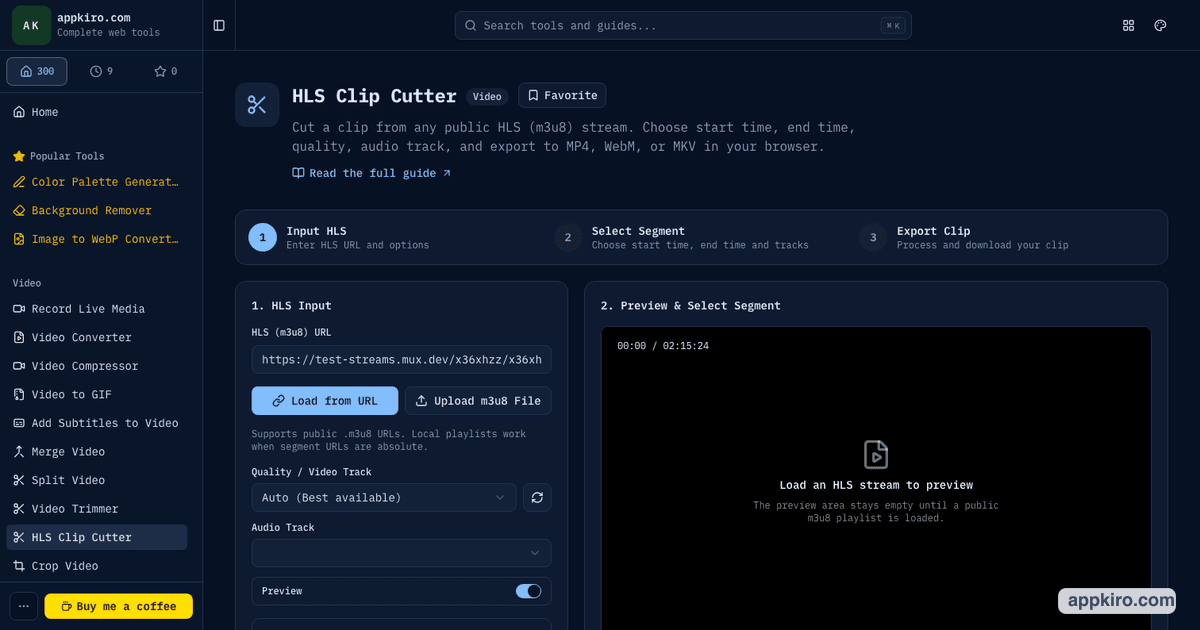
When this is the right tool
It is most useful when the source is already an HLS stream and you need a smaller file for review, sharing, publishing, or debugging:
- Clip a highlight from a public webinar, lecture, livestream replay, or event archive
- Create a short test clip from an HLS stream before debugging playback or encoding
- Export a smaller segment when downloading the full stream would waste time and bandwidth
- Pick a specific rendition or audio track from a multi-quality m3u8 playlist
- Turn a browser-playable stream segment into MP4, WebM, or MKV for sharing or QA
How to cut an HLS clip, step by step
Paste the HLS m3u8 URL
Open the tool, paste a direct HTTP or HTTPS playlist URL, and click Load from URL. The stream host must allow browser CORS requests because the browser reads the playlist and media segments directly.
Check stream information
Review the detected duration, available qualities, audio tracks, frame rate, and protocol. For live sources, the duration may represent the current DVR window rather than the full event.
Preview the stream
Use the preview player to confirm that the playlist loads and to find the rough start point. Preview may work even when export later fails, because preview and export use different browser media paths.
Set start and end time
Drag the range handles or type timecodes such as 00:45:30. The selected duration is calculated automatically and drives the estimated output size.
Choose quality, audio, and export settings
Use Auto for the safest default, or choose a specific video variant and audio track. Keep Smart Cut unless you need a more exact timestamp and can accept re-encoding.
Export and download the clip
Click Cut & Export Clip. When processing finishes, download the generated MP4, WebM, or MKV file with a filename based on the source and selected time range.
Settings worth understanding
- HLS URL or uploaded m3u8
- A URL is best for real streams because relative segment paths resolve correctly. Uploaded m3u8 files work when the segment URLs inside the playlist are absolute.
- Quality / video track
- Master playlists often include several renditions such as 480p, 720p, and 1080p. Auto is the normal choice; pick a specific variant when file size or test coverage matters.
- Audio track
- Some streams expose multiple languages or audio renditions. Choose one track for a normal clip, or all available audio when you need to preserve every compatible track.
- Smart Cut
- Smart Cut is recommended for most clips. It tries to copy compatible encoded media where possible, which is faster and avoids unnecessary quality loss.
- Precise Cut
- Precise Cut re-encodes around the selected range for closer timestamp accuracy. Use it when the exact start or end matters more than export speed.
- Output format and codecs
- MP4 with H.264/AAC is the safest sharing target. WebM with VP9 or AV1 fits browser-first workflows. MKV is useful for testing or archive cases where codec flexibility matters.
Practical examples
Webinar highlight
A two-hour HLS replay has one useful answer at 51:20. Load the m3u8, set the clip from 51:05 to 52:10, keep MP4 output, and download a one-minute highlight for a recap post.
Streaming QA sample
A developer needs a short file that reproduces an audio drift issue. Choose the same variant and audio track seen in production, export a 30-second clip, then test it in a local player.
Lecture excerpt
A teacher wants to share only one topic from a recorded class. Clip the exact section, keep audio enabled, and export MP4 so students do not need to open the original HLS stream.
Codec compatibility check
Before sending a stream to a client, export the same range as MP4 and WebM. Compare playback in the target browser or platform without handling the full archive.
Why some streams cannot be exported
HLS playback and HLS export are not the same operation. A browser may be able to preview a stream through native playback or hls.js, while export still fails because the segments cannot be fetched by JavaScript, the stream is encrypted, the signed URL expires, or the selected output codec is not available through WebCodecs.
When a source is difficult, test with a short range first. If that works, expand the clip. If the final file is too large after export, send it through the Video Compressor before uploading or sharing.
Browser-based processing note
The tool is designed so Appkiro does not receive the media file. Your browser requests the playlist and segments from the stream host, then writes the clip locally. That also means the source host must permit browser access, and private or protected streams may not be usable.
Tips worth knowing
- Start with a short range when testing a new stream. A 10-second export tells you quickly whether CORS, codecs, and segment access work.
- Use MP4 first when the destination is a client, chat app, LMS, or CMS. Switch formats only when the destination asks for WebM or MKV.
- Keep Smart Cut for speed. Use Precise Cut only when the first frame or final moment has to be closer to the typed timecode.
- If export fails after preview works, try Auto codecs, a shorter range, or a different output format before assuming the playlist is broken.
- For live streams, clip only content that is still inside the available live window. Older segments may disappear from the playlist.
Related video tools
If the HLS clip becomes a normal local video file, the Video Trimmer can adjust the cut again. Use Video Converter when another format is required, or create a preview frame with Video Thumbnail Generator.
Video Trimmer
Trim a local MP4, MOV, WebM, or MKV after downloading or converting a clip.
Video Converter
Convert the exported clip when another container or codec is required.
Video Compressor
Reduce the exported clip size before uploading to a platform with limits.
Video Thumbnail Generator
Pull a poster frame from the finished clip for a preview image.
Frequently asked questions
- What is an HLS m3u8 stream?
- HLS is HTTP Live Streaming. An m3u8 playlist points to small media segments and, for master playlists, multiple qualities or audio tracks.
- Can this tool cut any HLS stream?
- No. It can work with public playlists that allow browser CORS requests. DRM streams, expired signed URLs, and hosts that block browser fetch requests cannot be exported reliably.
- Does Appkiro upload the stream while cutting?
- No. The browser reads the playlist and segments directly from the stream host, then writes the output locally. The source host still receives the segment requests.
- Why does preview work but export fail?
- Preview uses the browser playback pipeline through native HLS support or hls.js. Export uses WebCodecs and Mediabunny, so codec support, CORS, encryption, and output format compatibility all matter.
- Should I use Smart Cut or Precise Cut?
- Use Smart Cut for most clips because it is faster and can preserve quality. Use Precise Cut when a closer timestamp is more important and re-encoding is acceptable.
- Which output format should I choose?
- MP4 is usually the safest default for sharing and uploads. WebM is useful for browser-first workflows. MKV is helpful for testing or archival clips when compatibility rules are looser.
Ready to cut a stream clip?
Open HLS Clip Cutter, load a public m3u8 URL, and export the range you need.