
Help · Audio Tools
Merge and Split Audio Files in Your Browser
Audio editing often starts with a simple question: should the file become one longer track, or should one long recording become smaller pieces?
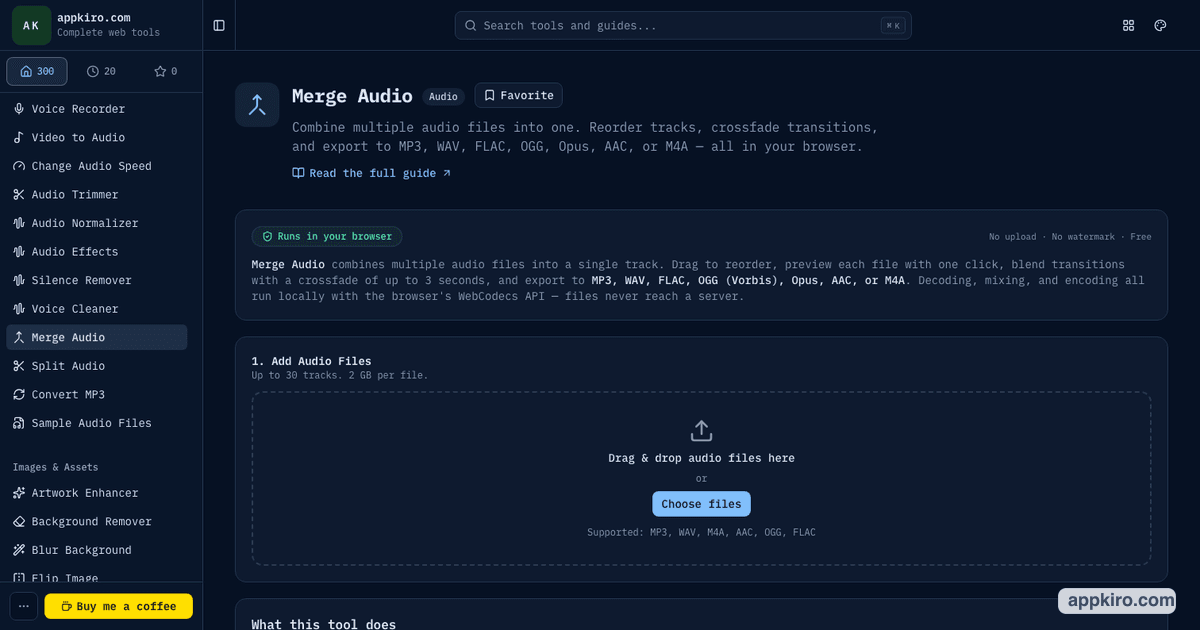
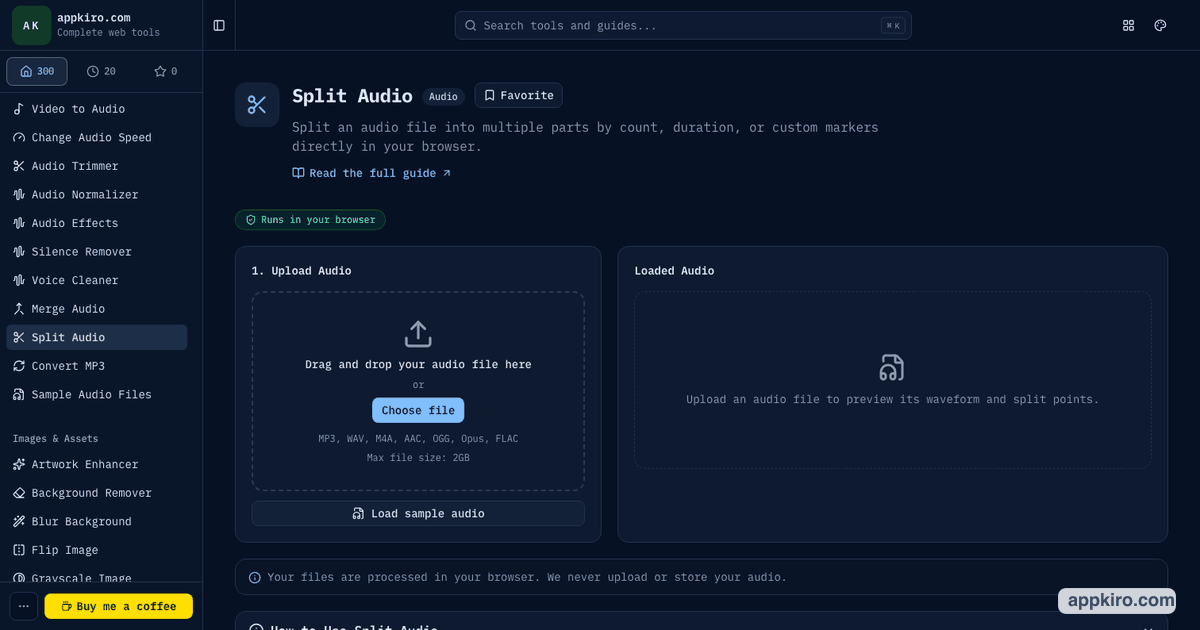
Appkiro's Merge Audio and Split Audio tools cover both sides of that workflow. You can combine clips, reorder tracks, add crossfades, split by count, duration, or markers, then export the result in common audio formats.
Quick answer
Use Merge Audio when several source files should become one file. Use Split Audio when one source file needs to become many smaller files. Both tools are useful for podcasts, lectures, interviews, sample packs, voice notes, music drafts, and review workflows.
The audio workspaces
Which tool should you use?
Use Merge Audio when several clips should become one file
Choose it for podcast intros and outros, lesson sections, voice memos, music drafts, sample packs, or any sequence where order and transitions matter.
Use Split Audio when one long recording needs smaller parts
Choose it for lectures, interviews, call recordings, albums, field recordings, voice notes, or long MP3 files that need chapters or separate downloads.
A practical audio editing workflow
Decide whether the job is assembly or sectioning
If you are joining multiple files, start with Merge Audio. If you are cutting one source into several parts, start with Split Audio.
Load the source audio
Merge Audio accepts multiple tracks. Split Audio accepts one source file and can load the sample audio when you want to test the workflow first.
Preview the waveform and timing
Use the waveform, duration, file details, and playback controls to confirm that the files loaded correctly before exporting.
Set the structure
For merging, reorder tracks and choose a crossfade. For splitting, choose equal parts, fixed duration, or marker-based split points.
Pick format and quality
MP3 is a practical sharing default. WAV and FLAC are better when the result will be edited later. Lossy formats use bitrate settings; lossless formats ignore bitrate.
Export and review the result
Download the merged file, individual split parts, or a ZIP of split outputs, then listen to the transitions or cut points before sharing.
Settings worth understanding
- Track order
- Merge Audio lets you arrange files before export. Put intros, main sections, ads, stingers, and outros in the exact order the final listener should hear them.
- Crossfade
- Use no crossfade for hard cuts, or choose a short overlap when music, ambience, or narration should move more smoothly from one track into the next.
- Equal parts
- Split Audio can divide a file into a fixed number of parts. This is useful when a long recording needs predictable chunks for review or sharing.
- Time-based splits
- Use fixed duration when every part should be about the same length, such as 30-second samples, one-minute practice clips, or five-minute lecture sections.
- Markers
- Use markers when the split points are content-based. Add markers around topic changes, songs, interview answers, or moments you find while previewing.
- Output format
- Choose the format based on the next destination. MP3 is broadly compatible, WAV and FLAC preserve more detail, and AAC, M4A, OGG, or Opus fit specific app or browser workflows.
Realistic examples
Podcast episode assembly
Drop in an intro, the main conversation, an ad read, and an outro. Reorder the tracks, add a short crossfade if the music bed needs it, export MP3, then run the result through Audio Normalizer if loudness still varies.
Lecture split into review sections
Load one long class recording, split by duration into five-minute sections, remove parts that are not needed, and export the selected clips as a ZIP for students or reviewers.
Interview highlights
Use Split Audio with markers around strong answers. Download the keeper clips, trim exact starts and endings if needed, then merge selected highlights into a short reel.
Sample pack preparation
Split a longer source recording into individual samples, export lossless WAV or FLAC when further editing is planned, and merge only the approved samples into preview compilations.
Browser-based processing note
Files selected from your device are processed in the browser for these tools. Export support can vary by browser because audio decoding and encoding depend on available browser codecs.
Download your result before refreshing or closing the tab. The preview links created by the browser are temporary and should not be treated as saved files.
Tips for cleaner audio exports
- Listen to the first and last seconds of every exported part; most timing mistakes happen at boundaries.
- Use shorter crossfades for speech and longer crossfades for music or ambience.
- Keep WAV or FLAC when another editor will process the result later; use MP3 when the file is mainly for sharing.
- Name files clearly before merging, because track order is easier to check when filenames describe the sections.
- For very long files, test one short export first so you can confirm the browser, format, and quality settings work as expected.
Related audio tools
Use Audio Trimmer when you only need one exact excerpt. Use Audio Normalizer after merging if clips from different sources sound uneven, or Convert MP3 when the final format needs to change.
Audio Trimmer
Cut one exact excerpt before or after splitting a longer recording.
Audio Normalizer
Even out loudness after merging clips from different sources.
Convert MP3
Change an MP3 file to another supported audio format when a platform expects a different codec.
Voice Cleaner
Clean speech recordings before assembly or after extracting clips.
Frequently asked questions
- Should I use Merge Audio or Split Audio?
- Use Merge Audio when you have several files that should become one track. Use Split Audio when one source file needs to become multiple smaller parts.
- Can I merge and split MP3, WAV, M4A, AAC, OGG, Opus, and FLAC files?
- The audio tools are designed for common browser-decodable audio formats including MP3, WAV, M4A, AAC, OGG, Opus, and FLAC. Some export codecs depend on what your browser can encode.
- What is the safest output format for sharing?
- MP3 is usually the safest choice for broad compatibility. Use WAV or FLAC when the file is going into another editing workflow and file size is less important.
- What does crossfade do when merging audio?
- Crossfade overlaps the end of one track with the start of the next. The outgoing track fades down while the incoming track fades up, which can make transitions feel less abrupt.
- Can I split audio by exact times?
- Yes. Use marker mode when you need content-based or timestamp-based cut points. You can add marker times and preview the resulting parts before export.
- Are selected audio files uploaded to Appkiro?
- Files selected from your device are processed in your browser for these tools. Keep the downloaded result before refreshing or closing the tab, because browser preview URLs are temporary.
Ready to edit audio?
Open the tool that matches the job: combine clips into one file or split one recording into smaller parts.