
Help · Color Tools
Browse Curated Color Palettes Before You Start Designing
Starting from a blank color picker can slow down early design work. A curated palette gives you a mood, a contrast range, and a few possible roles before you start tuning individual values.
Appkiro's Palette Library lets you browse curated color sets, filter by category, search by name or hex value, and open any palette in Palette Generator for editing.
Quick answer
Use Palette Library when you need a color direction quickly. Browse by mood, search by name or hex, click a promising palette to edit it in Palette Generator, then test important text pairs before using it in production.
The palette browsing view
When this is the right tool
Use it when you need inspiration and a practical starting set, not a single isolated color:
- Find a visual direction for a landing page, dashboard, app theme, poster, or brand mockup
- Compare classic, nature, vintage, modern, bold, soft, monochrome, seasonal, and artistic palettes
- Search for a palette by mood, name, or a known hex color from an existing project
- Open a palette in the generator when a promising color set needs editing or export
- Use curated swatches as a starting point before checking contrast in real UI combinations
How to use Palette Library, step by step
Scan the palette grid
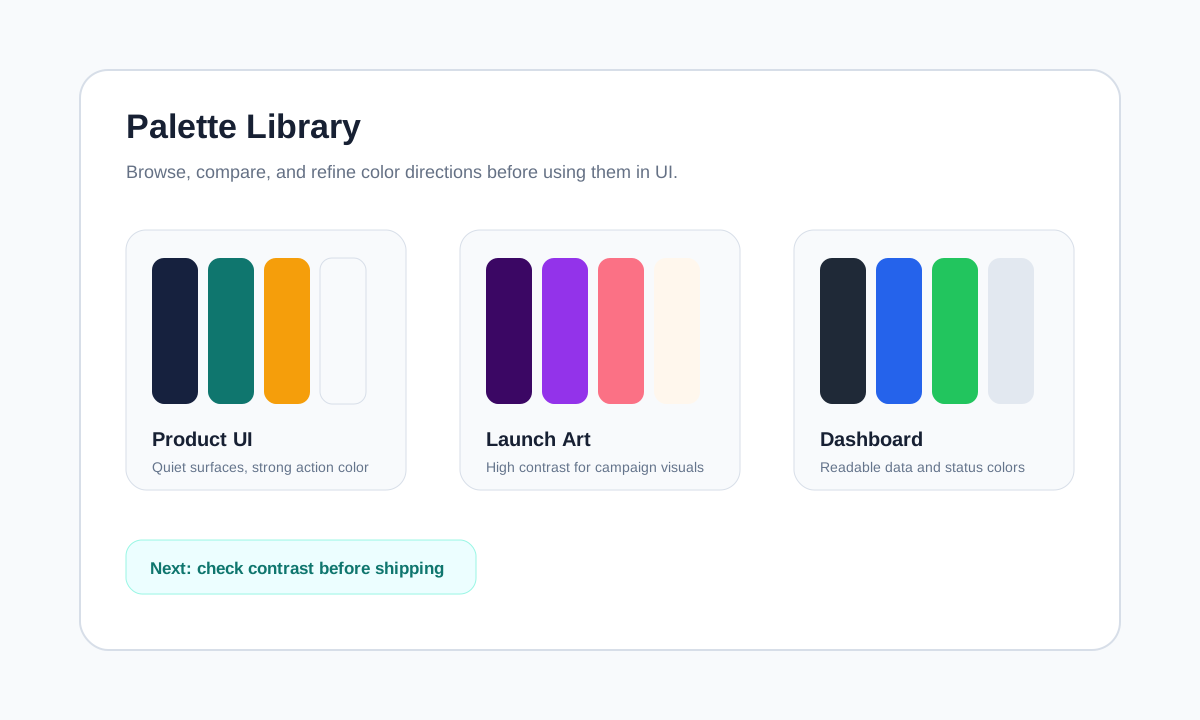
Start by looking at the swatches as complete color systems instead of choosing one favorite color. Pay attention to darks, lights, accents, and neutral support.
Filter by category
Use categories such as Classic, Nature, Vintage, Modern, Bold, Soft, Monochrome, Seasonal, and Artistic to narrow the direction before you inspect individual palettes.
Search by name or color
Type a theme name or hex code into search. The library filters by palette name and by the hex values inside each palette.
Open a palette for editing
Click any palette card to open it in Palette Generator with the colors already loaded. From there you can rename, reorder, copy, and export the swatches.
Test real design roles
Before using the palette in production, assign colors to backgrounds, text, buttons, charts, and states. A good swatch row still needs real contrast checks.
Save or continue the workflow
Use the edited palette in design files, code tokens, brand notes, or content assets. If the palette should match an image, compare it with colors extracted from that source.
Browsing controls explained
- Category filters
- Categories help you move by mood. Nature and seasonal palettes tend to feel organic, modern palettes fit product surfaces, and bold palettes are better for campaigns or accent-heavy work.
- Search
- Search works against palette names and hex values. This is useful when you remember a palette name or want to find nearby sets that include a specific color.
- Palette cards
- Each card shows the full color set and the number of swatches. Judge the palette as a system: background, text, accent, border, and supporting tones.
- Open in generator
- Clicking a palette passes the colors into Palette Generator through the URL. That makes the library a starting board, not a dead-end gallery.
- Curated data
- The palettes are bundled with Appkiro. The page does not need an external palette database to browse the collection after it loads.
- Contrast follow-up
- The library does not decide which swatches are safe for text. Use a contrast checker before turning a palette into UI tokens or brand rules.
Practical examples
New dashboard theme
A product team needs a calmer admin UI. Filter toward Modern or Soft palettes, open a candidate in the generator, then test text and button contrast before naming tokens.
Campaign moodboard
A marketer needs quick visual options for a seasonal landing page. Browse Seasonal and Bold palettes, compare a few directions, then export the strongest one for the creative brief.
Brand refresh exploration
A designer wants alternatives around an existing accent color. Search the known hex value, inspect nearby palettes, and use the generator to adjust supporting colors.
Image-led color system
A venue or product page needs colors that match photography. Extract colors from the image first, then compare those swatches against nearby library palettes.
Do not skip contrast checks
Palette cards show harmony, not accessibility. Before turning a palette into UI tokens, check foreground/background pairs, buttons, muted text, and state colors with the Contrast Checker.
Tips for better palette choices
- Do not judge a palette only by the brightest accent color. Check whether it has usable darks, lights, and neutrals.
- For UI work, decide color roles early: background, foreground, muted surface, primary action, border, warning, and success.
- A palette that looks good in a card can still fail body text. Run important pairs through a contrast checker.
- Avoid using every swatch at equal weight. Most designs need one or two dominant colors and smaller accent use.
- If a project already has photography, logos, or packaging, compare the palette against those assets before committing.
Related color tools
After browsing, refine the selected colors in Palette Generator. If your direction needs to match real imagery, start with Palette Extractor instead.
Palette Generator
Refine, reorder, copy, and export a selected palette.
Contrast Checker
Verify text and UI color pairings before shipping.
Palette Extractor
Start from colors found in a product photo, artwork, or campaign image.
Color Converter
Convert chosen colors between HEX, RGB, HSL, HSV, and CMYK values.
Frequently asked questions
- What is Palette Library for?
- Palette Library helps you browse curated color palettes and pick a starting direction for UI, brand, content, and visual design work.
- What happens when I click a palette?
- The palette opens in Palette Generator with the colors already loaded, so you can refine, reorder, copy, or export the swatches.
- Can I search by hex code?
- Yes. Search checks both palette names and the hex codes inside each palette, so a value like #ff5722 can surface palettes that include that color.
- Can I save my own palettes in the library?
- Not in this library view. Use Palette Generator to create and export your own palettes; this page focuses on browsing the curated collection.
- Are these palettes ready for production UI?
- Treat them as starting points. Before production use, check text contrast, state colors, chart colors, and how the palette behaves with real content.
- When should I use Palette Extractor instead?
- Use Palette Extractor when the colors need to come from a specific photo, product image, artwork, or campaign asset rather than a curated library.
Ready to browse palettes?
Open Palette Library and choose a direction you can refine into real design colors.