
Help · Generators
QR Code Generator: URL, Wi-Fi, vCard, Email, and Text
A QR code is a small picture that holds a URL, a chunk of text, Wi-Fi credentials, a phone number, or a full vCard contact. The right code is the one that scans on the first try from where your audience is standing.
This guide covers what goes inside each content type, how error correction and colour choices affect scan reliability, and how to export codes that print cleanly at any size.
Quick answer
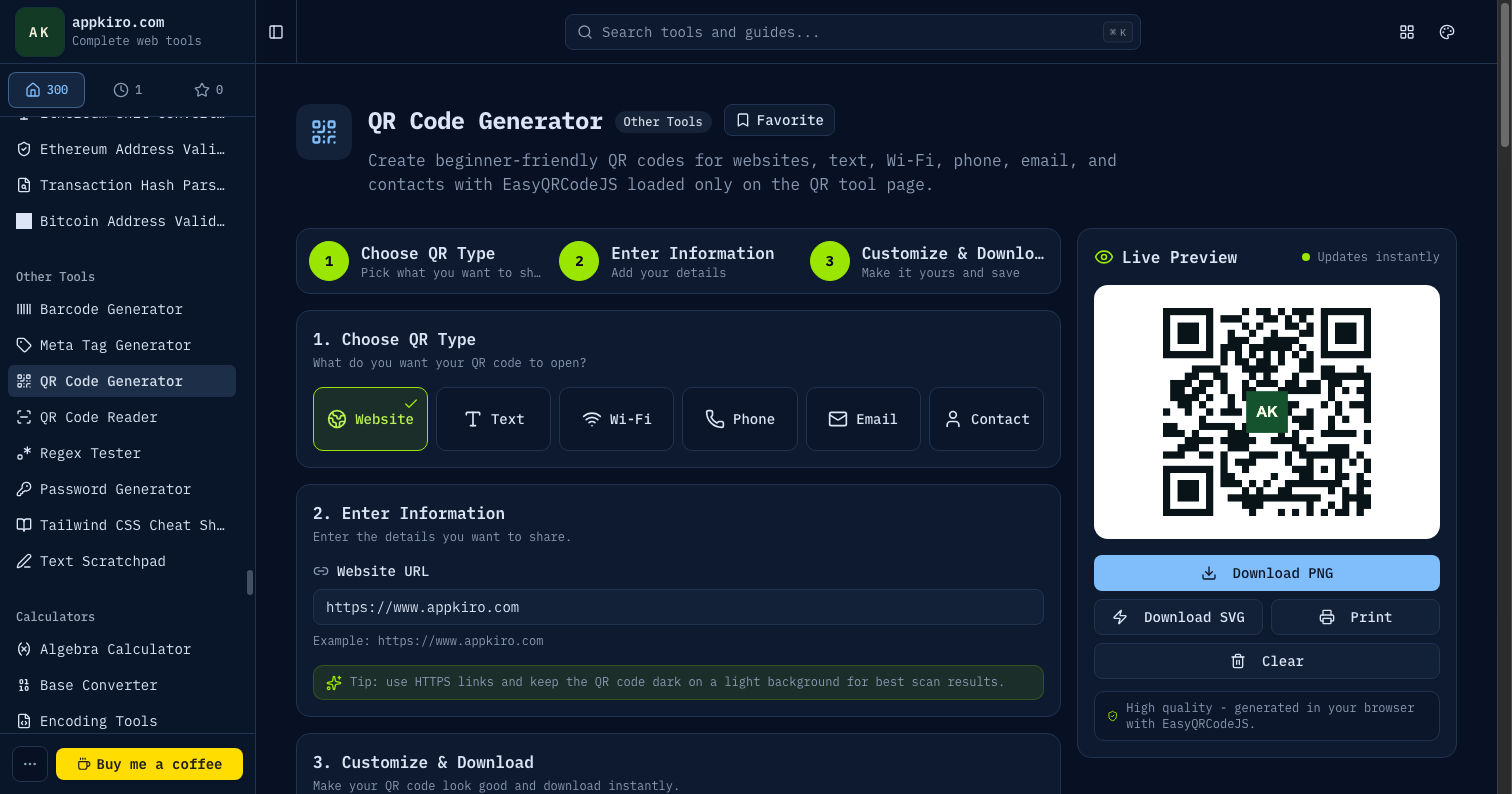
Pick a content type, fill in the data, choose error correction (M for clean digital use, Q or H if you add a logo), set the colours and size, and export as PNG for screens or SVG for print. Everything runs in the browser.
What goes inside each content type
| Type | Payload format | Where it shines |
|---|---|---|
| Website (URL) | https://example.com | Most common case. Marketing posters, restaurant menus, packaging, signage that points to a landing page. |
| Plain text | Any string, up to a few thousand bytes. | Sharing notes, codes, instructions, short messages that should not require a network round-trip to read. |
| Wi-Fi credentials | WIFI:T:WPA;S:Network;P:password;; | Guest Wi-Fi at offices, cafes, Airbnbs. Scanning offers to join the network without typing the password. |
| Phone number | tel:+15550100 | Business cards, support posters. Scanning prompts a call to the number. |
| mailto:[email protected]?subject=Hello | Contact prompts on flyers and conference badges. Optional subject and body fields prefill the message. | |
| vCard contact | BEGIN:VCARD … END:VCARD | Business cards. Scanning offers to save the contact with name, title, phone, email, and organisation. |
Step-by-step workflow
Pick the content type
Choose Website, Text, Wi-Fi, Phone, Email, or Contact. The form below changes to match — Wi-Fi asks for SSID and password, Contact asks for name and fields, and so on.
Fill in the data
Type the URL, paste the text, enter Wi-Fi credentials, or fill in the vCard fields. The QR preview re-renders as you type, so you see the result live.
Choose error correction
Pick L, M, Q, or H. Higher levels make the code more resilient to damage and let you cover more of the centre with a logo, but they also require slightly larger codes to hold the same data.
Adjust appearance
Set the size, margin (quiet zone), foreground and background colours. Stick to high contrast — dark code on a light background scans most reliably.
Optional: add a logo
Drop a logo into the centre. The error correction headroom absorbs the obscured modules, which is why level Q or H is recommended when a logo is present.
Export
Download as PNG for raster placement (web, slides, social) or SVG for print and signage at any size. Both run locally and contain no tracking.
Settings that affect scanning
- Error correction (L / M / Q / H)
- L recovers about 7% of damaged modules, M 15%, Q 25%, H 30%. Use M for clean digital use, Q when you add a small logo, and H for print-on-glass, fabric, or any surface where the code might be partly obscured.
- Size
- Set the rendered size in pixels. The on-screen code can be larger than the printed code without quality loss because the SVG export is vector. For print, plan at least 2 cm on the short edge so phone cameras lock focus.
- Margin (quiet zone)
- The empty border around the code. The spec recommends four modules — keep at least that much, more if the surrounding artwork is busy. Cropping the quiet zone is a frequent reason real-world codes fail to scan.
- Foreground and background colours
- Dark on light is the rule. Inverted codes (light modules on dark backgrounds) confuse some older readers. Coloured codes work as long as the luminance contrast between the two colours stays high.
- Logo overlay
- A centred logo replaces a small grid of modules. Error correction at level Q or H fills in the missing data. Keep the logo at or below 20% of the total code area, and leave a small light border around it.
- Style
- Classic square modules read most reliably on every scanner. Stylised module shapes (rounded, dots) look better in marketing assets but can lower the scan success rate, particularly at small sizes or oblique angles.
Real-world scenarios
Restaurant menu
Generate a URL QR pointing to the digital menu PDF. Use level Q error correction, add the restaurant logo, export as SVG, and print at 4–5 cm. Scanning works from arm's length at the table.
Wi-Fi sharing in an Airbnb
Use the Wi-Fi content type, fill SSID and password, pick WPA2. Print and laminate near the router. Guests join in two taps instead of typing a 20-character password.
Business card
Use the vCard type, fill name, title, phone, email, organisation. Export as SVG, place on the back of the card at about 2 cm, choose level M. Scanning offers to save the contact instantly.
Conference badge
Use the URL type pointing to a LinkedIn or personal page. Print at 3 cm with level H so the badge still scans after a day of bending and rubbing against lanyards.
Outdoor poster
Plan for distance. The minimum scannable size depends on the camera-to-code distance (rule of thumb: code edge ≥ distance ÷ 10). Print at 10 cm or larger for posters viewed from a metre away.
Privacy
The QR generator runs in your browser. The data you type — URLs, Wi-Fi passwords, contact details — is encoded into the QR image locally and downloaded directly. Appkiro never sees it, and the code itself contains no tracking identifier.
Tips for codes that actually scan
- Test the printed QR with two or three different phones before doing the full print run. Phone camera reliability varies more than the QR spec does.
- Avoid placing QR codes on shiny laminate, behind glass, or on curved surfaces — reflections and warping defeat the scanner.
- Track scans by pointing the QR to a short URL that you control rather than the final destination. The QR itself never changes; the redirect can.
- For Wi-Fi codes, double-check the SSID is case-sensitive and the password has no smart quotes — copy-paste from a plain text editor.
- Export SVG whenever the QR will be printed. Raster PNGs at the wrong size get re-scaled and degrade.
Related tools
QR Code Reader
Decode a QR you generated to verify what it contains before printing.
Barcode Generator
Create traditional 1D barcodes for retail, inventory, and shipping labels.
Favicon Generator
Create the icon for the page the QR will point to.
SVG Optimizer
Shrink the exported SVG before embedding in print artwork.
Frequently asked questions
- Is the QR code free to use?
- Yes. Codes generated here have no watermark, no expiration, and no tracking. The code is yours; you can print it, embed it, or share it however you like.
- Does the URL the code points to ever change?
- Static QR codes encode the URL directly, so the destination is fixed in the printed code. If you want to change the destination later, point the QR at a short URL or redirect service that you control, then update the redirect target.
- What is the maximum data a QR code can hold?
- A version 40 QR code at error correction L holds up to 4296 alphanumeric characters or 2953 bytes of binary data. Real-world usable capacity is far lower because the code physically gets too dense to scan easily.
- Does adding a logo break the code?
- Not if you use enough error correction. Level Q tolerates about 25% damaged modules and level H about 30%. Keep the logo at 20% or less of the code area to stay safe.
- Can I use coloured QR codes?
- Yes, as long as the foreground is much darker than the background in luminance. Pastel-on-white codes often look fine to humans but fail in low-light scans.
- How small can a printed QR code be?
- Around 2 cm on the short edge for arm's-length scanning, larger for greater distances. The rule of thumb is code edge ≥ scanning distance ÷ 10.
- Are the codes uploaded anywhere?
- No. The code is generated entirely in your browser using the EasyQRCodeJS library and downloaded directly. The page makes no network call with your data.
Ready to generate?
Pick the content type, fill in the data, and export PNG or SVG.