
Developer · Practical guide
How to Build a Regex That Actually Matches What You Mean
Published · 7 min read
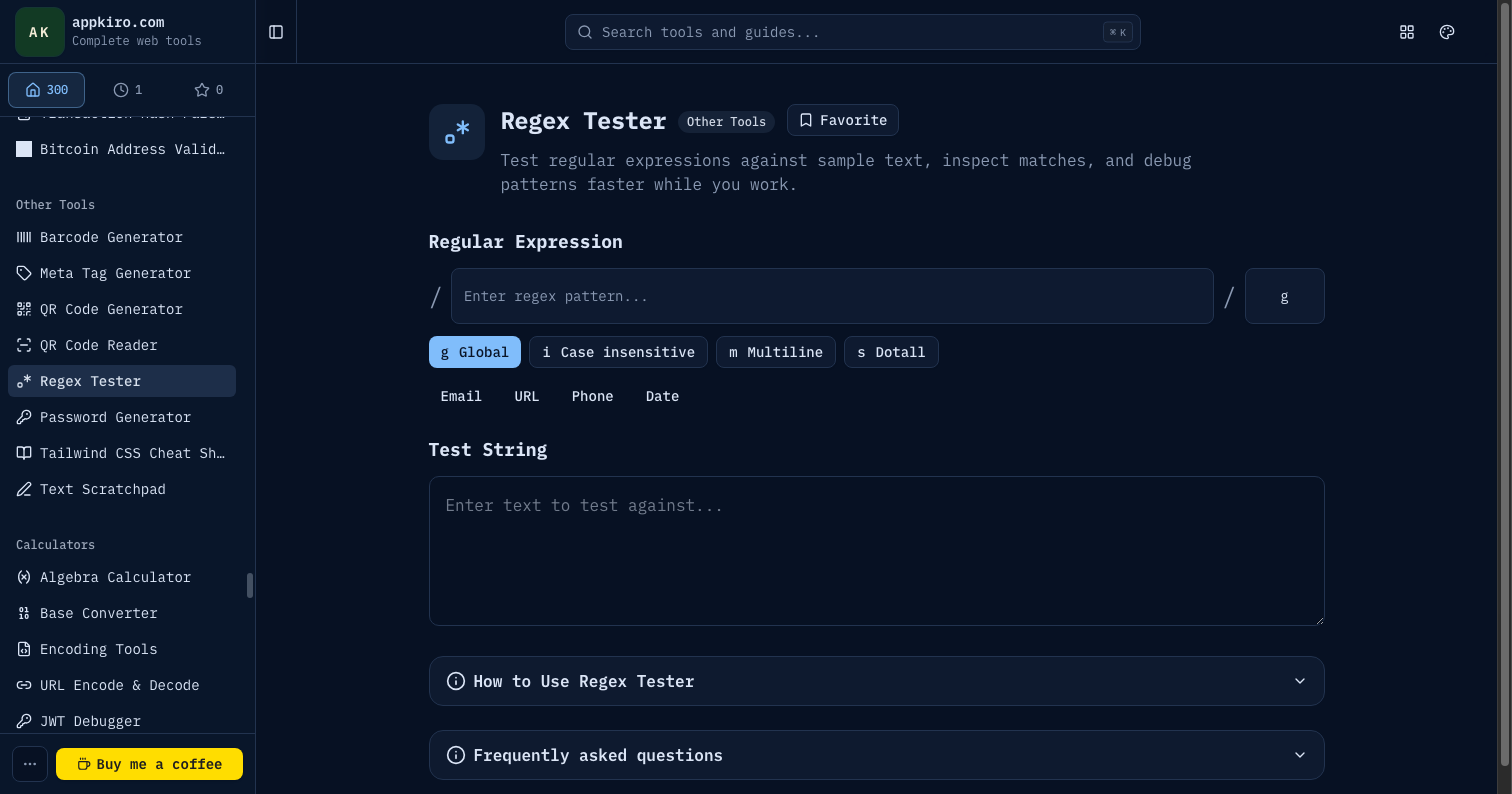
Regular expressions are one of those tools where the first attempt almost always fails in subtle ways. The pattern matches every string you tried, then ships, then quietly chokes on an apostrophe in a name field or a trailing slash on a URL. Appkiro's Regex Tester is a place to build patterns incrementally — type a regex, paste real text, watch matches highlight live — so the failures show up on your screen instead of in production.
The shape of a regular expression
Every regex is a tiny language that compiles into a state machine. That machine walks through your text one character at a time and decides, at each step, whether the pattern still has a chance of matching. Understanding that mental model is the difference between guessing and reasoning.
The Regex Tester runs the standard JavaScript RegExp engine — the same one your browser uses to validate forms and split strings. Patterns you build here paste straight into source code as /pattern/flags, into a new RegExp(...) constructor, or into anywhere JavaScript regex is accepted.
Literals and metacharacters
Most of a typical pattern is plain text. hello matches the literal letters h-e-l-l-o wherever they appear. The interesting part is the metacharacters — symbols with special meaning. . matches any one character except a newline. \d matches a digit, \w a word character (letters, digits, underscore), \s whitespace. Their uppercase forms (\D, \W, \S) match the inverse.
When you want a metacharacter as a literal, escape it with a backslash. A literal dot is \.; a literal backslash is \\. The most common bug in regex code is forgetting to escape a dot in something like a domain pattern, then watching the pattern match exampleAcom as well as example.com.
Character classes
Square brackets define a set of characters that any one of which is allowed at that position. [aeiou] matches any vowel. Ranges work with hyphens: [a-z] for lowercase letters, [0-9] for digits, [A-Za-z0-9] for alphanumerics. A leading ^ inside the brackets negates the class — [^0-9] matches any non-digit.
Quantifiers
Quantifiers say how many times the preceding thing must match.? is zero or one, * is zero or more, + is one or more, {n} is exactly n, {n,} is at least n, and {n,m} is between n and m. They're greedy by default, which means they consume as much as possible while still allowing the rest of the pattern to match. A trailing ? makes them lazy: .*? matches as little as possible.
Anchors and boundaries
^ anchors the match to the start of the string (or line, with the m flag), $ to the end.\b matches a word boundary — the position between a word character and a non-word character. The classic use of \b is matching whole words: \bcat\b matches cat in a cat sat but not in concatenate.
Groups and captures
Parentheses do two jobs. They group parts of the pattern so quantifiers can apply to whole sequences — (ab)+ matches one or more ab pairs. They also capture the matched text, which appears as a group in the match result. Use (?:...) for a non-capturing group when you need grouping without the capture — it's faster and keeps the match output clean.
Named captures with (?<name>...) make extracted values self-documenting. A pattern like (?<year>\d{4})-(?<month>\d{2})-(?<day>\d{2}) gives you match.groups.year instead of match[1], which matters once the regex grows past two or three captures.
Lookaround
Lookahead and lookbehind assertions match without consuming characters. (?=...) is a positive lookahead — the text that follows must match this pattern, but the match position does not advance through it. (?!...) is negative lookahead, (?<=...) is positive lookbehind, and (?<!...) is negative lookbehind. They are how you say things like "a digit, but only when followed by a unit" or "a word, but not that word."
What each flag actually does
Flags change how the engine walks the text. The Regex Tester has buttons for the four most common; uncommon flags can be typed into the flag field directly.
g — global
Find every match, not just the first. Without g, the regex engine stops after the first hit. This is the flag that determines whether you get one result or an array of them, and it matters more than most people realise: String.prototype.matchAll() requires it, and replace() only replaces every occurrence with it set.
i — case insensitive
Treats letters as equivalent regardless of case. /cat/i matches cat, Cat, and CAT. The flag does not affect non-letter characters and does not work across alphabets unless you also use the u flag for Unicode.
m — multiline
Changes the meaning of ^ and $ so they match the start and end of every line, not the start and end of the entire string. The flag does nothing to . — to make the dot span newlines, you need the s flag.
s — dotall
Lets . match newline characters too. Useful for patterns that span multiple lines, like extracting the body of an HTML block. Without it, . stops at the line break.
u and y — the underrated pair
u enables full Unicode mode, which is required for Unicode property escapes like \p{Letter} and for matching emoji or characters outside the basic plane.y is the sticky flag — it anchors each match to the current position in the input. It is the right tool for tokenisers and parsers that consume the string in order.
Building a pattern incrementally
The fastest way to write a regex that works is to write a regex that matches something, then narrow it. Paste your test text first. Type the simplest pattern that matches a target. Watch the highlight. Add a constraint. Watch the highlight change. Repeat.
For example, building a pattern that matches an email-shaped string in real text:
- Start with
\w+— matches any run of word characters. Far too broad, but it matches something. - Add
@in the middle:\w+@\w+— now only word-at-word strings match. - Add a TLD-like ending:
\w+@\w+\.\w+— now[email protected]matches but cats and dogs does not. - Allow dots, hyphens, plus signs in the local part:
[\w.+\-]+@\w+\.\w+. - Anchor with word boundaries so the match stops at whitespace and punctuation:
\b[\w.+\-]+@[\w.\-]+\.\w+\b.
This pattern is not RFC-perfect — no email regex is, because the specification is genuinely Turing-complete in places — but it handles the addresses that show up in actual text. The point of the exercise is the process: every step is verifiable on the screen, and every step narrows the match.
Where regex breaks down
Some problems look like regex problems and are not. Three common ones:
- Nested or balanced structures. HTML tags, JSON, parenthesised expressions. Standard regex cannot count nesting depth, because it is not a context-free grammar. Pulling the text between two matching curly braces of unknown depth is impossible with a vanilla pattern. Use a parser.
- Anything that needs context. Telling a number that is a phone number from a number that is a zip code is not a regex job. The pattern can match the shape, but the disambiguation is application logic.
- Find-and-replace where a literal would do. If you want to replace every
foowithbar, you do not need a regex.String.prototype.replaceAll()is shorter and faster. Reach for a regex when the "what to replace" depends on shape, not exact text.
Common pitfalls and how the tester surfaces them
A handful of mistakes account for most regex bugs. The Regex Tester makes each of them visible.
Unescaped dots
A dot matches any character. If you wrote 3.14 as a pattern hoping to match the literal number, it also matches3914, 3a14, and so on. Use 3\.14.
Greedy quantifiers eating too much
The pattern <.+> against <b>hello</b> matches the entire string, not just the opening tag, because .+ is greedy and gobbles everything up to the last >. Use the lazy form <.+?> or a negated class <[^>]+>.
Forgetting the global flag
A regex without g only ever yields one match, no matter how many times the pattern appears in the input. If your pattern looks right but you only see one highlight, check the flag field.
Anchors that anchor the wrong thing
^ and $ mean the start and end of the input string by default. Many people expect them to mean the start and end of each line. They only do that with the m flag.
Catastrophic backtracking
Some patterns are exponentially slow on certain inputs. (a+)+b against a long string of as with no b can hang the engine for seconds. When a pattern feels slow, look for nested quantifiers or overlapping alternations and simplify them.
The presets and what they teach
The four preset buttons on the tester — Email, URL, Phone, Date — are not meant as production-ready patterns. They are starting points that show common idioms. Loading the Email preset, for example, drops in a reasonable email-shaped pattern with the right character classes and anchors. Read it, modify it, see how the highlights change against your test text, and steal the parts you need.
Privacy
Patterns, flags, test strings, match counts, and highlights all compute in the browser using the built-in RegExp object. Nothing is uploaded. That matters when the test text is production log output, customer data, or anything else you would not paste into a random website.
Where it fits in a workflow
Most people do not write regex in isolation. A typical loop looks like this: capture a representative sample of input, paste it into the tester, draft the pattern, copy the resulting /pattern/flags into your code, run the test suite, adjust. For more elaborate data shape work, pair this with JSON Schema generators or JSON to TypeScript — regex handles textual shape, schemas handle structural shape, and most real problems need both.