
Help · Video Tools
Compress a Video for Uploads, Email, and Chat
A video can be perfectly watchable and still be too large for the place it needs to go. Email caps, chat uploads, CMS limits, and slow review links usually need a smaller file, not a new edit.
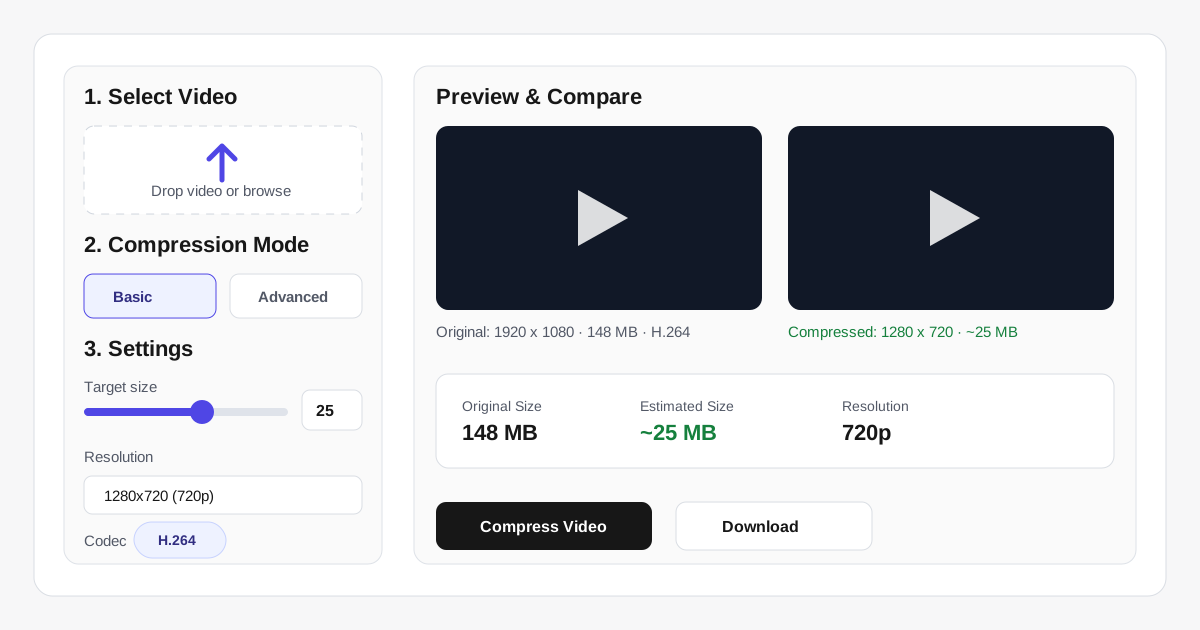
Appkiro's Video Compressor re-encodes MP4, WebM, MOV, and MKV videos in the browser. You can target a file size, downscale resolution, choose a codec, adjust bitrate and frame rate, remove audio, preview the result, and download a compressed MP4.
Quick answer
Use Video Compressor when a video is too large for upload or sharing. Start with Basic mode, choose the largest target size your destination allows, downscale only as much as needed, and keep H.264 when compatibility matters.
The compression workspace
When this is the right tool
Reach for it when the video content is fine but the file is too heavy for the next step:
- Make a screen recording small enough for Slack, Discord, email, or a support ticket
- Reduce a demo video before uploading it to a CMS, LMS, CRM, or project tracker
- Downscale 4K or 1080p footage when the viewer only needs a quick review copy
- Remove audio from a silent product loop, UI recording, or background clip
- Create a smaller MP4 from MOV, WebM, or MKV when the destination rejects large files
How to compress a video, step by step
Add the source video
Upload a video from your device, drag it into the tool, paste it from the clipboard, or use a direct public video URL with CORS and Range support.
Pick Basic or Advanced mode
Use Basic mode when you only care about a target size. Use Advanced mode when you want direct control over resolution, codec, bitrate, frame rate, audio, and metadata.
Choose the target size or bitrate
In Basic mode, set a target such as 10 MB or 25 MB. In Advanced mode, leave bitrate on Auto or choose a specific bitrate when an upload limit is strict.
Adjust resolution and codec
Downscale to 720p or 480p for the biggest size reduction. H.264 is the safest codec for sharing; H.265 and AV1 can be smaller but depend on browser and recipient support.
Preview and compare
Review the original and compressed previews, estimated size, resolution, bitrate, and savings before downloading the final file.
Download the compressed video
When compression finishes, download the generated MP4. If the result is still too large, raise compression by lowering resolution, bitrate, frame rate, or removing audio.
Compression settings explained
- Target size
- Basic mode estimates a video bitrate from the chosen file size and duration. The final size can differ slightly because encoders vary bitrate from frame to frame.
- Resolution
- Lowering resolution is often the cleanest way to reduce size. A 1080p screen recording usually remains useful at 720p, and quick previews may work at 480p.
- Video codec
- H.264 is the compatibility default. H.265 and AV1 can produce smaller files at similar quality, but they encode more slowly and may not play everywhere.
- Video bitrate
- Bitrate controls how much data each second of video receives. Lower bitrate makes smaller files but can introduce blockiness, blur, or banding.
- Frame rate
- Keeping the original frame rate is safest. Dropping to 24 or 30 fps can help for talking-head videos and UI recordings; keep 60 fps for motion-heavy content.
- Remove audio and metadata
- Removing audio helps silent clips shrink further. Removing metadata is useful before public sharing because re-encoding rewrites container details and drops many source tags.
Practical examples
Support bug recording
A 90 MB screen recording needs to fit into a ticket. Upload it, choose Basic mode, set 20 MB, keep H.264, and use 720p so the UI remains readable.
Sales demo for email
A rep has a short product walkthrough that is too large for email. Set a 25 MB target, keep audio, preview the result, and download a smaller MP4 for the thread.
Silent website loop
A homepage background video does not need sound. Use Advanced mode, remove audio, downscale to the display size, and keep the bitrate low enough for fast loading.
Social preview clip
A creator wants a quick preview before posting. Compress from the highest-quality source once, use the platform's expected resolution, and avoid repeated re-encoding.
Size, quality, and compatibility tradeoffs
Video compression always balances file size against visible quality. A lower bitrate makes a smaller file, but it can create blocky motion, blurred text, or banding in gradients. Downscaling the resolution is often cleaner than pushing bitrate too low.
If you only need one section of a long recording, cut it first with Video Trimmer. Shorter source clips compress faster and usually look better at the same target size.
Browser-based processing note
Files selected from your device are processed locally in the browser using WebCodecs where supported. If you choose the URL input, the browser fetches that remote file from its host, so the source URL must be public and allow browser access.
Tips for cleaner output
- Compress from the highest-quality master you have. Re-compressing an already compressed file multiplies artifacts.
- Lower resolution before forcing a very low bitrate. A smaller clean frame often looks better than a large blocky frame.
- Use H.264 when the recipient may open the file on an older phone, browser, or workplace device.
- Remove audio only when the video is truly silent or the destination does not need sound.
- Test a short export first for long 4K clips. Browser memory and codec support vary by device.
Related video tools
A good video workflow usually starts before compression. Trim unused footage with Video Trimmer, convert format with Video Converter, or create a poster frame with Video Thumbnail Generator.
Video Trimmer
Cut the clip first so the compressor does not re-encode unused footage.
Video Converter
Change container or codec when the destination requires a different format.
Video Resizer
Resize or reframe video before compression when dimensions are the main issue.
Video Thumbnail Generator
Create a poster frame after the final compressed clip is ready.
Frequently asked questions
- Are uploaded videos sent to Appkiro during compression?
- No. Files selected from your device are decoded and re-encoded locally in the browser. A remote URL is fetched from its source host because the browser has to read that file.
- Why is the compressed file not exactly the target size?
- The tool estimates bitrate from the target size and duration, but video encoders allocate data unevenly across frames. The final size may be slightly above or below the estimate.
- Which codec should I choose?
- Choose H.264 for broad compatibility. Choose H.265 or AV1 when smaller size matters and you know the recipient or platform can play the file.
- Will compression reduce quality?
- Yes. Video compression trades quality for file size. Use the highest target size you can accept, and avoid compressing the same video multiple times.
- What input formats are supported?
- The tool accepts common video inputs such as MP4, WebM, MOV, and MKV when the browser can decode the video and audio codecs inside the file.
- What should I do if compression fails?
- Try H.264, lower the resolution, remove audio, use a shorter clip, or switch to a desktop browser. Very large or unusual codec files can exceed browser support or memory.
Ready to make the file smaller?
Open Video Compressor, choose a sensible target size, and download a smaller MP4.