
Help · Audio Tools
Extract Audio From a Video and Save It as MP3, WAV, or M4A
A video often contains the part you actually need: a voice-over, lecture, interview answer, background track, or meeting audio. Exporting only the sound makes the file easier to review, transcribe, edit, or share.
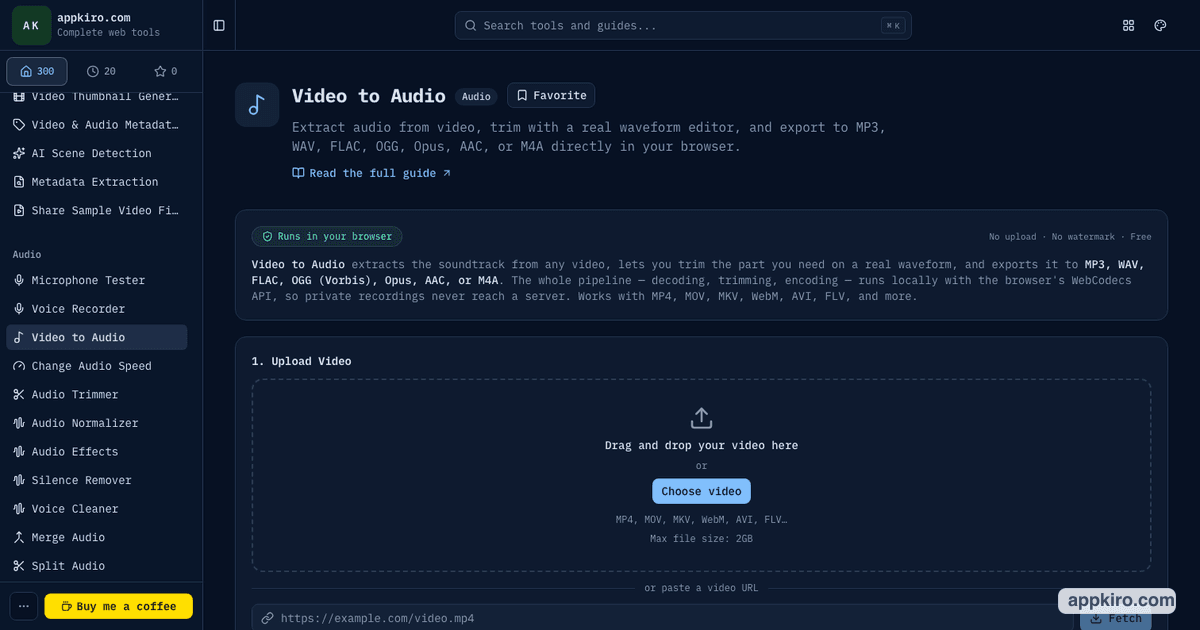
Appkiro's Video to Audio tool extracts the audio track from common video files, lets you trim the useful section on a waveform, and exports MP3, WAV, FLAC, OGG, Opus, AAC, or M4A directly in the browser where supported.
Quick answer
Use Video to Audio when the soundtrack matters more than the video itself. Upload the video, confirm that an audio track is detected, trim the range you need, choose MP3, WAV, M4A, or another supported format, then download the extracted audio file.
Example extraction workspace
When this tool is useful
Reach for it when the video is only a container for the audio you need:
- Save the narration from a screen recording as an MP3 for review or transcription
- Pull the soundtrack from a webinar, lesson, interview, or meeting recording
- Trim a long video down to one useful audio segment before exporting
- Create a WAV or FLAC file when an editor needs a lossless source
- Export AAC, Opus, OGG, or M4A when a publishing workflow expects that format
How to extract audio from a video
Add the video
Drop a local video into the upload area, choose a file from your device, or paste a direct video URL that the browser is allowed to fetch.
Check that an audio track is detected
After import, the tool shows duration, size, resolution, and audio details. If the video has no audio stream, there is nothing to extract.
Trim the section you need
Use the waveform handles for a fast rough cut, choose a 15s, 30s, or 60s preset, or type exact start and end timestamps in HH:MM:SS.mmm format.
Choose an output format
Pick MP3 or M4A for everyday listening, WAV or FLAC for editing, and OGG, Opus, or AAC when your target app supports those codecs.
Set audio quality
Use 128 kbps for speech, 192 kbps as a balanced default, or 320 kbps when a lossy export needs more detail. Lossless formats ignore bitrate.
Convert and download
Start the conversion, wait for the progress indicator to finish, then download the audio file with the correct extension.
Choosing the right audio format
| Format | Best for | Note |
|---|---|---|
| MP3 | General sharing, speech, offline listening | The most familiar choice, but availability depends on browser encoder support. |
| M4A / AAC | Phone-friendly clips and app uploads | A practical fallback when you want compact audio with broad modern support. |
| WAV | Editing, archiving, transcription workflows | Large files, but simple and lossless. |
| FLAC | Lossless audio with smaller size than WAV | Useful when quality matters and the destination supports FLAC. |
| Opus / OGG | Browser-first or technical workflows | Efficient formats, but check compatibility before sending to nontechnical recipients. |
Practical examples
Turn a recorded demo into a voice note
A product walkthrough has useful commentary but the video is not needed. Upload the recording, trim the relevant section, choose MP3 or M4A, and download a smaller audio file.
Prepare a clean clip for transcription
A long webinar contains one interview answer. Use the waveform to isolate that range, export WAV for the transcription app, and keep the original video untouched.
Save music from a draft edit
If a draft video has a temporary music bed you need to review separately, extract the audio and export a format your editing app accepts.
Browser-based processing note
Local files are processed in the browser where the required codecs are available. URL mode is different: your browser has to fetch the remote video from its original host, and that host must allow direct browser access.
Tips for cleaner audio exports
- Trim before converting when you only need part of the video. Shorter exports are faster and easier to share.
- Use a lossless format only when another tool will edit the audio afterward. For listening, MP3 or M4A is usually smaller.
- If a format is disabled, choose another codec or try a desktop browser with broader WebCodecs support.
- Keep the original video until you have checked the downloaded audio in the app where it will be used.
Related audio and video tools
After extraction, use Audio Normalizer when volume is uneven, or Voice Cleaner when speech needs cleanup before publishing.
Audio Trimmer
Fine-tune an audio file after extraction when you need another pass.
Audio Normalizer
Make extracted speech or music more consistent before publishing.
Video Trimmer
Cut the video first if you also need a shorter visual clip.
Voice Cleaner
Clean room noise, hum, or harsh speech after exporting narration.
Frequently asked questions
- Can I convert video to MP3 directly?
- Yes, when your browser exposes an MP3 encoder. If MP3 is unavailable, choose M4A, AAC, WAV, FLAC, OGG, or Opus instead.
- Why does the tool say there is no audio track?
- Some videos are silent, muted screen recordings, or GIF-derived clips with no audio stream. In that case, there is no soundtrack for the tool to extract.
- Should I choose MP3, WAV, or M4A?
- Choose MP3 or M4A for listening and sharing. Choose WAV or FLAC when the audio will be edited, cleaned, or processed again.
- Can I trim the audio before downloading it?
- Yes. Use the waveform handles, presets, or exact timestamp fields to export only the section you need.
- Are local files uploaded for conversion?
- Files selected from your device are decoded, trimmed, and encoded in the browser where supported. If you use URL mode, the browser fetches that remote file from its original host.
- What file size can I use?
- The tool accepts videos up to 2 GB. Very long or high-resolution files can still be limited by browser memory, device performance, and codec support.
Ready to save the soundtrack?
Open Video to Audio, trim the useful range, and download a standalone audio file.