
Audio · Practical guide
How to Clean Up a Voice Recording in Your Browser
Published · 6 min read
Most recordings sound rough on the first listen. A fan in the background, a buzz from a USB microphone, a slight echo from a bare room, or a few too many sharp S sounds — none of those need a desktop DAW to fix. Appkiro's Voice Cleaner handles them in the browser, with sliders that map directly to the problems people actually hear in podcasts, interviews, lessons, and screen recordings.
What the tool is actually doing
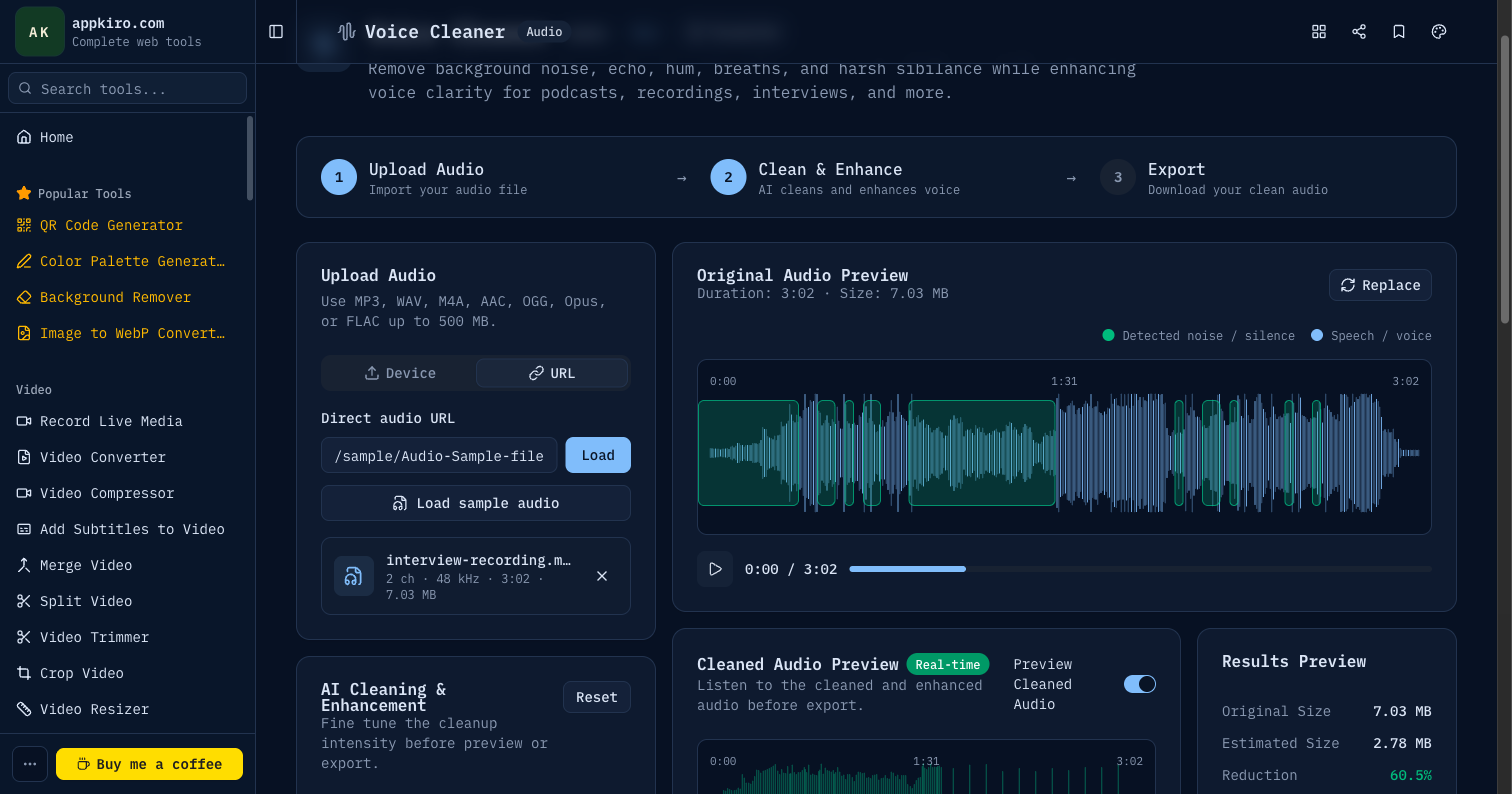
Voice Cleaner runs a chain of audio processors inside your browser: a high-pass filter that strips low rumble, a notch filter pinned near 60 Hz that catches mains hum, a soft compressor that flattens the dynamic range so echo tails fall off faster, a de-esser that tames bright sibilance, and a noise gate keyed to the loudness of each phrase. Every slider you move tightens or loosens one of those stages. Nothing is uploaded — the WAV or MP3 is decoded locally, processed through the Web Audio graph, and re-encoded in the browser before you download it.
Because the math runs locally, the tool fits long-form jobs that you would normally hesitate to put through a cloud service: interviews with sensitive material, internal meetings, customer calls, lecture recordings, voice memos. There is no upload step and no account.
A workflow that works for most recordings
Drag a file onto the upload area or paste a direct URL on the From URL tab. The tool decodes the audio, draws a waveform, and shows duration, sample rate, channel count, and file size beside the player. If you do not have a clip on hand, click Load sample to drop in a short demo voice file — handy for seeing what each slider does before touching your own recording.
From there the routine is short:
- Listen to the source once, all the way through if it is short.
- Note what the recording actually suffers from — noise, hum, echo, breaths, or sibilance.
- Move only the sliders that map to those problems.
- Render the cleaned preview and A/B against the source.
- Adjust, re-render, then export to MP3, WAV, M4A, FLAC, OGG, or AAC.
The biggest mistake first-time users make is reaching for every slider. A clean voice with too much noise reduction starts to sound underwater; a clean voice with too much de-essing sounds lispy. Treat sliders as fixes for specific symptoms, not as a general "make it better" knob.
What each slider does
Noise Reduction
The headline control. It widens the gate and pulls the noise floor down between phrases, so the constant hiss from a microphone or fan disappears in the gaps. The default of 70–80% works for most home recordings. Push past 90% only when the room is genuinely noisy; otherwise the speech itself starts to lose its high-end air and the consonants get clipped.
Voice Enhancement
A presence lift around the 2–5 kHz range plus a mild brightening. Useful when a voice sounds dull, distant, or boxy — a common issue with built-in laptop microphones or recordings made far from the mic. Leave it near 60–75% for neutral voices and lower it for already-bright recordings.
Echo Removal
Not a true reverb remover, but a compressor and dynamic shaping stage that pulls down the tail of each word. It works well on mild room echo from kitchens, bathrooms, or empty offices. It will not save a recording made in a tiled stairwell — heavy reverb is still beyond what any browser-based tool can fully repair.
Hum Removal
Targets 60 Hz mains hum (with harmonics) plus the rumble below it. If you hear a low buzz that persists through silences, this is the slider. Push it to 80–100% when the buzz is obvious; leave it around 50–60% for clean recordings so you do not thin out the voice's natural body.
De-esser
Catches harsh S, SH, and T sounds — common on bright condenser microphones or after aggressive enhancement. Move it up until the spikes stop hurting your ears, then back it off slightly so the consonants still feel crisp. Listening on headphones helps; sibilance is much harder to hear on laptop speakers.
Breath Reduction
The most opinionated control. It reduces breathing sounds between phrases, which makes some recordings sound more polished but can also make pauses feel artificial. Use a light touch — 30–60% usually works. If pauses start to sound gated or unnatural, pull it back.
Settings for common scenarios
The defaults are a sensible all-purpose preset. These small adjustments cover most real situations.
- Podcast interview, USB mic at home. Noise Reduction 75%, Voice Enhancement 70%, Echo Removal 55%, Hum Removal 70%, De-esser 60%, Breath Reduction 40%.
- Zoom or Meet recording. Noise Reduction 80%, Voice Enhancement 75%, Echo Removal 70% (call apps add their own echo cancellation that often makes the tail mushy), Hum Removal 60%, De-esser 55%, Breath Reduction 30%.
- Lecture or screen recording with a laptop mic. Noise Reduction 85%, Voice Enhancement 80% (laptop mics are dull), Echo Removal 50%, Hum Removal 60%, De-esser 50%, Breath Reduction 40%.
- Phone voice memo. Noise Reduction 70%, Voice Enhancement 65% (phones already process audio aggressively), Echo Removal 50%, Hum Removal 50%, De-esser 50%, Breath Reduction 30%.
How to spot artifacts before exporting
Listen for three things when you preview the cleaned version. If the silence between phrases sounds underwater or has a shimmering tail, Noise Reduction is too high. If the voice sounds lispy or muffled on consonants, the De-esser is too aggressive. If pauses sound chopped or unnatural, dial Breath Reduction back.
A quick A/B check is the fastest way to catch these: render the cleaned preview, play it, then play the source. The differences jump out far more than they would in isolation. The waveform view also helps — if the cleaned waveform looks completely flat compared to the source, processing is too heavy.
Exporting and what format to pick
MP3 at 128 kbps is the default and the right answer for podcasts, shareable links, and most uploads. Choose WAV or FLAC when the cleaned audio is going into another editor afterwards and you want a lossless intermediate. Pick M4A or AAC when delivering to Apple platforms, and OGG when integrating with open-source workflows. Codec availability depends on the browser; Chrome and Edge support the broadest set.
Voice Cleaner does not normalise loudness on its own. If a cleaned file sounds too quiet, run the result through Audio Normalizer to bring it up to a podcast-style target around -16 LUFS. For multi-track sessions, clean each clip individually, then merge them with Merge Audio.
What it cannot fix
Browser-based cleaning has limits. Overlapping voices, music playing under speech, clipping (when the recording was already too loud at the source), and heavy reverb from large hard rooms are problems that need either a careful re-record or a specialist tool. Voice Cleaner will not separate two people talking over each other, and it will not restore detail that was lost when the input clipped. The honest answer for those cases is to fix the recording environment for next time.
Privacy and limits
Local files are decoded, enhanced, previewed, and encoded entirely in your browser. Nothing about the audio is sent to Appkiro. URL mode reaches out to the host you paste, so the usual CORS and Range-request rules apply — if a remote file refuses to load, the host has not allowed browser fetching of audio.
Practical file size depends on your device. A laptop with 8 GB of RAM handles 30–45 minutes of mono speech comfortably. Longer sessions are best split into chunks with Split Audio, processed individually, and rejoined with Merge Audio.
Where Voice Cleaner fits in a broader workflow
For a typical podcast episode, the chain looks like this: record each guest individually, run each track through Voice Cleaner, normalise with Audio Normalizer, trim mistakes with Audio Trimmer, merge with crossfades using Merge Audio, then export the master to MP3 for distribution. Every one of those steps runs in the browser, on the same device, without uploading the audio anywhere.
That matters for sensitive recordings — therapy session notes, internal meetings, legal interviews, journalistic source material. The audio never leaves your machine, and there is no account holding it on a server somewhere.