
Help · Image Tools
Convert Images to WebP and Compare File Size Before Downloading
WebP is a practical default for many web images because it can keep photos and graphics visually close to the source while reducing file size.
Appkiro's Image to WebP Converter helps you convert files, direct image URLs, or page images in batches, then compare size and quality before you download.
Quick answer
Use Image to WebP Converter when JPG, PNG, GIF, SVG, AVIF, BMP, ICO, or TIFF assets need smaller web-ready WebP versions. Upload files for local browser conversion, tune quality or Lossless mode, compare the result, then download one file or a ZIP.
Screenshot of the converter
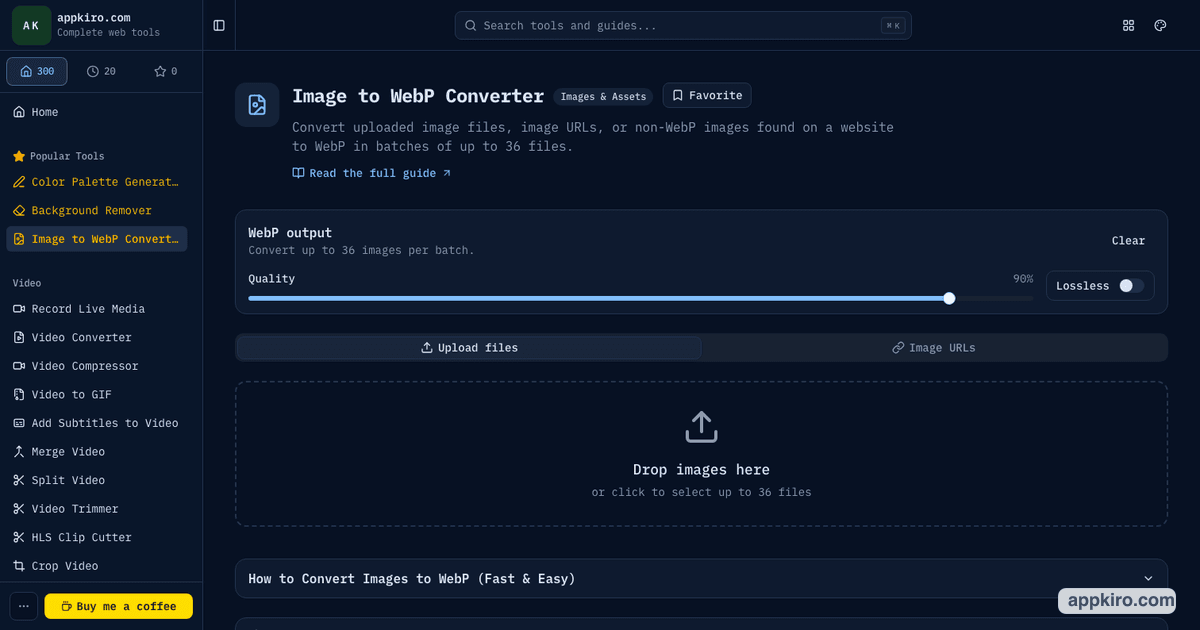
When this tool is useful
- Prepare product photos, blog images, thumbnails, and hero graphics for faster web pages
- Batch convert an unlimited number of files with the same quality or lossless setting, processed in groups of 10 or 20
- Compare 100%, 90%, and 70% WebP variants for a single image before choosing one
- Convert direct image URLs or scan a public page for non-WebP image files
- Download individual WebP files, export a ZIP, or send converted files to a configured CDN target
How to convert images to WebP
Open Image to WebP Converter
Start from the upload tab for local images, or switch to Image URLs when the source images are already online.
Add source images
Drop files into the upload area, pick images from your device, paste direct image URLs, or enter a website URL to find non-WebP images from that page.
Choose quality or lossless output
Use the quality slider for smaller web files. Turn on Lossless when every pixel matters, such as logos, UI screenshots, icons, and graphics with sharp edges.
Pick a group size
Large queues run in groups of 10 or 20 images so browser memory stays flat. Pick 10 on laptops and phones, 20 on desktops with more RAM. A progress bar shows the current group and you can stop early while keeping everything already converted.
Convert and inspect the results
After conversion, results are listed in two columns: the source image on the left and its WebP output on the right, with size savings and a before/after comparison. For a single image, the tool also creates reference variants at 100%, 90%, and 70% quality.
Download, export ZIP, or upload
Download a single WebP, package the batch as a ZIP, copy JSON output, or use the CDN upload option when your destination is already configured.
Settings worth checking
- Quality slider
- Controls lossy WebP compression. Higher values keep more detail and usually create larger files. Lower values reduce size but can show artifacts on gradients, faces, and text.
- Lossless mode
- Preserves pixels more closely and is useful for transparent graphics, icons, UI assets, and screenshots. It is usually larger than lossy WebP.
- Upload files
- Best for images already on your device. There is no cap on how many files you can queue, and the tool accepts common formats such as PNG, JPG, JPEG, GIF, BMP, AVIF, SVG, ICO, and TIFF.
- Group size
- Sets how many images are encoded per run: 10 or 20. Smaller groups keep peak memory lower on modest devices, larger groups finish sooner on desktops.
- Image URLs
- Best when images are already public. Direct image URLs are fetched through Appkiro's image proxy so the browser can read and convert them.
- Website URL fetch
- Scans a public page for non-WebP image references and adds them to the URL list. Private pages, blocked sources, and pages without direct image links may not work.
- ZIP and CDN actions
- ZIP is useful for batch downloads. CDN upload is for workflows that already have S3, R2, or API settings ready in the browser.
Practical examples
E-commerce product photos
Upload a batch of product JPGs, try quality around 85-90, compare one close-up, then download a ZIP for the store image folder.
Blog screenshots
Use Lossless or a high quality value when screenshots contain UI text. Compare the output before replacing the PNG in your article.
Website image cleanup
Paste a public page URL, fetch non-WebP images, convert them, and review which assets can safely become WebP.
Design handoff
Convert exported PNGs to WebP, keep transparent assets lossless, and share the ZIP with a developer or CMS editor.
Mistakes to avoid
- Do not use one quality value blindly for every image. Photos, screenshots, and icons tolerate compression differently.
- Keep transparent logos and UI assets in Lossless mode when sharp edges matter more than the smallest file.
- Check faces, gradients, small text, and product details after conversion. These areas reveal compression problems first.
- Use ZIP export for batches so filenames stay together and the browser does not start many separate downloads.
- Keep a JPEG or PNG fallback if your audience includes older browsers, email clients, or systems that do not accept WebP.
Browser files and URL sources
Local files selected from your device are converted in the browser where supported. URL workflows are different: Appkiro needs to fetch the remote image or page through its routes so the browser can receive readable image data. Avoid using URL mode for private, signed, or access-controlled image links.
Related image tools
WebP conversion often comes after resizing, metadata review, or a broader format change. These tools fit naturally around the same image optimization workflow.
Image Converter
Convert between PNG, JPEG, WebP, AVIF, GIF, BMP, TIFF, ICO, and ICNS.
Image Resize
Resize images before WebP conversion when dimensions are still too large.
Image Metadata Viewer
Inspect EXIF and metadata before publishing or optimizing images.
Images to PDF
Turn final images into a PDF when the destination is a document workflow.
Frequently asked questions
- What is Image to WebP Converter for?
- It converts uploaded images, direct image URLs, or non-WebP images found on a public page into WebP files for web pages, stores, CMS uploads, and asset folders.
- Which image formats can I convert to WebP?
- The tool is built for common image inputs including PNG, JPG, JPEG, GIF, BMP, AVIF, SVG, ICO, and TIFF, depending on what the browser can decode.
- What quality should I choose?
- For photos, 80-90 is a practical starting range. For screenshots, logos, icons, and sharp UI graphics, use a higher value or Lossless and compare the output before downloading.
- Does WebP keep transparency?
- Yes, WebP supports transparency. Use Lossless or a high quality value when transparent edges need to stay clean.
- Are local image files uploaded?
- Files selected from your device are converted in the browser where supported. URL modes are different: Appkiro has to fetch the remote image or page so the browser can receive the image data.
- Why are there multiple WebP outputs for one image?
- For a single uploaded image, the tool creates the primary output from your selected setting and adds reference variants at common quality levels so you can compare file size and visual quality.
Ready to make WebP files?
Open the converter, add files or URLs, choose the quality setting, and download the WebP output.