
Combine Multiple PDF Files Into One Document
Merge PDF is for the common situation where you have several PDF files but need to send, store, print, or upload one clean document. Add the files, place them in the right order, choose whether to keep their original layout or normalize pages, preview the result, and download the merged PDF.
What the tool is useful for
Use it when separate documents belong together: a contract plus appendices, invoices plus receipts, report chapters, scanned forms, student assignments, HR paperwork, or print-ready sections. Instead of attaching many files, you create one ordered PDF that is easier to review and less likely to be misplaced.
Combine files
Turn multiple PDFs into one document.
Set order
Drag files so pages appear in the right sequence.
Prepare printing
Choose page size, orientation, margins, and blank separators.
Browser-side workflow
The merge runs in your browser without sending document contents to a server.
How to merge PDF files
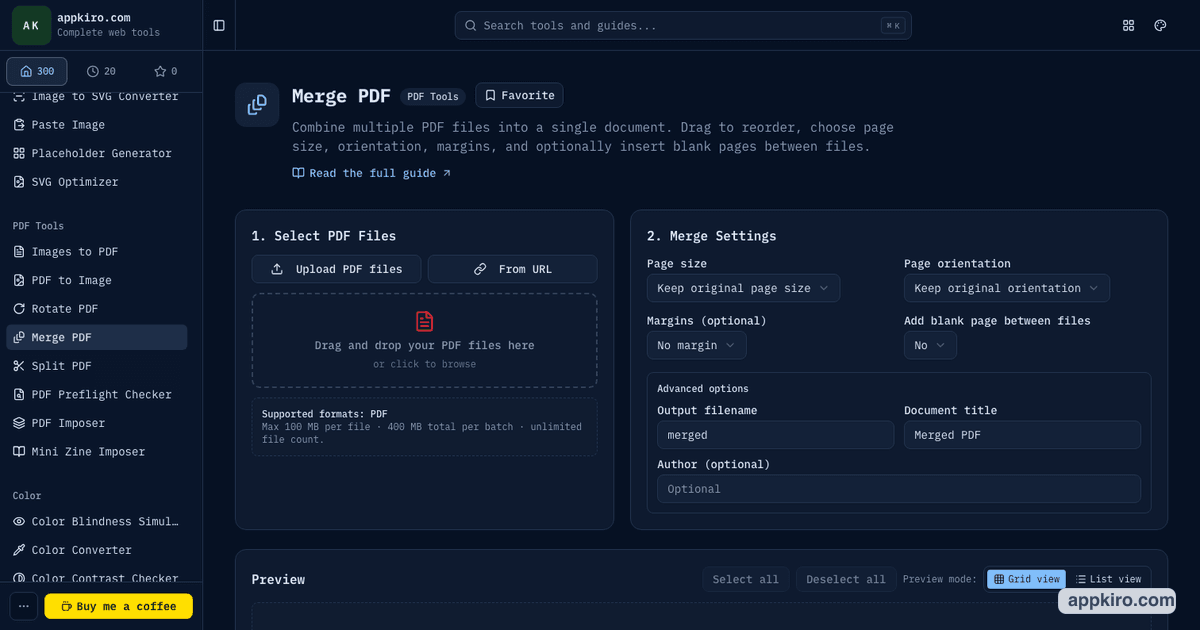
- Add your PDFs. Drop files into the upload area, use the file picker, or add a PDF from a URL if the remote file allows browser access.
- Check the file list. Each file row shows its name, page count, file size, and a remove button.
- Drag to reorder. Files merge from top to bottom. Put the cover or first section at the top.
- Choose merge settings. Keep original layout for a direct merge, or normalize page size, orientation, and margins for a more consistent document.
- Preview the merged PDF. Open the preview to inspect the combined result before downloading.
- Download the final file. Save the merged PDF using the output filename you set.
Every setting, explained simply
Upload PDF files
This adds local PDF files from your computer. You can select more than one file at a time.
From URL
This imports a PDF from a direct link when the website allows browser access. Some sites block this for security reasons.
File order
The order in the list is the order in the final PDF. Drag rows up or down to change where each document appears.
Page size
Keep original page size preserves each source PDF's dimensions. A4, A3, A5, Letter, or Legal makes every page fit a chosen standard size.
Orientation
Keep original leaves portrait and landscape pages as they are. Force portrait or landscape only when you need a consistent print layout.
Margins
Margins add blank space around page content. They are useful for printing or binding, but they can slightly shrink the visible content.
Blank page between files
This inserts a separator page after each source file. It is useful when double-sided printing should start each new section on a fresh side.
Output filename
This controls the downloaded file name. Use a clear name like client-contract-complete.pdf or q1-report-merged.pdf.
Document title and author
These are PDF metadata fields. Some PDF viewers show them in the document information panel.
Preview PDF
This builds a temporary preview so you can check order and layout before downloading.
Example: combine a contract packet
Suppose you have a signed agreement, a pricing appendix, a tax form, and a scanned ID page. Add all four PDFs, drag the signed agreement to the top, place the appendix second, then put the forms after it. Keep original page size if each PDF already looks correct. Use Preview PDF to check the packet, then download one file for email or archive.
If the packet is going to a printer and the source files have mixed page sizes, choose A4 or Letter and set a small margin. If it will be read on screen, keeping original layout is usually cleaner.
Screenshot
Before you download
Check that the order is correct, that no unwanted file is included, and that page size changes did not shrink important content. Password-protected, corrupted, or very large PDFs may fail until they are unlocked or repaired in another PDF app.
Related PDF tools
FAQ
What does Merge PDF do?
It combines two or more PDF files into one PDF document. The files are merged in the order shown in the file list.
Can I change the order before merging?
Yes. Drag the file rows to reorder them. The first file in the list becomes the first section of the merged PDF.
Should I keep the original page size?
Use Keep original page size when you want the fastest and cleanest merge. Choose A4, Letter, or another fixed size only when you need a uniform document for printing or archiving.
Will my PDF text remain selectable?
When original page size and orientation are kept, pages are copied directly. If you normalize pages, the layout may be transformed to fit the new page settings.
Can I merge password-protected PDFs?
Locked or encrypted PDFs usually need to be unlocked first. Remove the password in a PDF viewer, then add the unlocked file to the merger.