
Help · Video Tools
Trim, Crop, and Merge Video Clips in Your Browser
Simple video edits often need more than one action. You may need to cut away the setup, reframe the subject, then combine a few prepared clips into one final file.
Appkiro's Video Trimmer, Crop Video, and Merge Video tools cover that workflow without opening a full editing suite: trim timing, adjust the frame, then assemble the final sequence.
Quick answer
Use Video Trimmer to remove unwanted time, Crop Video to change the visible frame or aspect ratio, and Merge Video to combine several prepared clips into one export. In most cases, trim first, crop second, and merge last.
Which video tool should you open?
Video Trimmer
Cutting one clean segment from a longer source video.
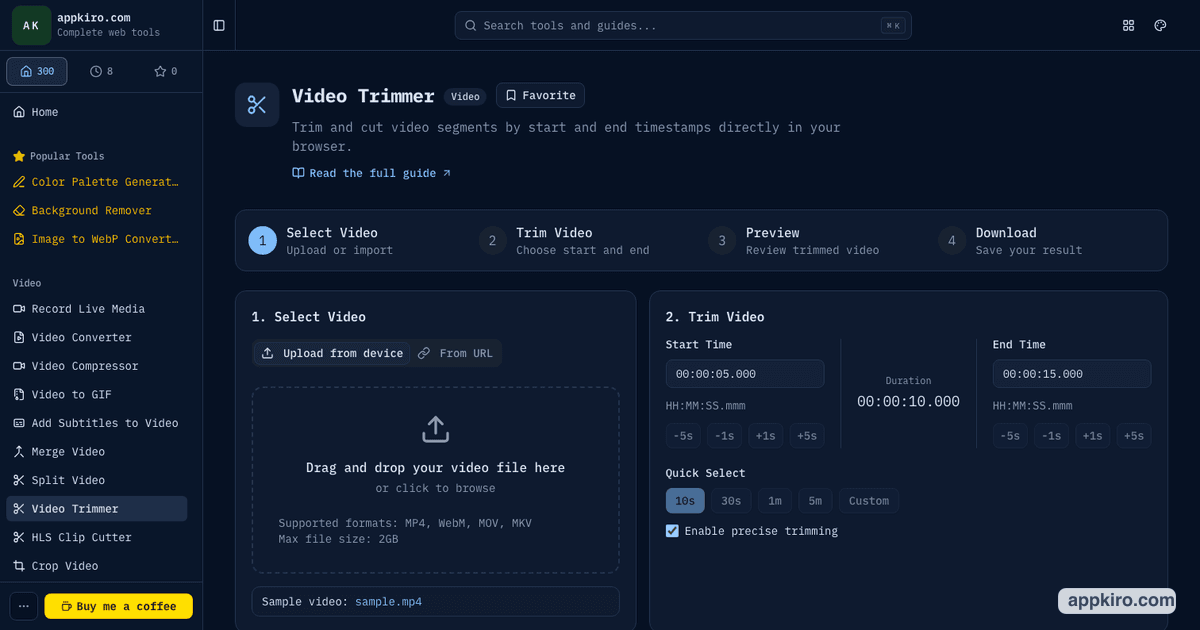
Set start and end timestamps, use the timeline handles, preview the selected section, and export MP4, WebM, MKV, or MOV when the browser supports the source.
Crop Video
Changing the visible frame or aspect ratio after the timing is right.
Choose presets such as 1:1, 9:16, 4:5, 16:9, or Custom, drag the crop box, fine-tune pixel values, and export a new MP4.
Merge Video
Combining several prepared clips into one final video.
Add up to 30 clips, reorder them, trim individual segments, choose quality, set audio options, add crossfades, and export MP4 or WebM.
Start with a clean trim
When this workflow is useful
- Turn a long webinar into one short highlight by trimming the useful section, cropping for mobile, and exporting a clean MP4
- Build a product demo from several screen recordings by trimming mistakes and merging the best takes in order
- Prepare a support clip by trimming to the exact issue, cropping around the app window, and sharing a smaller focused video
- Create a social post from horizontal footage by trimming the moment, cropping to 9:16 or 1:1, and keeping the final file simple
- Assemble training material by cleaning each lesson clip, arranging the sequence, and exporting one combined video
How to trim, crop, and merge a video
Trim away unused footage first
Open Video Trimmer when the source has dead air, setup time, mistakes, or only one useful moment. Set the exact start and end points before doing heavier edits.
Crop only after the timing is clean
Open Crop Video when the clip needs a different frame, such as vertical 9:16 for short-form posts, square 1:1 for feeds, or a tight crop around a screen recording.
Prepare every clip before merging
If the final video uses several sources, trim and crop each clip first. This keeps Merge Video focused on sequence, audio, quality, and transitions.
Merge the clips in the right order
Load the prepared files into Merge Video, drag clips into order, trim any final edges per clip, choose MP4 or WebM, and keep crossfades short unless the cut needs a visible transition.
Export and review the final file
Preview the result, download the export, and check the first cut, last cut, audio, framing, and file size before sharing or uploading.
Editing choices explained
- Start and end time
- Use Video Trimmer for one continuous excerpt. It is the fastest choice when the useful content is already in one place on the timeline.
- Aspect ratio and crop box
- Use Crop Video when the image area is the problem. Pick a ratio, drag the crop box, or enter exact pixel values when the subject needs precise framing.
- Clip order
- Use Merge Video when the story depends on sequence. Add clips, reorder them by dragging, and make small per-clip trims before export.
- Output format
- MP4 is the safest default for sharing, uploading, and playback. WebM is useful for web workflows when the destination supports it.
- Audio
- Keep audio for narration, interviews, lessons, and demos. Mute clips when the video is a silent visual reference or background loop.
- Quality and resolution
- Keep higher quality for archive exports. Downscale or compress after editing when the file needs to fit chat, email, or platform upload limits.
Practical examples
Social clip from a webinar
Trim the best 35 seconds from the recording, crop to 9:16, then export MP4. If the file is still large, compress the final result once.
Product demo from multiple takes
Trim mistakes from each take, crop around the app window if needed, merge the cleaned sections, and keep transitions simple so the demo feels direct.
Support video for a bug report
Trim the recording to the actual issue, crop away unrelated desktop space, and share the focused clip so reviewers do not have to scan a long file.
Training module
Prepare each lesson clip separately, merge them in the correct order, and export one video that is easier for learners to download or watch.
Browser-based processing note
Local files are handled in the browser and exported as new files. Remote URLs must point directly to video files and allow the browser to read them with CORS and Range requests. Very large 4K videos, unusual codecs, or many clips can take longer or exceed browser memory on some devices.
Tips for cleaner exports
- Trim before cropping or merging. Shorter clips are easier for the browser to process.
- Crop before merging when every source needs the same final aspect ratio.
- Use MP4 unless the publishing destination specifically asks for WebM.
- Avoid repeated exports from the same file. Make timing and framing decisions first, then export the final version.
- For long 4K videos, test a short clip before processing the whole project.
Related video tools
If one long source needs to become many separate files, use Split Video. If the finished export is too large, run it through Video Compressor once after the edit is complete.
Split Video
Create several clips from one long source before choosing what to merge.
Video Compressor
Reduce the final export size after trimming, cropping, or merging.
Video Converter
Change the final file format when a platform needs a different container.
Video Thumbnail Generator
Create a poster frame after the final edited video is ready.
Frequently asked questions
- Should I trim, crop, or merge first?
- Trim first in most workflows, crop second, and merge last. This removes unused footage before the browser has to reframe or combine larger files.
- When should I use Video Trimmer instead of Split Video?
- Use Video Trimmer when you need one clean excerpt. Use Split Video when one source needs to become several separate clips.
- Can Crop Video create vertical videos for social platforms?
- Yes. Crop Video includes portrait presets such as 9:16 and 4:5, plus square, widescreen, original, and custom crop modes.
- How many clips can Merge Video combine?
- Merge Video supports up to 30 clips in one project. For very large or high-resolution sources, prepare shorter clips first to reduce browser memory use.
- Will these tools change my original video?
- No. The tools generate new exported files. Your original source files remain unchanged on your device.
- Are local files uploaded to Appkiro?
- Files selected from your device are processed in the browser. If you use a remote video URL, the browser has to fetch that file from the source host, and the URL must allow CORS and Range requests.
Ready to edit a clip?
Start with Video Trimmer, then crop or merge only if the final video needs those extra steps.