
Help · PDF Tools
Convert PDFs to Images and Images Back to PDF
PDF and image workflows often move in both directions: a page needs to become a shareable image, or a set of scans needs to become one organized PDF.
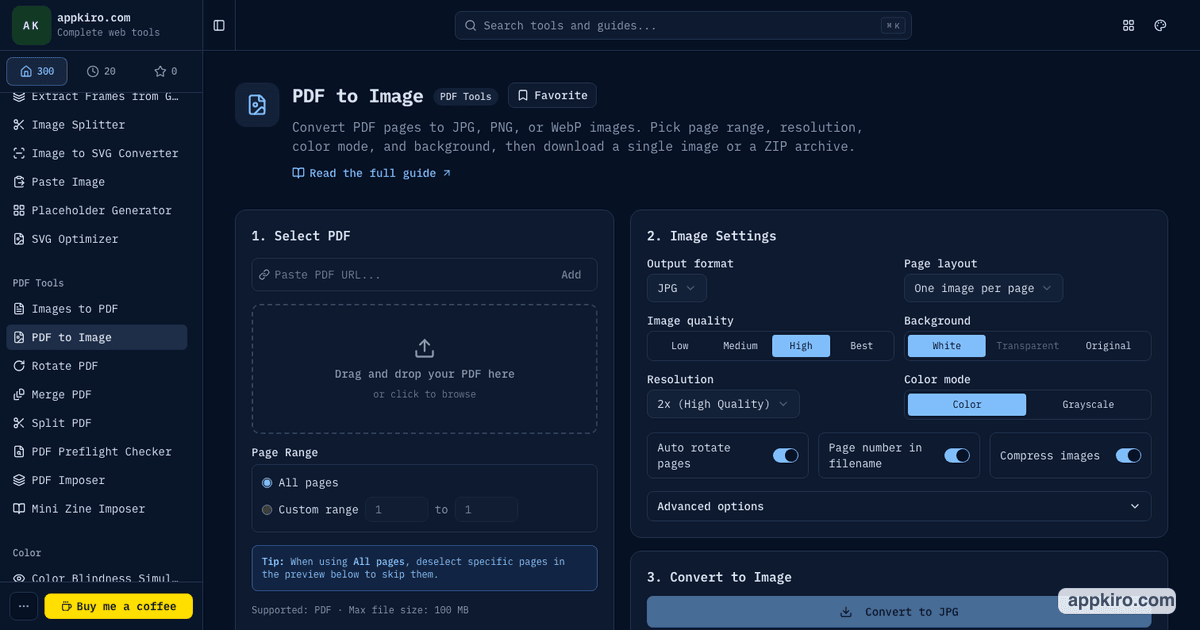
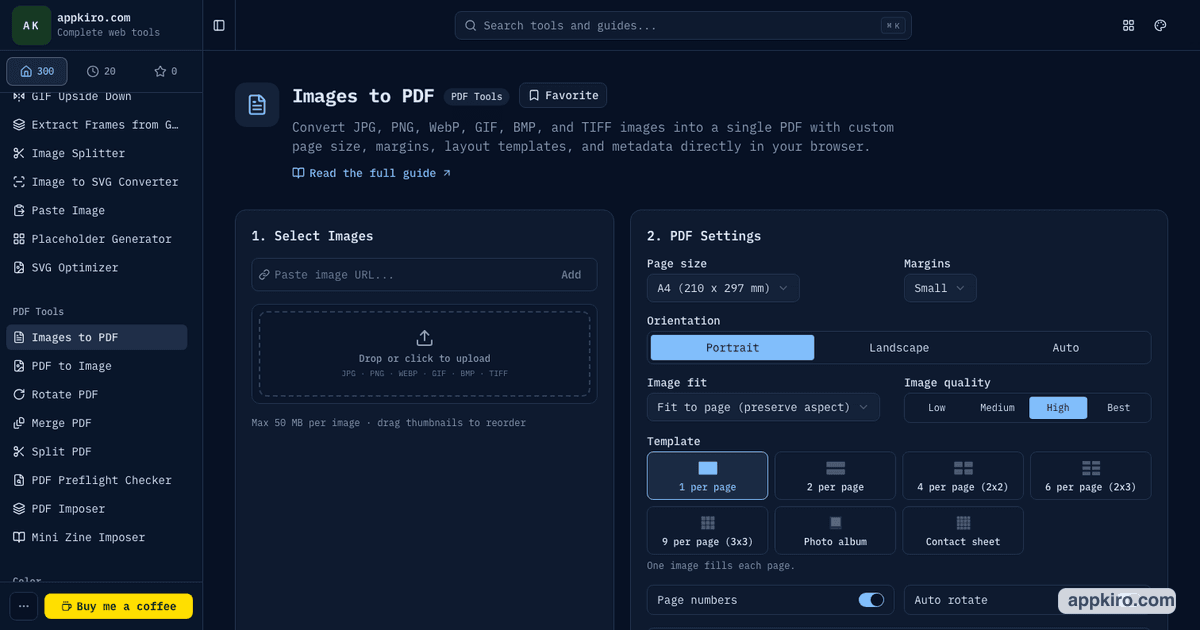
Appkiro's PDF to Image and Images to PDF tools handle that round trip in the browser, with controls for format, page range, resolution, paper size, image fit, quality, layout, and document metadata.
Quick answer
Use PDF to Image when you need PDF pages exported as JPG, PNG, or WebP files. Use Images to PDF when you need separate images combined into one PDF with controlled page size, margins, layout, quality, and metadata.
The two conversion workspaces
Which tool should you use?
A practical conversion workflow
Choose the direction of the conversion
Open PDF to Image when you need image files from document pages. Open Images to PDF when separate images need to become one document.
Load the source files
PDF to Image accepts a PDF file or a PDF URL up to 100 MB. Images to PDF accepts JPG, PNG, WebP, GIF, BMP, and TIFF files up to 50 MB each, plus image URLs when the source can be fetched by the browser.
Set page or output rules
For PDF to Image, choose page range, output format, resolution, background, color mode, and page layout. For Images to PDF, choose page size, orientation, margins, image fit, quality, and layout template.
Preview the result
Use the page thumbnails in PDF to Image to include or skip pages. In Images to PDF, reorder image tiles and use Preview for a low-resolution check before downloading.
Convert and download
Single-page image exports download as image files, while multi-page PDF to Image exports are packaged as a ZIP. Images to PDF downloads one PDF file with the selected layout and metadata.
Keep quality and file size balanced
Higher image resolution and best quality preserve detail but create larger files. Lower quality, smaller resolution, and compact layouts are better for email, support tickets, and quick sharing.
Settings worth understanding
- Output format
- PDF to Image exports JPG, PNG, or WebP. JPG is practical for scans and photos, PNG is better for sharp text or transparent backgrounds, and WebP often keeps file size smaller.
- Resolution multiplier
- PDF to Image can render at 1x, 2x, 3x, or 4x. Use 2x for screen-quality exports and 3x or 4x when small text or print review needs extra sharpness.
- Page selection
- Use all pages, a custom page range, or the preview checkboxes to export only the pages you need from a PDF.
- Page size and margins
- Images to PDF supports common paper sizes such as A4, A3, A5, Letter, and Legal, plus Fit to image for scan-style documents. Margins can be removed or increased depending on the use case.
- Image fit and templates
- Choose fit, fill, stretch, or center, then use templates such as one image per page, multi-up grids, photo album, or contact sheet.
- PDF metadata
- Images to PDF advanced options can set document title, author, page background color, and output filename before export.
Practical examples
Send a signed PDF page as an image
Open PDF to Image, select only the signed page, choose PNG or JPG, keep 2x resolution, and download one image instead of sending the full document.
Create one PDF from mobile scans
Add the scan images to Images to PDF, reorder them in the preview grid, choose Fit to image or A4, remove margins if needed, then export one clean PDF.
Build a contact sheet
Use Images to PDF with the contact sheet or grid template when a set of screenshots, mockups, or photos needs to be reviewed on fewer pages.
Export document thumbnails
Use PDF to Image with a lower resolution and WebP output when PDF pages are needed as lightweight thumbnails for a website or internal dashboard.
Browser-based processing note
Files selected from your device are processed in the browser where the tool and browser APIs support it. If you import from a URL, the browser must fetch that remote PDF or image from its source first, and remote server permissions can affect whether that works.
Tips for clean exports
- Use PNG for pages with small text, UI screenshots, or transparent areas; use JPG for scanned paper and photo-heavy documents.
- If an image URL fails in Images to PDF, save the image locally first. Some remote servers block browser fetches with CORS rules.
- For very large PDFs or image batches, use a desktop browser because browser memory limits are lower on phones.
- When creating PDFs from scans, check page order before export. Reordering after a PDF is generated takes more work.
- If a password-protected PDF fails to load, unlock it in a PDF viewer first and then convert the unlocked copy.
Related PDF and image tools
Use Split PDF before exporting pages when only part of a document matters. Use Image Converter after export when the destination needs a different image format.
Frequently asked questions
- What is the difference between PDF to Image and Images to PDF?
- PDF to Image turns pages from one PDF into JPG, PNG, or WebP files. Images to PDF takes separate image files and combines them into one PDF document.
- Which image formats can Images to PDF accept?
- Images to PDF supports JPG, JPEG, PNG, WebP, GIF, BMP, and TIFF files, including TIFF decoding in the browser. Each image can be up to 50 MB.
- Which formats can PDF to Image export?
- PDF to Image exports JPG, PNG, and WebP. JPG is widely compatible, PNG is useful for sharp text and transparency, and WebP is useful when file size matters.
- Can I convert only selected PDF pages?
- Yes. Use a custom page range or deselect pages from the preview thumbnails before converting. Multi-page exports download as a ZIP archive.
- Can I reorder images before creating a PDF?
- Yes. Images to PDF shows uploaded images as numbered tiles. Drag the tiles to change page order, remove unwanted images, or add more files before export.
- Are my local PDF and image files uploaded?
- Files selected from your device are processed in the browser. URL imports are different because the browser must fetch the remote PDF or image from its source first.
- Why did the output file become large?
- Higher resolution, best quality, PNG output, large source images, and multi-page exports can increase file size. Lower the resolution or quality when the destination is email, chat, or a small upload limit.
- Do these tools work with password-protected PDFs?
- Password-protected PDFs may fail to load in PDF to Image. Open the PDF in a viewer, enter the password, save an unlocked copy if you have permission, and then convert that copy.
Ready to convert a document or image set?
Open the direction you need: export PDF pages as images, or combine images into a PDF.