
Help · Recording Tools
Record Screen, Camera, and Voice Clips in Your Browser
Recording tools are easier to choose when you start with the output: a video someone can watch, or an audio file someone can listen to.
Appkiro has two browser-based recorders for those jobs: Record Live Media for camera, screen, and combined recordings, and Voice Recorder for microphone-only clips with MP3, WAV, or M4A export.
Quick answer
Use Record Live Media for screen, webcam, and camera-over-screen clips. Use Voice Recorder when you only need microphone audio and want MP3, WAV, or M4A export.
Which recorder should you open?
Use Record Live Media when the recording needs video
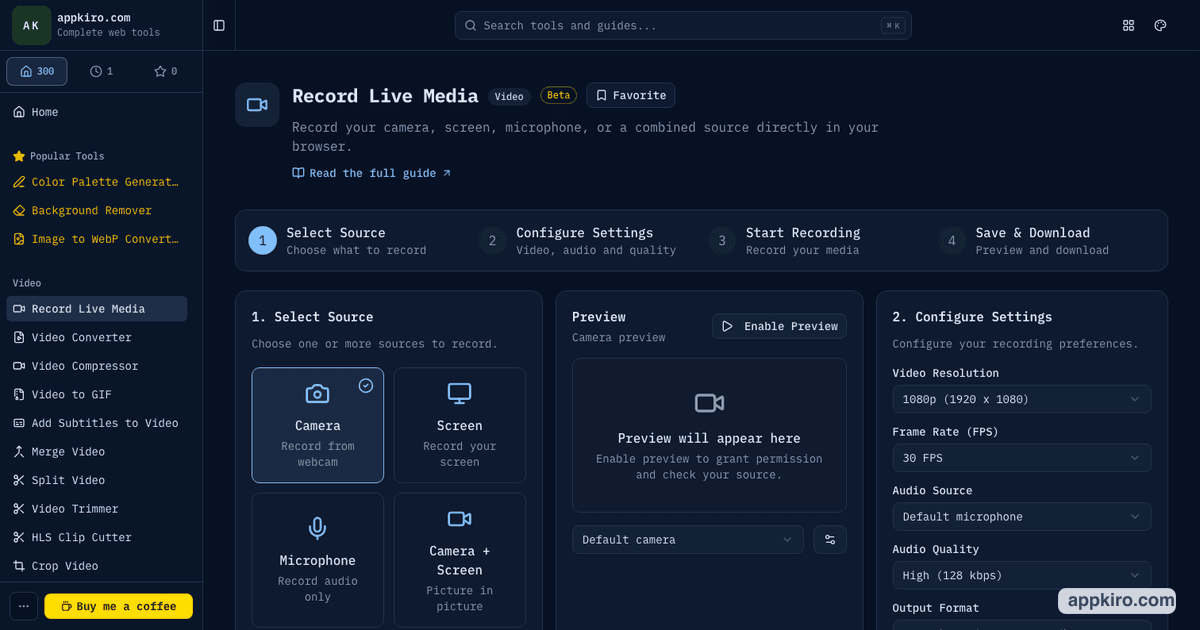
Choose it for webcam clips, screen recordings, microphone-only capture, or camera-over-screen demos. It is the broader recorder for walkthroughs and visual communication.
Use Voice Recorder when the output is audio only
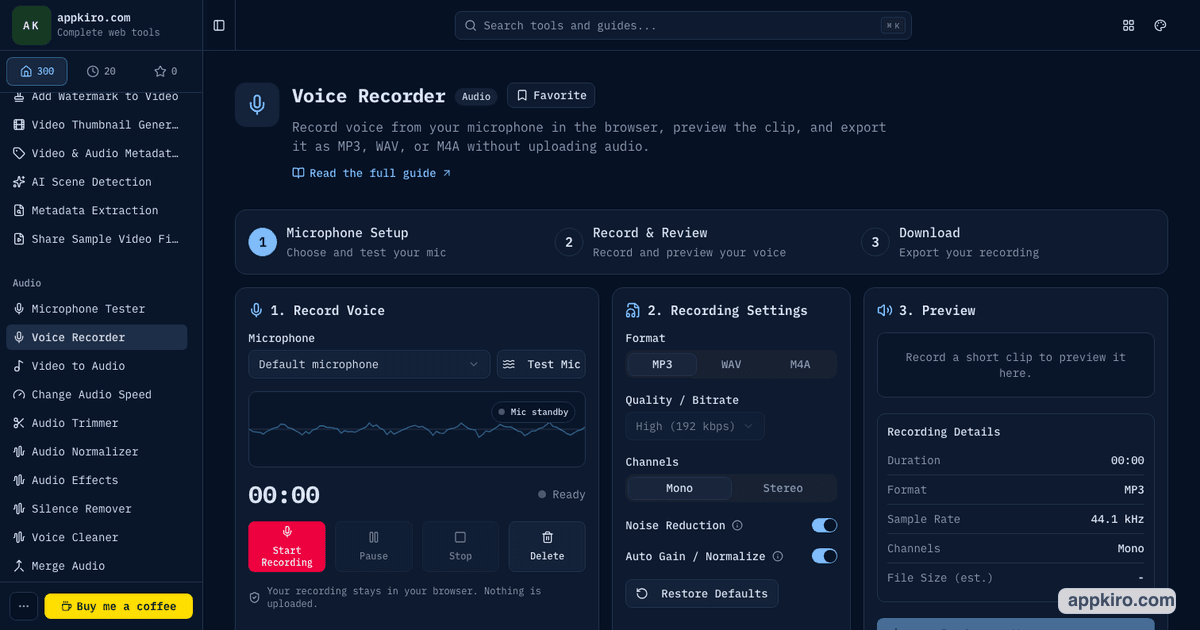
Choose it for voice notes, narration takes, support messages, pronunciation samples, interview prompts, or any microphone recording that should export as MP3, WAV, or M4A.
Tool interfaces
Recording workflow, step by step
Decide what the recipient needs
If they need to see your screen or camera, use Record Live Media. If they only need to hear your voice, use Voice Recorder.
Choose the input source
Record Live Media can capture camera, screen, microphone, or camera plus screen. Voice Recorder asks for a microphone and can use the default input or another detected audio device.
Set quality before recording
For video, choose resolution, frame rate, audio quality, output format, countdown, and max duration. For voice, choose format, mono or stereo, noise reduction, and auto gain.
Record a short test
Do a short permission and audio check before the real take. Confirm the preview, waveform, or microphone level looks right.
Record, pause, and stop
Both tools support normal record controls. Voice Recorder supports pause and resume in one continuous clip; Record Live Media can pause, resume, and stop a media recording.
Preview and download
Download the recording before closing or refreshing the page. Browser object URLs are temporary and are not a long-term storage location.
Settings worth understanding
- Record Live Media sources
- Camera records webcam, Screen records a display share, Microphone records audio only, and Camera + Screen creates a picture-in-picture style capture.
- Video resolution and frame rate
- Higher resolution and 60 FPS look sharper but produce larger files and use more memory. Use 720p or 1080p at 30 FPS for most walkthroughs.
- Countdown and max duration
- Countdown gives you time to prepare before capture starts. Max duration is useful for predictable clips and helps avoid accidentally long recordings.
- Camera overlay
- In Camera + Screen mode, you can place the camera overlay in a corner and choose its size. This is useful for demos with presenter context.
- Voice Recorder formats
- MP3 is practical for sharing, WAV is better as an editing master, and M4A fits Apple or mobile workflows.
- Noise reduction and auto gain
- Noise reduction and auto gain help speech recordings, especially from laptop microphones. Turn them off only when another audio tool will handle cleanup later.
Practical examples
Product walkthrough
Use Record Live Media with Screen or Camera + Screen, set 1080p at 30 FPS, enable microphone narration, and download MP4 or WebM after previewing the result.
Quick voice note
Use Voice Recorder, keep mono enabled, record the message, preview it, and export MP3 for a small file that works in chat and email.
Training narration
Use Voice Recorder with WAV when the audio will be edited later. Record in a quiet room, keep a consistent mic distance, then export the cleanest master.
Support reproduction clip
Use Record Live Media with screen recording and microphone narration. Set a max duration so the capture stays focused, then compress the video if the upload limit is tight.
Browser-based recording note
Browser recording requires explicit permission for camera, microphone, or screen access. Captured media is prepared as a local browser blob for preview and download. Save the file before closing or refreshing the page.
Tips for cleaner recordings
- Close noisy apps and extra browser tabs before recording screen or audio.
- Use a headset or external microphone when voice clarity matters.
- Record a 10-second test before a long take to catch permission, audio, and overlay issues.
- Use Voice Recorder for audio-only work; it gives cleaner export choices than a general video recorder.
- Download the result before closing the tab. The preview URL is temporary browser memory.
Useful next tools
After recording, you may need cleanup. Use Video Compressor for large screen captures, Voice Cleaner for noisy speech, or Video Trimmer to cut a long take down.
Frequently asked questions
- Which tool should I use for a narrated screen recording?
- Use Record Live Media. Choose Screen or Camera + Screen, keep microphone audio enabled, and record the walkthrough as a video.
- Which tool should I use for a voice note?
- Use Voice Recorder. It is built for microphone-only recording and exports MP3, WAV, or M4A.
- Are recordings uploaded to Appkiro?
- Recordings selected or captured from your device are handled in the browser. Download the result locally before closing the page.
- Why does the browser ask for camera, screen, or microphone permission?
- Browsers require explicit permission for device and screen access. The tools request access only when you prepare or start a recording.
- Can I recover a recording after refreshing the page?
- No. The recording preview is a temporary browser object URL. Save the file before refreshing, closing, or navigating away.
- What should I do if a recording is too large?
- For video, lower resolution or frame rate, shorten the clip, or use Video Compressor afterward. For voice, choose MP3 or M4A instead of WAV.
Ready to record?
Choose the recorder that matches the output you need.