
Help · Image Tools
Rotate or Flip an Image Without Opening a Photo Editor
Orientation fixes are usually small, but they decide whether an image looks finished. A sideways product photo, a mirrored selfie, or a slightly crooked scan can all be cleaned up before you open a larger editor.
Appkiro's Rotate Image and Flip Image tools help you preview the change, choose the right output format, and download a new image copy for publishing, sharing, or further editing.
Quick answer
Use Rotate Image when the photo is sideways, upside down, or slightly tilted. Use Flip Image when you need a mirrored version. Both tools are designed for quick browser-based image edits with JPG, PNG, and WebP export options.
What the edit changes
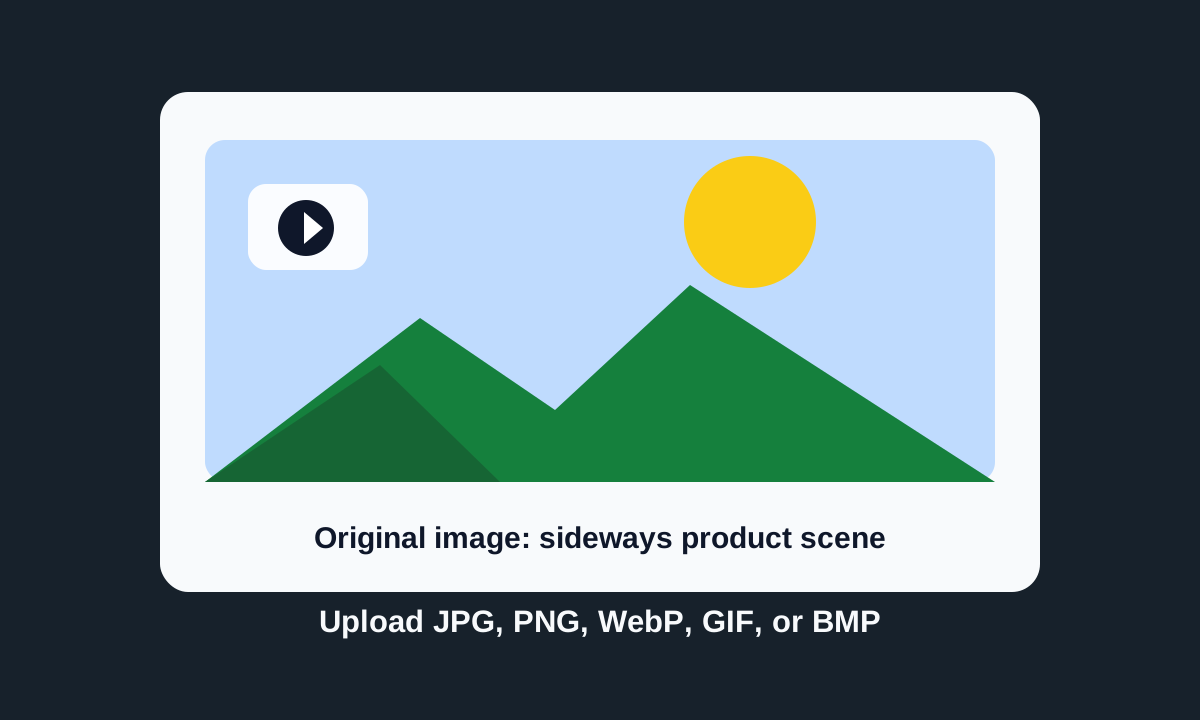
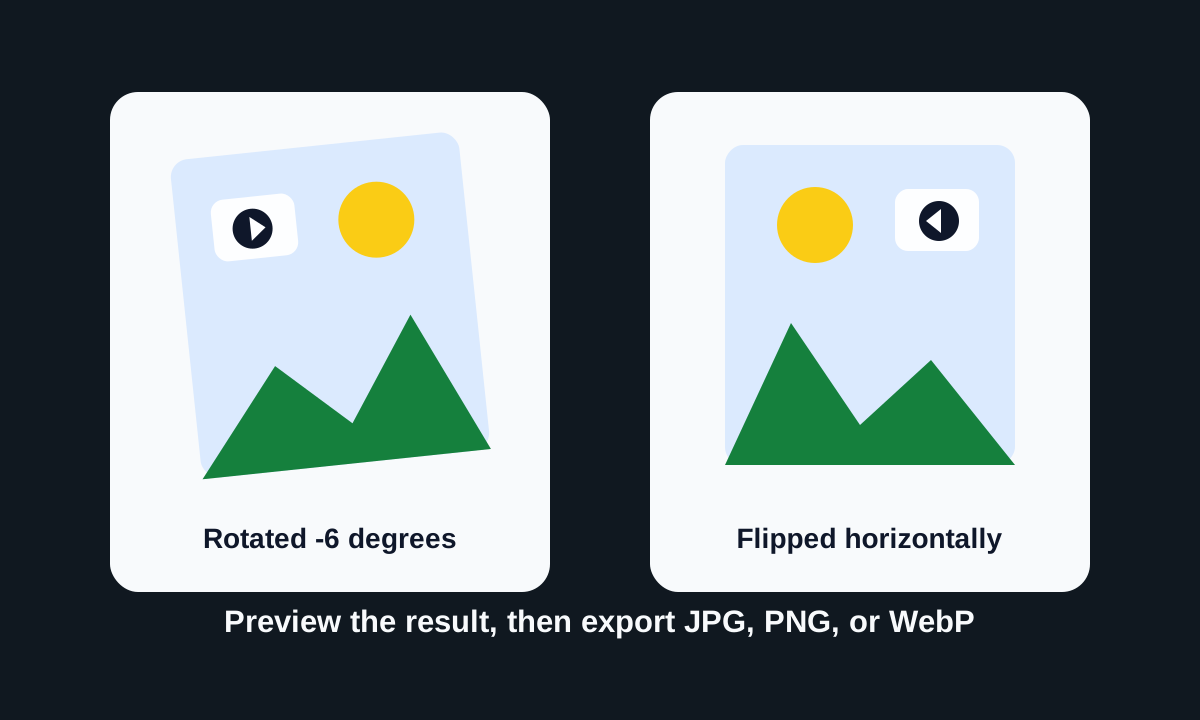
When this workflow is useful
- Fix a phone photo that imported sideways or upside down
- Mirror a selfie, product mockup, or layout asset before publishing it
- Straighten a slightly tilted image with a small custom rotation angle
- Create a reflection-style image by flipping it vertically
- Export a clean JPG, PNG, or WebP copy without changing the original file
How to rotate or flip an image
Open the tool that matches the edit
Use Rotate Image when the picture needs a 90-degree turn, a 180-degree turn, or a custom angle. Use Flip Image when the picture should be mirrored left to right or top to bottom.
Upload the source image
Add a JPG, PNG, WebP, GIF, or BMP file. The preview gives you a quick check before you make orientation changes.
Choose the rotation angle or flip direction
For rotation, start with the preset buttons if the image is sideways. Use the custom angle slider for small corrections. For flipping, choose horizontal for left-right mirroring or vertical for top-bottom mirroring.
Check the preview before exporting
Look for cropped edges, empty corners, reversed text, and whether the subject still faces the right direction. Small orientation changes can change how a product, portrait, or graphic reads.
Pick the output format
JPG is a practical choice for photos, PNG is better when transparency matters, and WebP is useful when you want a smaller modern image file.
Download the edited copy
Save the result as a new file. Keep the original image nearby if you need to compare or try another angle.
Settings worth checking
- Rotate left, right, or 180 degrees
- These presets are best for camera and phone photos that are clearly sideways or upside down. They are fast because you do not need to guess an angle.
- Custom rotation angle
- Use a small positive or negative angle when a scan, photo, or layout asset is only slightly tilted. Preview carefully because angled rotation can create empty corners.
- Background fill
- When rotation creates empty corners, choose a transparent, white, or custom background depending on where the image will be used next.
- Auto crop to fit
- Auto crop removes empty corners after angled rotation by keeping the largest clean rectangle. It is useful when padding around the image would look unfinished.
- Horizontal flip
- Horizontal flip swaps left and right. It is the common choice for selfies, product mockups, layout balance, and mirrored compositions.
- Vertical flip
- Vertical flip swaps top and bottom. Use it for reflection effects, some print layouts, or creative image treatments.
A few realistic examples
Marketplace product photo
A product image was exported sideways from a phone. Rotate it right, check that labels are readable, then export a JPG for the listing.
Selfie or profile image
A camera app saved the view opposite from what you expected. Flip the image horizontally, compare the result, and download a clean copy.
Scanned paper or receipt
A receipt is only a little crooked. Use a small custom rotation angle, turn on auto crop if the corners bother you, then save as PNG or WebP.
Design layout balance
A photo subject faces away from the text area in a banner. Flip the image horizontally so the visual direction supports the layout.
Mistakes to avoid
- Check text and logos after flipping. Mirroring can make words, signs, and branded marks unreadable or inaccurate.
- Use 90-degree presets before trying custom angles. Most phone orientation problems only need a simple turn.
- For images with transparent backgrounds, export PNG or WebP so transparency is preserved.
- When a rotated image has empty corners, decide whether background fill or auto crop fits the destination better.
- Keep the first export name clear, such as product-rotated.jpg or portrait-flipped.webp, so it is easy to find later.
A note on browser-based image edits
These orientation tools are built for browser-side image workflows. That makes them useful for quick visual cleanup before upload, especially when you only need rotation, mirroring, preview, and a fresh export. For very large files, use a desktop browser and keep the tab open until the download is complete.
Related image tools
After orientation is fixed, you may still need to resize the image or convert the format. The tools below fit naturally into that same cleanup workflow.
Rotate Image
Turn an image by presets or a custom angle, then export a clean copy.
Flip Image
Mirror an image horizontally or vertically with a live preview.
Image Resize
Adjust dimensions after orientation is fixed.
Image Converter
Convert the final image into the format your site, app, or document needs.
Frequently asked questions
- Should I rotate or flip my image?
- Rotate when the image orientation is wrong or tilted. Flip when you want a mirrored version, such as swapping left and right in a selfie or product mockup.
- Can I rotate an image by a custom angle?
- Yes. Rotate Image supports custom angles for small corrections as well as common 90-degree and 180-degree turns.
- Will flipping reduce image quality?
- The flip itself is a simple orientation change. The final file can still be re-encoded when you export, especially with JPG, so choose PNG or WebP when you need cleaner edges or transparency.
- Why do angled rotations create empty corners?
- A rectangle no longer fills the same rectangular canvas after it is rotated by a non-square angle. Use a background fill or auto crop when those corners should not appear.
- Can I keep transparency after rotating or flipping?
- Use PNG or WebP for transparent output. JPG does not support transparency, so transparent areas need to be flattened against a background color.
- Does this change my original file?
- No. The tools create a new downloadable copy from the image you add. Keep the original file if you may need another edit later.
Ready to fix the image orientation?
Open Rotate Image for angle changes or Flip Image for mirrored versions.