
Help · PDF Tools
Split a PDF Into Pages or Ranges in Your Browser
A PDF often starts as one file but ends up serving several different jobs: one section for a client, one page for a signature request, or one file per page for review.
Appkiro's Split PDF tool lets you split a PDF by page range, extract selected pages into one file, or create single-page PDFs. It is built for quick document cleanup without opening a desktop editor.
Quick answer
Use Split PDF when you need smaller PDF files from one source document. Choose page ranges for separate sections, extract pages for one custom PDF, or split every page when each page needs its own file. If pages are sideways, use Rotate PDF before splitting.
What the output looks like
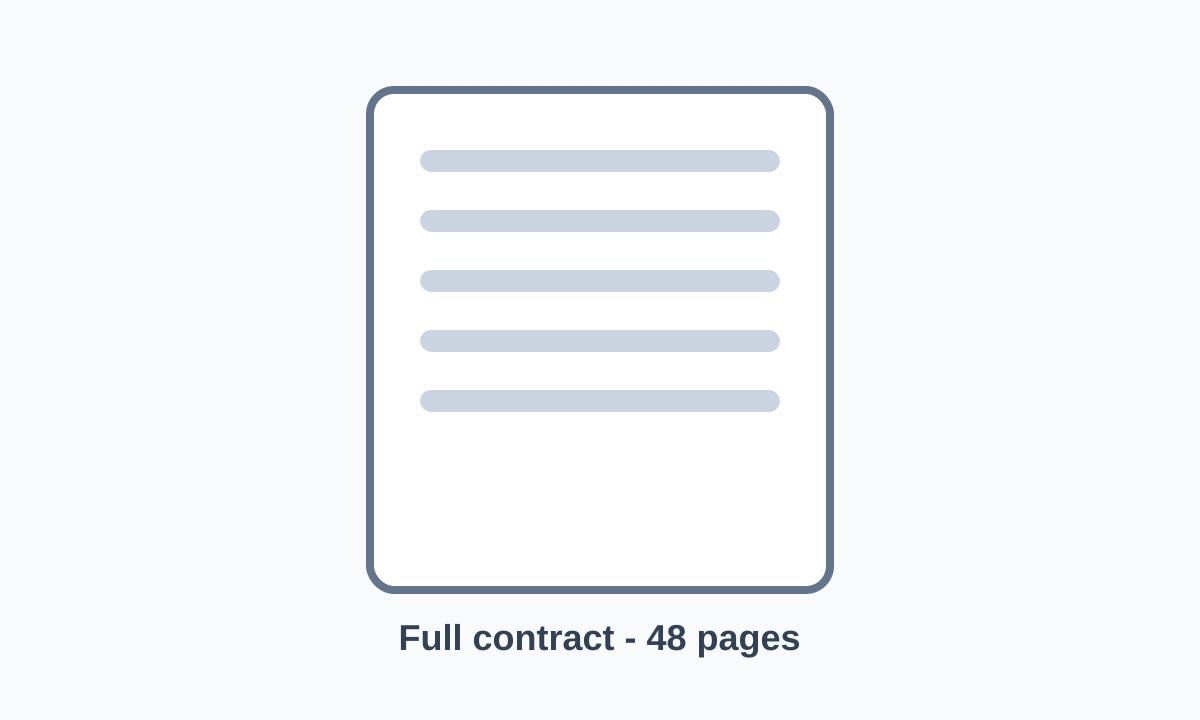
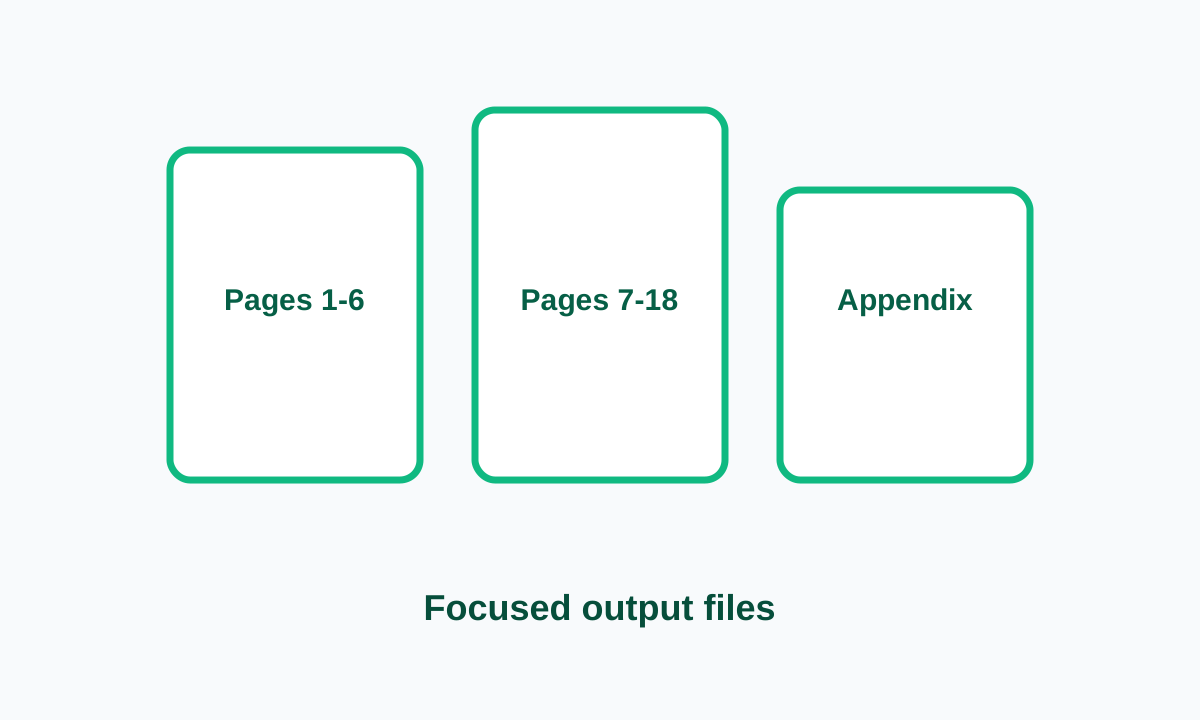
When this is the right tool
Reach for it when one PDF contains more material than the next person or system needs:
- Send only the signed pages of a contract instead of the full packet
- Separate a scanned document into cover, forms, receipts, and appendix files
- Extract selected pages from a report for a client, class, or review thread
- Create one PDF per page for OCR, archiving, print production, or approval
- Keep a large source PDF intact while exporting smaller working copies
How to split a PDF, step by step
Open the Split PDF tool and add your file
Upload a PDF, drag it onto the page, or paste a direct PDF URL when the browser can load it. The tool reads the page count and renders thumbnails so you can check the document before exporting.
Choose a split method
Pick Split by range when each section needs its own file, Extract pages when selected pages should become one PDF, or Split every page when you need a separate file for each page.
Limit the source pages if needed
Use the custom source range when only part of a large PDF matters. This keeps the job smaller and reduces the chance of exporting extra pages.
Set ranges, selected pages, and filenames
For ranges, enter the start and end page for each output and give each file a useful name. For extraction, type page expressions such as 1,3,5-8 or select pages in the preview.
Preview the first output
Open the preview before downloading. Check page order, orientation, accidental overlaps, and whether the first output contains exactly what you expect.
Download the PDF or ZIP
A single extracted result downloads as a PDF. When the split creates multiple files, the tool packages them into one ZIP so the browser does not start many separate downloads.
Split options explained
- Split by range
- Use this for chapters, sections, invoices, appendices, or any continuous page block. Each range becomes a separate PDF, and ranges can overlap if a page belongs in more than one output.
- Extract pages
- Use this when the final file needs pages from different parts of the document. The output is one PDF built from the selected page list.
- Split every page
- Use this for review workflows, OCR tools, asset folders, or record systems that expect one PDF per page. For very large PDFs, narrow the source range first.
- Pages to split
- This controls the source pool. All pages is the normal setting. Custom range is useful when you only want to process a chapter, appendix, or a small part of a long file.
- Output base name and filenames
- The base name is used for the ZIP and for generated filenames. Range filenames help recipients understand each file after the download leaves the tool.
- Grid and list preview
- The grid is better for visual checking. The list is faster when page numbers matter more than thumbnails, especially on long documents.
Practical examples
Contract packet
A 42-page contract includes exhibits, signature pages, and internal notes. Extract pages 12-14 and 39 into one PDF for the finance team, then keep the original packet unchanged.
Scanned office records
A scanner produced one file containing ten receipts and two forms. Split by range so each receipt becomes its own PDF with a filename that matches the vendor or date.
Student handout
A course PDF has reading pages, exercises, and answer keys. Export only pages 5-11 for class discussion without sending the answer key by mistake.
Print or review workflow
A designer needs each page as a separate PDF for approval. Split every page, download the ZIP, and place the files into the production folder.
Tips worth knowing
- Write down page ranges before exporting. For long documents, a small note like 1-3, 8, 12-16 prevents guesswork later.
- Open the source PDF once in a normal viewer if page labels are unusual. Some PDFs show roman numerals or custom labels that differ from physical page numbers.
- Use short, descriptive filenames. chapter-02.pdf is easier to handle than final-final-section-new.pdf.
- Fix sideways scans before splitting. The Rotate PDF tool is faster before you create ten smaller files.
- Keep the original PDF until the recipient confirms the export. The split files are working copies, not a replacement for the source.
A note on browser-based PDF work
The Split PDF workflow is designed for browser-side document handling. That is useful for contracts, records, and school files because the basic split operation does not need a server-side PDF editor. For very large files, use a desktop browser and keep the page open until the download is complete.
Related PDF tools
If a scan is sideways, fix it with Rotate PDF before splitting. After you extract the right sections, use Merge PDF when those sections need to become a new packet. For visual previews or documentation, PDF to Image can export pages as image files.
Frequently asked questions
- Can I split a PDF without installing software?
- Yes. Appkiro's Split PDF tool runs in a modern browser and creates new PDF files from the pages you select.
- What is the difference between splitting by range and extracting pages?
- Splitting by range creates separate files for each continuous range. Extracting pages creates one PDF from the selected pages, even when those pages are not next to each other.
- Will the original PDF be changed?
- No. The tool creates new output files. Keep the original PDF as your reference in case you need to adjust the page ranges and export again.
- Why did I get a ZIP file instead of one PDF?
- When a split produces multiple PDFs, the tool puts them into one ZIP so the download stays organized and your browser does not open many save prompts.
- Can the same page appear in more than one output?
- Yes. Overlapping ranges are allowed, so a cover page or instruction page can appear in more than one output file when that is intentional.
- Does it work with password-protected PDFs?
- Encrypted PDFs need to be unlocked before splitting. Remove the password in a trusted PDF viewer, then upload the unlocked copy.
Ready to split a document?
Open the Split PDF tool and export the exact pages or ranges you need.