
Help · Video Tools
Split a Video Into Clips by Markers, Duration, or Count
Long videos are hard to review, share, and reuse. A webinar, class recording, support capture, or demo often needs to become smaller clips before anyone can work with it comfortably.
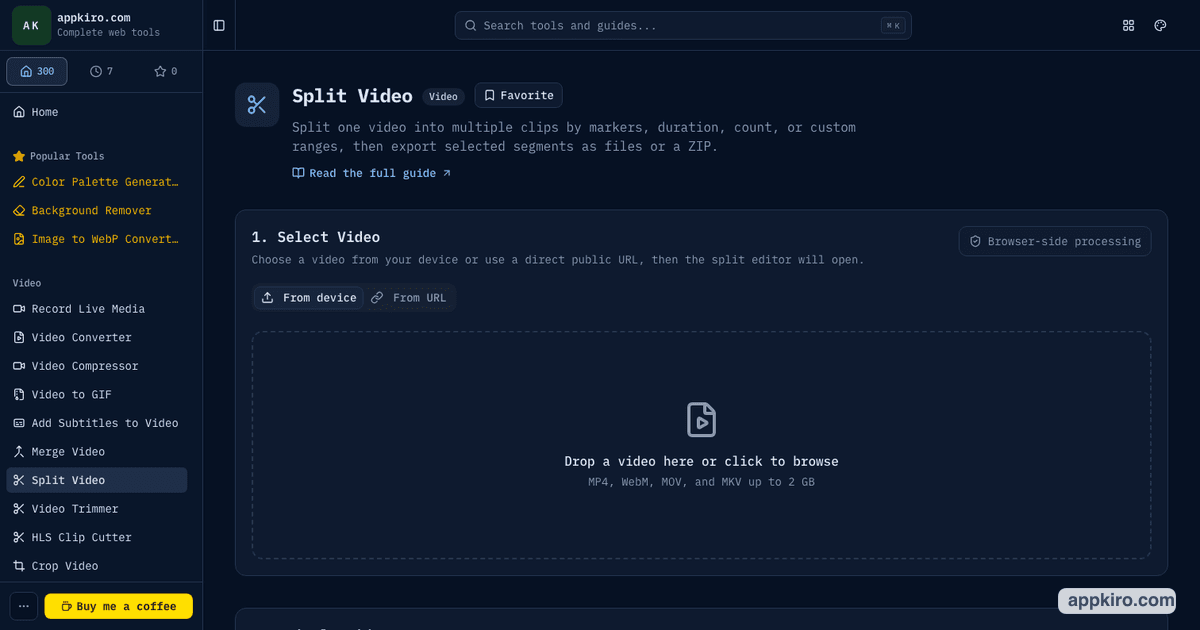
Appkiro's Split Video tool lets you load a video, define clips with markers, exact ranges, duration, or count, then export selected clips one by one or together as a ZIP.
Quick answer
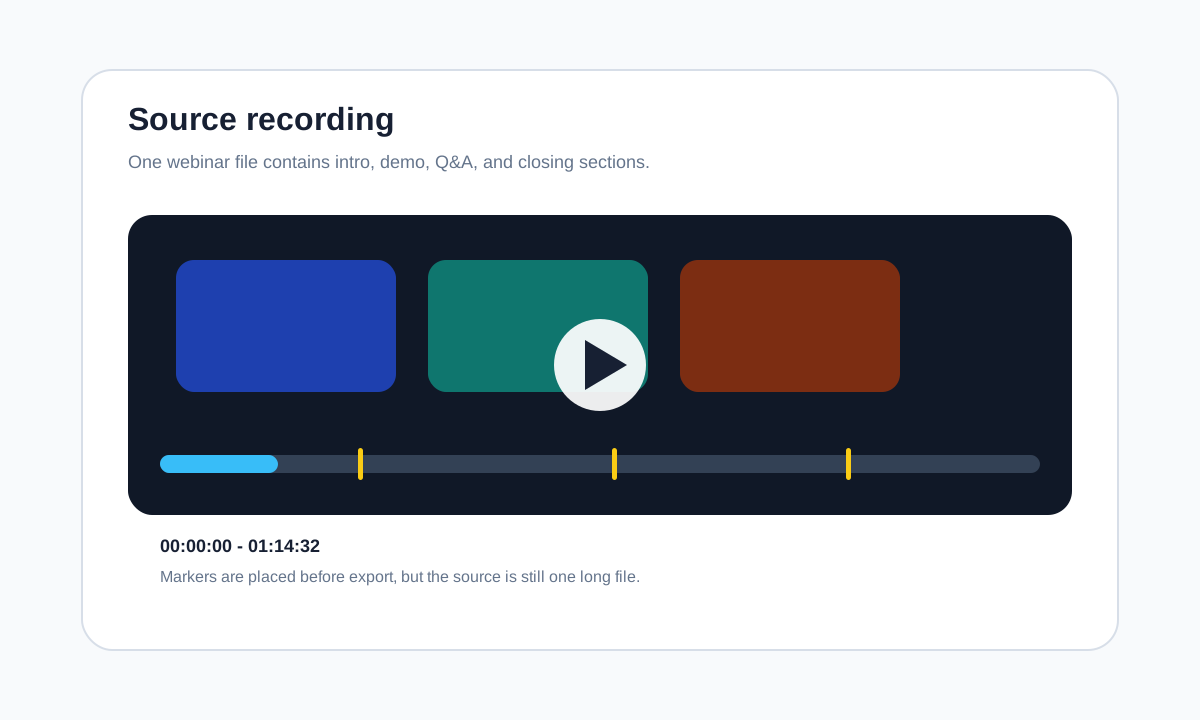
Use Split Video when one source video needs to become several files. Add markers for visual sections, use custom ranges for excerpts, split by duration for fixed-length clips, or split by count for equal parts.
The split editor
What the output looks like
When this is the right tool
Use it when the source is already one video file, but the work downstream needs smaller pieces:
- Break a long webinar, lecture, interview, or screen recording into topic-based clips
- Create equal-length clips for social posting, review batches, or training modules
- Export only selected ranges from a larger source without keeping every segment
- Split a product demo into intro, feature sections, and ending for easier sharing
- Download several clips together as a ZIP instead of managing many separate exports
How to split a video, step by step
Load a video
Upload MP4, WebM, MOV, or MKV from your device, paste a supported video file, or use a direct public URL that allows CORS and Range requests.
Wait for the editor to open
The tool reads duration, resolution, and basic metadata. Once the video exposes a valid duration, the split editor opens with an initial set of segments.
Choose how to split
Use manual markers for visual cut points, custom ranges for hand-picked excerpts, split by duration for fixed-length clips, or split by count for equal parts.
Review and select segments
Click the timeline or segment list to preview each clip. Keep only the selected segments that should be exported, and delete ranges you do not need.
Set export options
Choose MP4, WebM, MKV, or MOV, keep original resolution or downscale, pick quality, and decide whether to mute all clips.
Export clips or ZIP
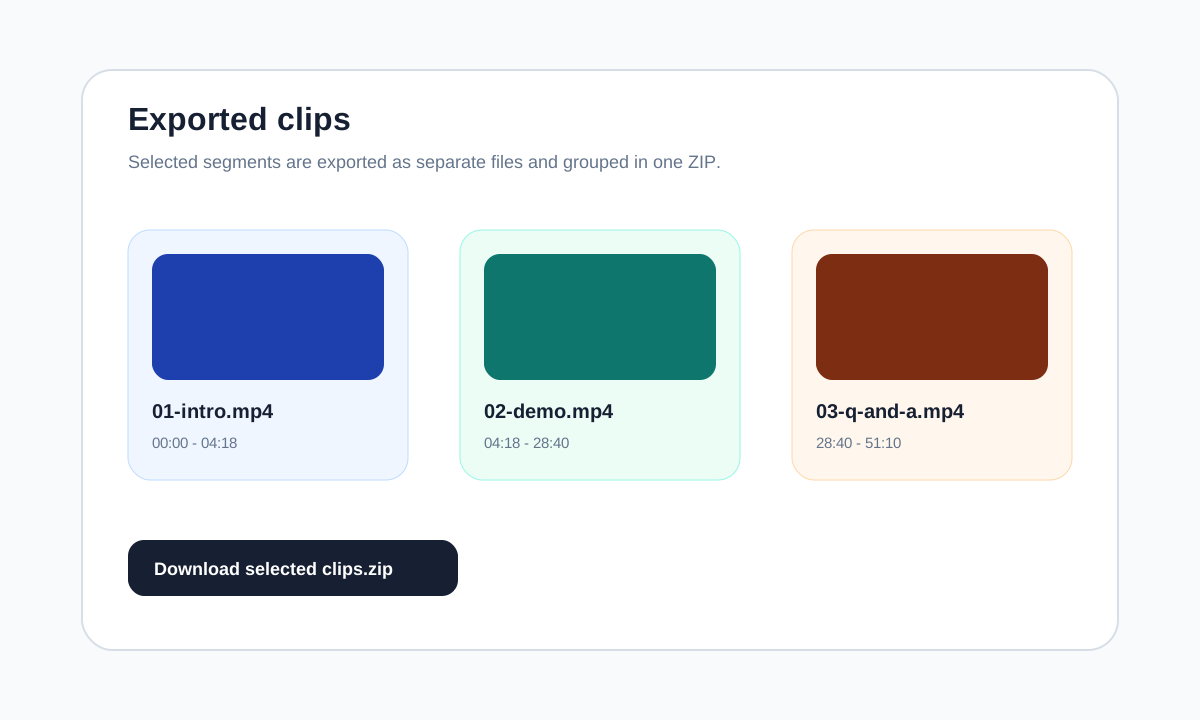
Download one segment from the segment row, or export all selected clips and download the ZIP when batch processing finishes.
Split options explained
- Manual markers
- Use markers when you want to split around visual moments. Add points on the timeline and drag markers to refine where each clip starts and ends.
- Custom ranges
- Use custom ranges when you only need specific excerpts. Enter From and To timecodes, add ranges, then export only the selected clips.
- Split by duration
- Use duration mode for fixed-length clips, such as one-minute lesson chunks or 30-second review samples. You can limit the From/To range first.
- Split by count
- Use count mode when a video should become a set number of equal parts. The tool supports up to 80 clips per split job.
- Format, resolution, and quality
- MP4 is the safest default. Keep original resolution for quality, or downscale to reduce file size. High quality preserves more detail; smaller file prioritizes lighter output.
- Mute all clips
- Mute output when the clips are meant for silent previews, background loops, or visual review. Leave audio on for interviews, lectures, and demos.
Practical examples
Webinar into topic clips
A 45-minute webinar has five useful sections. Add markers at each topic change, select the keeper clips, export all, and download one ZIP for the content team.
Screen recording for support
A bug report video includes setup, reproduction, and unrelated waiting time. Add a custom range around the actual bug and export only that segment.
Training video by duration
A training recording needs five-minute review chunks. Use Split by Duration, set every 300 seconds, and export the selected set as MP4 files.
Social clips from one source
A creator has one longer clip and wants several excerpts. Use manual markers, mute clips if the visual is enough, then compress the exports if upload limits are tight.
Export workflow and limits
The tool exports selected segments. You can download one clip from its row or export all selected clips into a ZIP. The browser still has to decode and write each output, so very long videos, many clips, or high-resolution sources can take time.
If the exported clips are still too large, run the results through Video Compressor before sharing them.
Browser-based processing note
Files selected from your device are handled in the browser. When you use a remote URL, the browser must fetch that video directly from the source host, so the URL needs to be public and allow CORS plus Range requests.
Tips for cleaner clips
- Trim or split only the section you need. Fewer clips export faster and use less browser memory.
- Use MP4 unless a destination specifically asks for WebM, MKV, or MOV.
- Name and select segments deliberately before exporting; the ZIP will include only selected clips.
- Keep original resolution for archive clips, but downscale for chat, tickets, and social previews.
- For very long 4K sources, export a smaller group first to confirm the browser can handle the job.
Related video tools
Use Video Trimmer when you only need one excerpt. Use Merge Video when selected clips should become a new sequence, or Video Converter when the final format needs to change.
Frequently asked questions
- Can I split a video without installing editing software?
- Yes. Split Video runs in the browser and can split supported MP4, WebM, MOV, and MKV files into multiple exported clips.
- What is the difference between markers and custom ranges?
- Markers divide the whole timeline into adjacent sections. Custom ranges let you create independent excerpts, which is better when you only need a few parts of the source.
- How many clips can I create?
- The tool limits a split job to 80 segments. If a duration split would create more than that, use a longer duration or narrow the From/To range.
- Will the original video be changed?
- No. The tool creates new clip files. Your source video remains unchanged, so you can adjust split points and export again.
- Why does a remote video URL fail to load?
- The URL must point directly to a video file and allow browser CORS and Range requests. Some hosting pages, private links, and streaming URLs block browser processing.
- Should I export clips one by one or as a ZIP?
- Use one-by-one export when you only need a single segment. Use Export All Clips and ZIP download when several selected clips belong together.
Ready to create clips?
Open Split Video, load your source file, and export the exact clips you need.