
Help · Video Tools
Add Watermarks and Overlays to Video in Your Browser
A watermark protects or attributes a video. An overlay explains, labels, brands, or decorates what the viewer sees.
Appkiro's Add Watermark to Video and Add Overlay to Video tools let you place text or image layers, control size, opacity, position, rotation, and time range, then export a burned-in MP4 directly in the browser.
Quick answer
Use Add Watermark to Video when the mark is mainly for attribution, ownership, review status, or brand presence. Use Add Overlay to Video when the text or image is part of the content, such as a label, badge, callout, or timed note.
The watermark and overlay workspaces
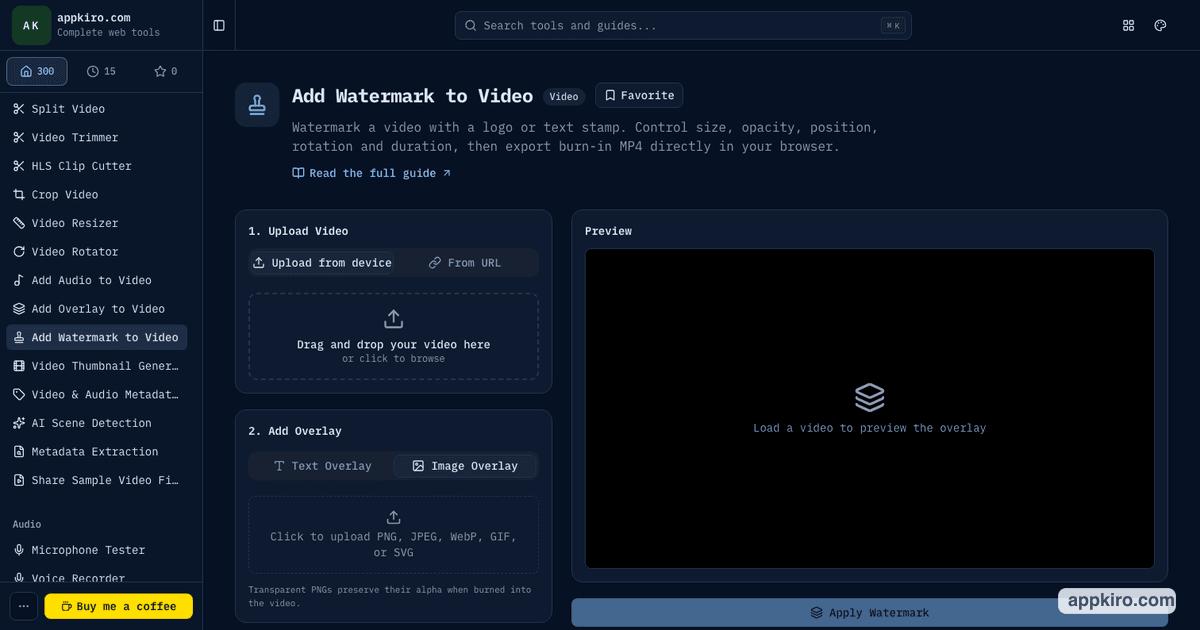
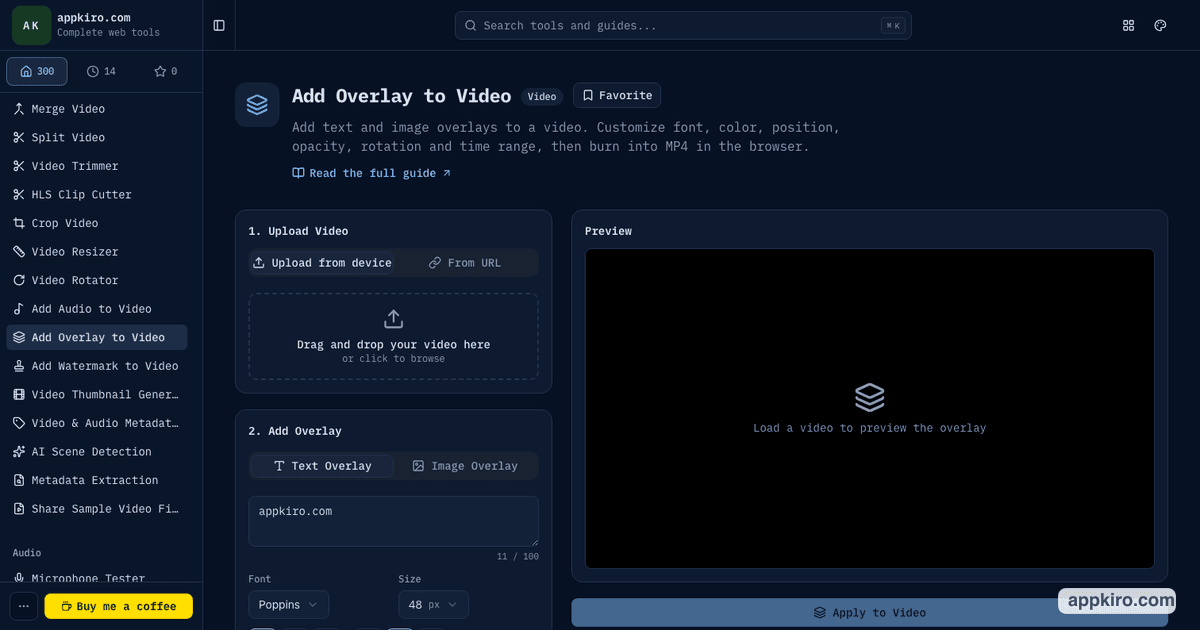
Which tool should you use?
Use Add Watermark to Video for attribution and review copies
Choose it when a logo, channel name, creator tag, client mark, or draft label should stay visible after export. The watermark is burned into the frames, so keep a clean master separately.
Use Add Overlay to Video for text, labels, badges, and callouts
Choose it when the overlay is part of the message: a scene label, promotion badge, timestamp note, instructional callout, or image sticker that should appear in a specific place or time range.
Step-by-step workflow
Load the source video
Upload a video from your device or paste a direct video URL. Check the preview before adding anything so you know the source loaded correctly.
Choose text or image
Use text when you need a quick label, creator name, draft stamp, or callout. Use an image when you have a logo, badge, sticker, transparent PNG, JPEG, WebP, GIF, or SVG asset.
Place it on the frame
Pick an anchor position, then adjust X and Y offsets. Corners work well for watermarks; centered or edge-aligned placement is better for instructional overlays.
Tune size, opacity, and rotation
A watermark usually needs to be visible but not distracting. A label or callout can be larger, clearer, and more deliberate because it is part of the video content.
Limit the time range when needed
Set start and end times when the overlay should appear only during one segment, such as a product name, chapter label, sponsor badge, or review note.
Export and inspect the MP4
Apply the watermark or overlay, wait for browser rendering to finish, then download the burned-in MP4 and watch the first few seconds plus any timed overlay sections.
Settings worth understanding
- Position grid
- The anchor decides where the overlay starts: corner, edge, or center. Use offsets after choosing the anchor instead of dragging by guesswork.
- X and Y offsets
- Offsets are measured as a percentage of the video width and height. For social crops, leave more padding than you would for a desktop player.
- Size
- Small marks around 15 to 25 percent of video width usually work for logos. Text labels may need more size so they stay readable on mobile.
- Opacity
- Lower opacity helps watermarks sit behind the content. Keep instructional overlays more opaque when the viewer must read them quickly.
- Rotation
- A slight rotation can make a draft stamp or review label obvious. Avoid rotation for logos unless the brand style expects it.
- Time range
- Timed overlays keep the video cleaner. Use them for temporary notes, chapter titles, product names, score labels, or short promotional badges.
Practical examples
Protect a review export
Open Add Watermark to Video, use a text watermark such as DRAFT or CLIENT REVIEW, lower opacity, place it in a corner or across the frame, and export a copy that is clearly not the final master.
Brand a social clip
Upload a transparent logo in Add Watermark to Video, place it bottom-right, increase the offset for platform crop safety, keep the opacity visible, then download the MP4 for posting.
Add a product label
Use Add Overlay to Video with text or a small image badge. Set a start and end time so the label appears only while the product is on screen.
Create a tutorial callout
Use Add Overlay to Video for a short instruction, arrow-like label, or image sticker. Position it near the action and keep the background readable against the video.
Browser-based processing note
Files selected from your device are decoded, composed with overlays, and re-encoded in the browser. Export time depends on video length, resolution, codec support, and how much your browser has to render.
Download the result before refreshing or closing the tab. Browser preview URLs are temporary and should not be treated as saved files.
Tips for cleaner exports
- Keep the original video untouched because burned-in marks cannot be removed cleanly later.
- Use transparent PNG logos when possible; they sit on top of video without a visible box.
- Check overlay placement on both desktop and mobile framing before publishing to social platforms.
- Leave more corner padding for vertical, square, or cropped feeds.
- Watch timed overlay sections after export because mistakes often happen at start and end times.
Related video tools
Use Video Resizer before adding a watermark when the final frame needs to be square, vertical, or landscape. Use Video Compressor afterward if the burned-in MP4 is too large to upload.
Video Compressor
Reduce the exported MP4 size after burning in a watermark or overlay.
Video Resizer
Prepare a square, vertical, or landscape frame before placing overlays.
Add Subtitles to Video
Use when the text is dialogue or captioning rather than a design overlay.
Video Converter
Convert the finished file when another app expects a different format.
Frequently asked questions
- What is the difference between a watermark and an overlay?
- A watermark is usually for ownership, attribution, draft status, or reuse protection. An overlay is broader: text, labels, logos, badges, callouts, and images that become part of the video message.
- Can I add both text and image overlays?
- Yes. Use the text mode for typed labels and the image mode for logos, badges, stickers, or other graphic assets. Choose the tool based on whether the job is branding or content annotation.
- Will the watermark or overlay be removable after export?
- No. The tools burn the mark into the exported MP4 frames. Keep a clean source file if you may need a version without the watermark or overlay later.
- Can an overlay appear only during part of the video?
- Yes. Use the time range controls to set when the text or image appears. This is useful for chapter labels, product tags, review notes, and short promotional badges.
- Are videos uploaded to Appkiro?
- Files selected from your device are processed in your browser. Networking is only involved when you choose to load a remote video URL, and that URL must be accessible by the browser.
Ready to mark up a video?
Open the tool that matches the job: watermark for attribution, overlay for labels and callouts.