
Video · Practical guide
How to Add Audio to a Video Without Touching a Desktop Editor
Published · 7 min read
Background music behind a product walkthrough. A voice-over narrating a screen recording. A clean replacement track on top of a noisy phone clip. A short sound effect dropped onto a tutorial. All of those jobs traditionally mean opening Premiere, Resolve, or CapCut, importing the footage, dragging audio onto a second track, and exporting. Appkiro's Add Audio to Video does the same thing in a browser tab, without uploads and without an account.
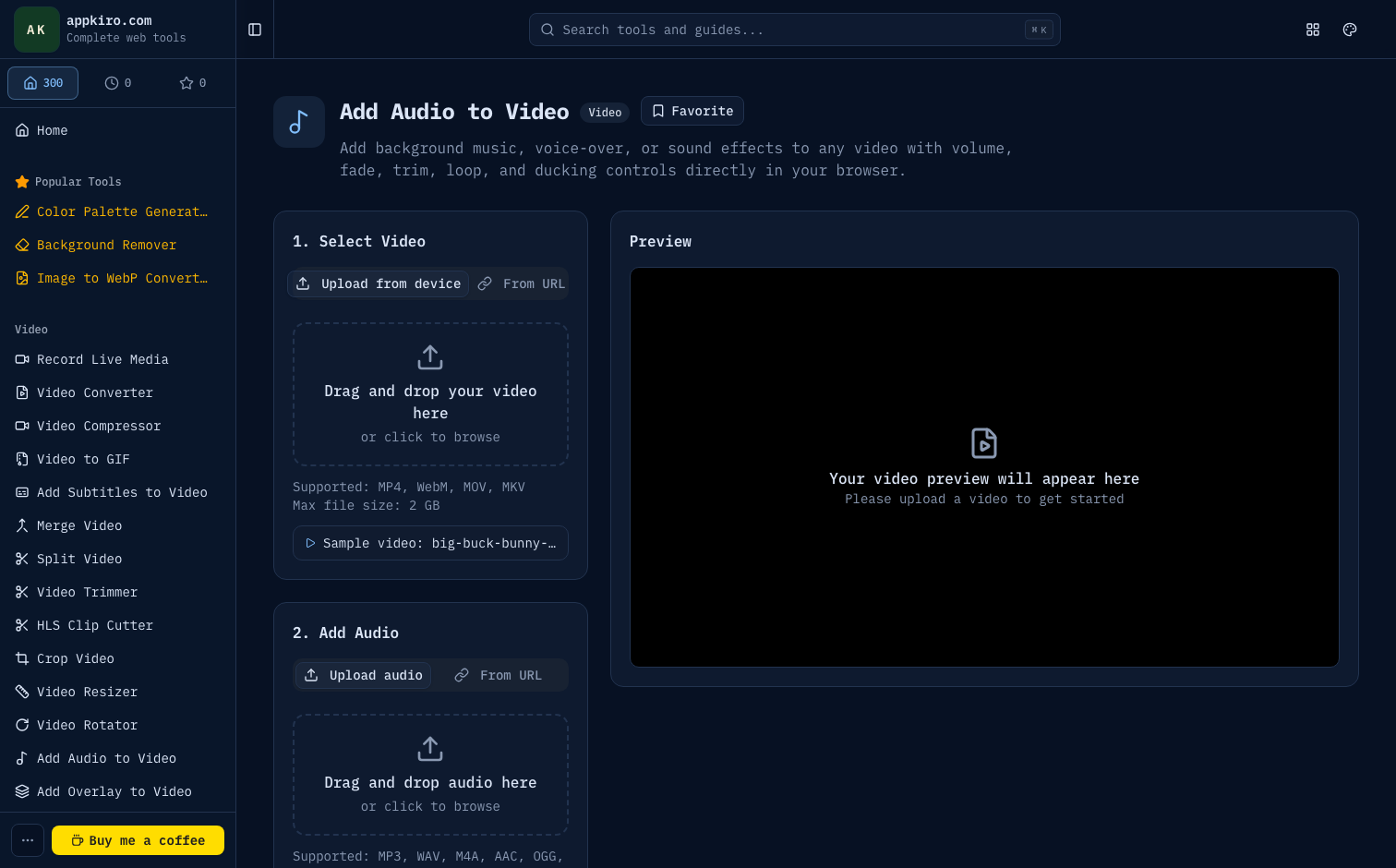
What the tool actually does
The video and the audio are decoded entirely inside the browser. The tool mixes them according to the rules you set — volume, fades, start/end window, looping, and how the original soundtrack should be treated — then re-encodes a fresh MP4 with H.264 video and AAC audio. The source files are never modified and never leave the device. The result is a single download.
On the video side it accepts MP4, WebM, MOV, and MKV up to 2 GB. On the audio side it accepts MP3, WAV, M4A, AAC, OGG, Opus, and FLAC up to 500 MB. Both inputs can come from a local file or a direct public URL — the URL has to be a real media file with CORS and Range support, not a streaming page or sign-in wall.
The three jobs it solves
Most requests to "add audio to a video" collapse into one of three patterns. The tool exposes a single switch for them under Audio track position.
Background music
The original soundtrack stays at full volume and the new audio is layered on top at whatever volume you choose. This is the right mode for product clips, vlogs, gameplay highlights, and anything where the existing dialogue or ambient sound should still be heard. Set the added music to roughly 30–50% so it does not fight the voice.
Replace original
The original soundtrack is dropped entirely and only the new audio plays. Use this when the source has unusable audio (wind, room rumble, a microphone that failed) and you have a clean replacement recording, or when the source was silent to begin with — a screen recording without narration, a stock clip, a slideshow render.
Voice-over
The original soundtrack is ducked to about 30% and the new audio sits on top at full volume. This is the pattern for narration over a screencast, commentary on gameplay footage, or a presenter explaining a recorded demo. The original is still audible enough to provide context — keyboard clicks, app sounds, ambient — without competing with the narration.
The end-to-end workflow
The page is laid out in numbered panels and the order matches the workflow:
- Select Video — drop a file or paste a direct URL. The preview player appears as soon as the file decodes; that is also when the duration is detected and the end time is pre-filled.
- Add Audio — drop the audio file or paste its URL. The audio loads invisibly (no separate player) and the timeline window auto-shrinks to the shorter of the two durations.
- Audio Settings — volume, fade in, fade out, start time, end time. Timestamps accept
HH:MM:SS.mmm,MM:SS.mmm, or plain seconds so you can paste straight from a script or a transcript. - Advanced Options — track position, keep-original switch, normalize, loop-if-shorter.
- Click Add Audio to Video and wait for the encoder.
- Verify the inline preview, then download the MP4.
The processing stages report themselves in plain language — Loading video, Decoding added audio, Mixing audio, Preparing encoders, Encoding audio, Encoding video, Finalizing. If the run is too slow on a big file, you can cancel and try again with a shorter window.
Every option, in plain terms
Volume
Loudness of the added audio relative to its own original level. 100% keeps the source file as-is; 50% halves it. The slider does not change the original soundtrack; for that, use the position selector or turn off Keep original audio.
Fade in & fade out
Linear ramps at the boundaries of the added audio. Half a second of fade is usually enough to stop a pop at the cut; one to two seconds sounds intentional for music. Anything past five seconds is cinematic — keep it tight unless that is the effect you want.
Start time & end time
Define the precise window on the video timeline where the added audio is heard. Outside that window the added audio is silent and the original track plays untouched (subject to the position setting). Use this to drop a sound effect at a specific beat or to run music only over the second half of a clip.
Audio track position
The mix-mode selector. Mapping is straightforward: background mixes both at full volume, replace drops the original, voice-over ducks the original to 30%.
Keep original audio
Master switch for the source soundtrack. Turning it off silences the original regardless of which position you picked. This is the shortest path to "just my new audio on top of this video."
Normalize audio
Scans the final mix, finds the loudest peak, and scales the whole output so the peak sits just under clipping (about −0.5 dBFS). Useful when mixing a quiet narration with louder music, or when the sources have wildly different recording levels. Off by default because it changes the absolute loudness of everything.
Loop audio if shorter
If the added audio is shorter than the start–end window, it repeats seamlessly until the window is filled. Useful for short ambient loops, background grooves, or sound-design beds. Without this option, short audio just stops playing once it ends.
Common scenarios and how to handle them
Add background music to a product demo
Upload the demo recording. Upload a music clip licensed for your use. Set volume to about 35%, fade-in to one second, fade-out to two seconds. Leave position on Add as background so the voice-over in the demo still cuts through. Export.
Replace bad phone audio with a clean re-recording
Upload the phone video and the clean lavalier or USB-mic recording. Switch position to Replace original. Set start time to 00:00:00.000 and end time to the full video duration. If the new audio is slightly off, trim its start time until the lip sync looks right in the preview, then export.
Narrate a screen recording
Record the screen with no narration; record the narration separately with a decent microphone. Upload both, set position to Voice-over, volume around 100% for the narration, and turn on Normalize audio. The screen-recording sounds (clicks, app audio) stay audible at 30% under the narration.
Drop a sound effect at a specific moment
Upload the source video and the short effect (a swoosh, a chime, a stinger). Set start time to the exact timecode of the moment, end time to a couple of seconds after, volume to taste. Leave looping off. The effect plays exactly where you scheduled it and the rest of the clip is untouched.
Loop a short ambient bed under a long clip
Upload the long clip and the short ambient loop (often 10–30 seconds). Set start time to 0 and end time to the full video duration. Turn on Loop audio if shorter. Volume around 25–35%. The loop repeats seamlessly across the whole video.
Tips for clean results
- Pick a music or effect clip in MP3 or AAC when you can — browser decoding is most reliable on those formats.
- Set at least half a second of fade-in for music. Music that starts mid-note sounds like a mistake even when it is intentional.
- For voice-over, record the narration first and write the script against the video, not the other way round. Trying to time pre-recorded narration to a finished cut is much harder than cutting the video to match the audio.
- Use Normalize sparingly. It is a peak-based scaler, not a real loudness normalizer; it fixes "too quiet" or "too hot" but does not match perceived loudness across segments.
- When mixing speech and music, ride the music volume down rather than the speech up. Boosting speech amplifies background noise with it.
What the export produces
The output is a new MP4 with H.264 video and AAC audio when your browser supports them, falling back to the first encodable codec otherwise. The video is re-encoded so the audio mux is clean — there is no pass-through mode that keeps the original video bytes untouched. Resolution and frame rate are preserved as closely as the browser's encoder allows; the bitrate is auto-tiered by resolution (HD or higher gets the high-quality preset, 720p gets medium, anything smaller gets low).
Duration is locked to the source video. If the added audio is longer, the tail is cut. If shorter, it stops naturally or loops (when looping is on). The video timeline is the source of truth.
Where this tool fits with the rest of the toolkit
Adding audio is rarely the only step. A realistic workflow often looks like:
- Capture the screen recording with Record Live Media or import a phone clip.
- Trim or crop the video first with Video Trimmer or Crop Video so the timeline is the final length before you start matching audio.
- Clean the narration with Voice Cleaner and trim it with Audio Trimmer.
- Bring both into Add Audio to Video and export the mixed MP4.
- Optionally compress the final result with Video Compressor before uploading.
Each of those steps runs locally in the same browser. For sensitive material — internal demos, customer recordings, draft content — that is the difference between a workflow you can ship and one you cannot.
Privacy and limits
Local files are decoded, mixed, and re-encoded inside the browser tab. There is no upload, no account, no server-side processing. URL mode fetches the source directly from its origin through your browser; if a URL refuses to load, the host has blocked browser access, not the tool.
File size is capped at 2 GB for video and 500 MB for audio to keep memory predictable. Very large or very long files are bound more by browser memory and codec support than the limit itself — a fresh Chrome or Edge on a recent machine handles a 1080p 10-minute clip comfortably; an older laptop or a less-common codec may not. Try a shorter window or a smaller source if the encoder fails.