
Help · Image Tools
Create App Icons for iOS, Android, Web, and Next.js
One app icon has to survive many contexts: tiny notification slots, home screens, app stores, desktop docks, browser tabs, PWA manifests, and source folders that expect exact filenames.
Appkiro's App Icon Generator gives you one workspace for creating, previewing, sharing, and exporting icon packages from text or an uploaded image.
Quick answer
Use App Icon Generator when you need one source icon to become platform-ready assets for iOS, iPadOS, watchOS, macOS, Android, Web/PWA, and Next.js. Start from text for a fast mark, or upload an image when you already have logo artwork.
The icon workspace
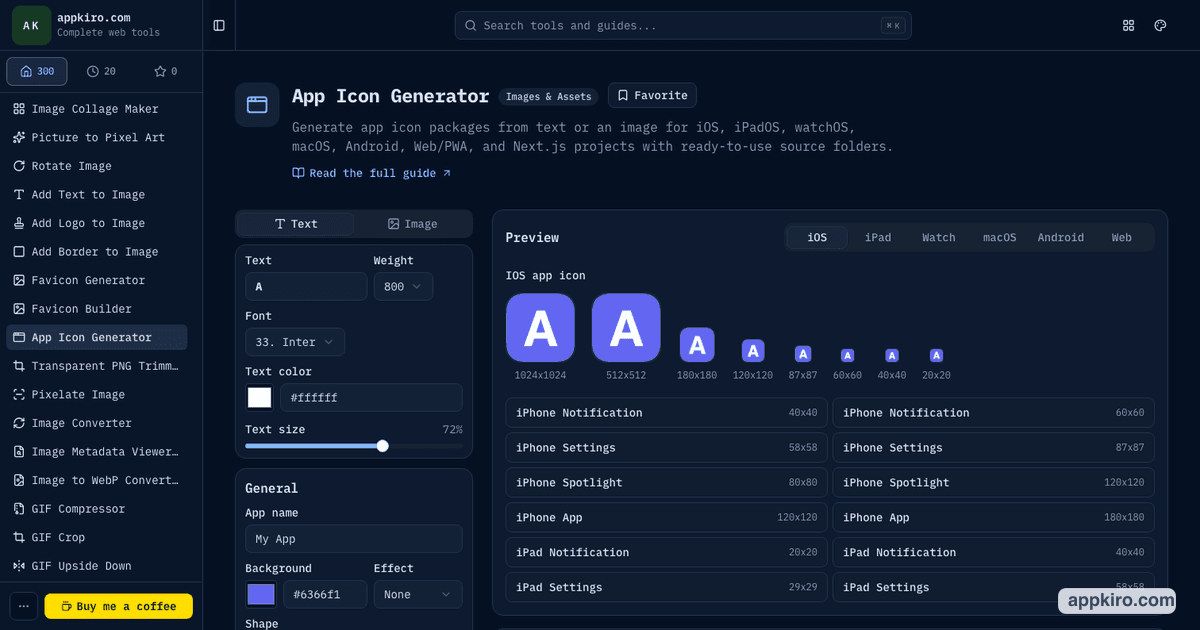
When this tool is useful
- Generate icon assets for iOS, iPadOS, watchOS, macOS, Android, Web/PWA, and Next.js from one source
- Create a quick text-based icon from a letter, initials, or short brand mark
- Turn an existing logo or square artwork into platform-specific icon packages
- Preview how one icon direction behaves across mobile, desktop, watch, and web sizes
- Share icon settings with a designer, developer, stakeholder, or client before exporting
How to create an app icon package
Choose text or image
Use Text when you want a clean letter or initials mark. Use Image when you already have a logo, symbol, or square source artwork.
Set the app name
The app name is used for generated filenames, package labels, and web manifest values, so use the name that should appear in the exported project assets.
Tune the source style
For text icons, choose a font, weight, color, and scale. For image icons, upload a simple centered image and use padding to keep the subject away from the edges.
Adjust shared icon settings
Pick the background color, shape, padding, effect, auto contrast behavior, and transparent web icon option before exporting.
Preview platform targets
Switch between iOS, iPad, Watch, macOS, Android, and Web previews. Small sizes are the most important because detail disappears quickly.
Download the right package
Download all platforms at once, or export only the package you need, such as iOS AppIcon.appiconset, Android mipmap folders, Web/PWA favicons, or Next.js App Router files.
Settings worth understanding
- Text source
- Best for quick initials, simple product marks, internal apps, prototypes, and teams that do not have final artwork yet.
- Image source
- Best when you already have a logo or app symbol. A square 1024x1024 source with a centered subject gives the cleanest export.
- Shape and padding
- Shape controls the visual container. Padding keeps the subject readable at small sizes and prevents important details from touching rounded corners.
- Effects
- Use effects such as gloss, shadow, gradient, inset, duotone, or grain only when they improve recognition. Subtle icons usually scale better.
- Transparent web icon
- Use transparency for web assets only when your site design needs it. Many app store and launcher contexts expect opaque square artwork.
- Share URL
- Share links preserve text-based settings such as font, colors, shape, padding, effect, and preview tab. Local uploaded images are not embedded in the URL.
Practical examples
Internal dashboard app
Create a two-letter text icon, choose a high-contrast background, preview iOS and web sizes, then export Web/PWA and Next.js packages for the frontend.
Mobile app launch
Upload the final square logo, set padding so the mark does not crowd the edges, preview iPhone, iPad, Watch, and Android targets, then download all platform assets.
macOS utility
Start from a simple image mark, keep the background opaque, preview macOS sizes, and download the iconset package for desktop app packaging.
Client review
Build a text or logo-based direction, copy the share link, and ask the reviewer to check the same settings before downloading production assets.
Sharing and handoff
The share menu is useful during review because it stores the current text, font, colors, shape, padding, effect, transparent web option, and selected preview in the URL. For image-based icons, share the source artwork separately because uploaded local files are not embedded into the link.
Tips for cleaner app icons
- Test the icon at small sizes first; a design that works at 1024px can fail at 20px or 32px.
- Use one clear focal point instead of detailed artwork with many small elements.
- Keep strong contrast between the mark and background, especially for text-based icons.
- Avoid putting important details near the corners because many platforms mask icons with rounded shapes.
- Export only the platform package you need when reviewing, then download all assets when the direction is final.
Related icon and image tools
Use Image Resize before generating if the source artwork needs a square export. Use Favicon Builder when the project is web-only and needs favicon, manifest, HTML, and Next.js web assets.
Favicon Builder
Use when the main goal is a complete favicon, manifest, HTML, and Next.js web package.
Favicon Generator
Use when you only need common favicon files from one source image.
Image Resize
Prepare a square source image before generating app icons.
Image Converter
Convert source artwork to PNG or another icon-friendly format.
Frequently asked questions
- Can I make an app icon from text?
- Yes. Use the Text tab to enter a short mark, choose a font and weight, set the text color, and adjust scale before exporting platform icon packages.
- What image size should I upload?
- A simple square image at 1024x1024 pixels or larger is the safest source. Keep the main subject centered and leave space around the edges.
- Which platforms can I export?
- The tool exports packages for iOS, iPadOS, watchOS, macOS, Android, Web/PWA, Next.js, or all platforms together.
- What does the Next.js export include?
- The Next.js package includes App Router-oriented icon files, public icon assets, a web manifest, metadata helper code, and a README for setup.
- Are uploaded images included in share links?
- No. Share links preserve settings such as colors, shape, padding, effect, font, and preview choice. If the setup uses an uploaded image, the recipient should upload the same source image again.
- Should app icons be transparent?
- Usually no for mobile app and store assets. Use transparent web icons only when the website or PWA design specifically needs transparent favicon or manifest artwork.
Ready to generate icons?
Open App Icon Generator, choose a text or image source, preview the platform targets, and download the package you need.